Connect your WhatsApp number
Connect your business WhatsApp to ViveLead in one of two ways: keep using it on the WhatsApp Business app as a Shared Number, or set up a number that works only through ViveLead. Which one fits, every step, and what each label on the number means.
This connects your business WhatsApp number to ViveLead. Messages to the number land in the Inbox and on the lead’s page, a person who is not a lead yet becomes one, and your team replies from ViveLead.
There are two ways to connect, and which one is right depends on where the number lives today. Work that out first. The rest takes about ten minutes.
Before you start
- Plan: WhatsApp is on the Professional plan and above. On a lower plan the card shows Upgrade to connect. AI replies on the number need the Business plan.
- Connect as an admin. A number an admin connects is a company number: admins see its chats, and so does any role with Use Company WhatsApp Numbers ticked under Users, then Roles. A number someone else connects is theirs: they, their team leader and the admins see its chats.
- Facebook: Meta’s window asks you to log in to Facebook. Use the account that manages your business on Meta, or the one you will create the business with.
- The phone: for a Shared Number, keep the phone with the number’s WhatsApp Business app in your hand, and update the app first (Meta needs version 2.24.17 or later). For a new number, the number must be able to receive an SMS or a call.
- AiSensy: if AiSensy is connected on the same page, disconnect it first. Until then Connect stays greyed out.
Two ways to connect
Find your number in the first column:
| Your number today | Pick in ViveLead | What happens |
|---|---|---|
| On the WhatsApp Business app, the green icon with a B | I already use this number on WhatsApp, the Shared Number | It keeps working on the phone, and ViveLead uses it too |
| On regular WhatsApp | First move it to the WhatsApp Business app on the same phone, then I already use this number on WhatsApp | A Shared Number works only with the WhatsApp Business app. WhatsApp moves your chats across with the number; back them up first |
| Not on WhatsApp at all, like a new SIM | Set up a new WhatsApp number | The number works only through ViveLead |
| On the WhatsApp API with another provider | Set up a new WhatsApp number | Ask that provider to turn off two-step verification on the number first |
What changes between the two:
| Shared Number | New number | |
|---|---|---|
| The WhatsApp Business app on the phone | Keeps working, same chats | Not used. The number works only through ViveLead |
| Old chats | The last 6 months come into ViveLead, if you agree on the phone | None. It starts empty |
| Who finishes the setup | You, on the phone, while connecting | ViveLead, by itself, right after you connect |
| Replies typed on the phone | Show in ViveLead, marked Sent from phone | There is no phone app |
| Keeping it connected | Open the WhatsApp Business app at least once every 14 days | Nothing to do |
Most businesses already have their number on the WhatsApp Business app, which is why Shared Number is the recommended option.
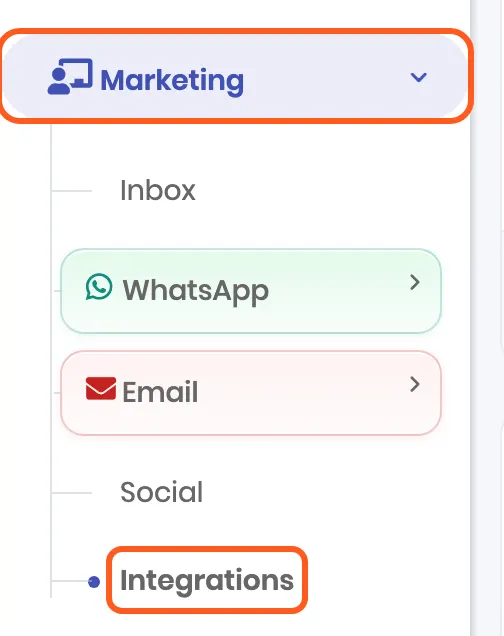
1. Open Integrations and click Connect
In the left sidebar, open Marketing, then Integrations.
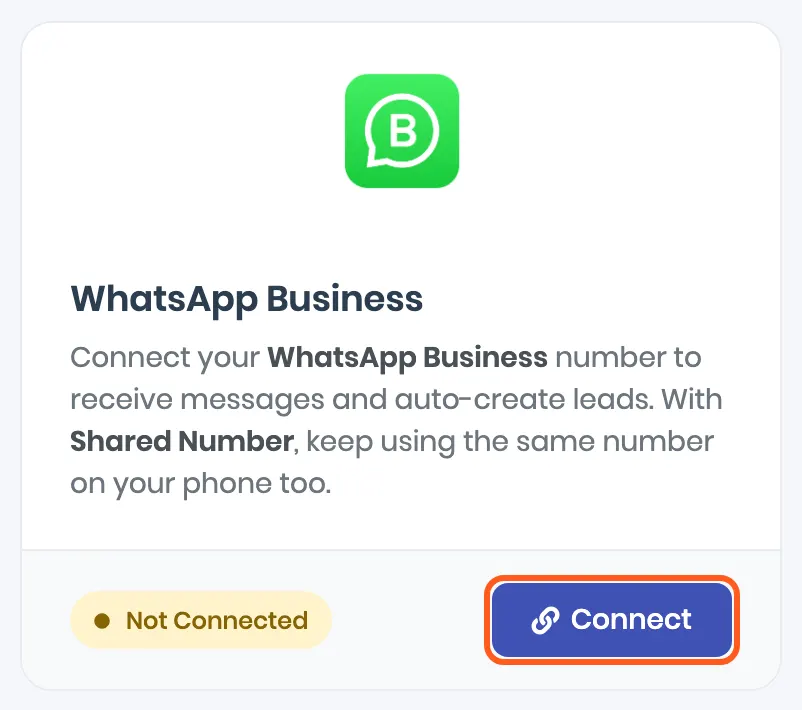
Find the WhatsApp Business card and click Connect. Once a number is connected, the same button reads Add number.
2. Answer the one question
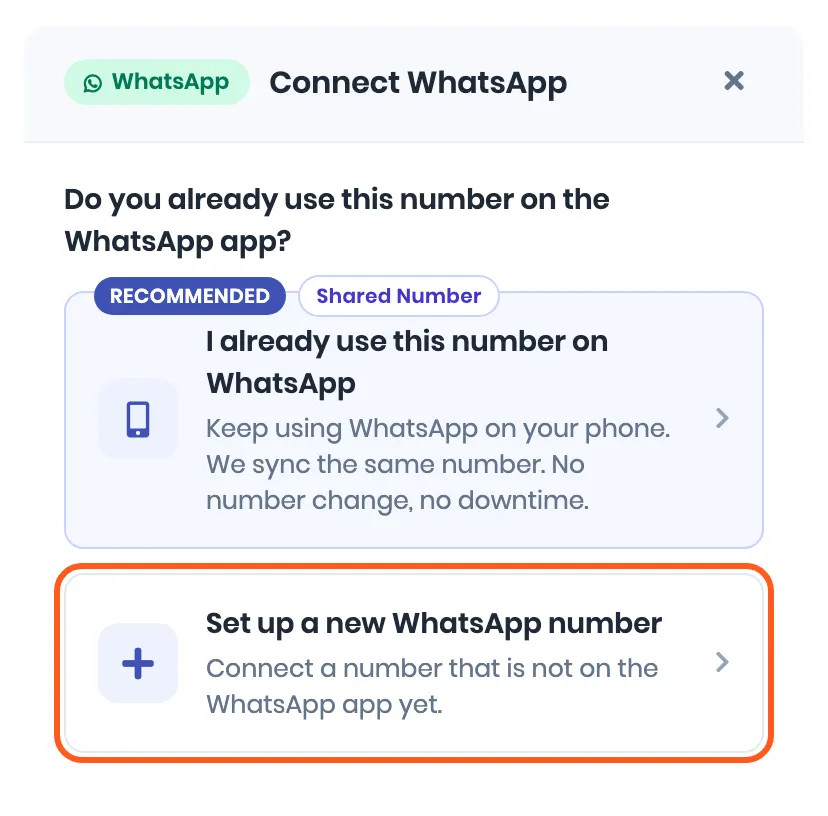
The dialog asks Do you already use this number on the WhatsApp app? Answer from the table above.
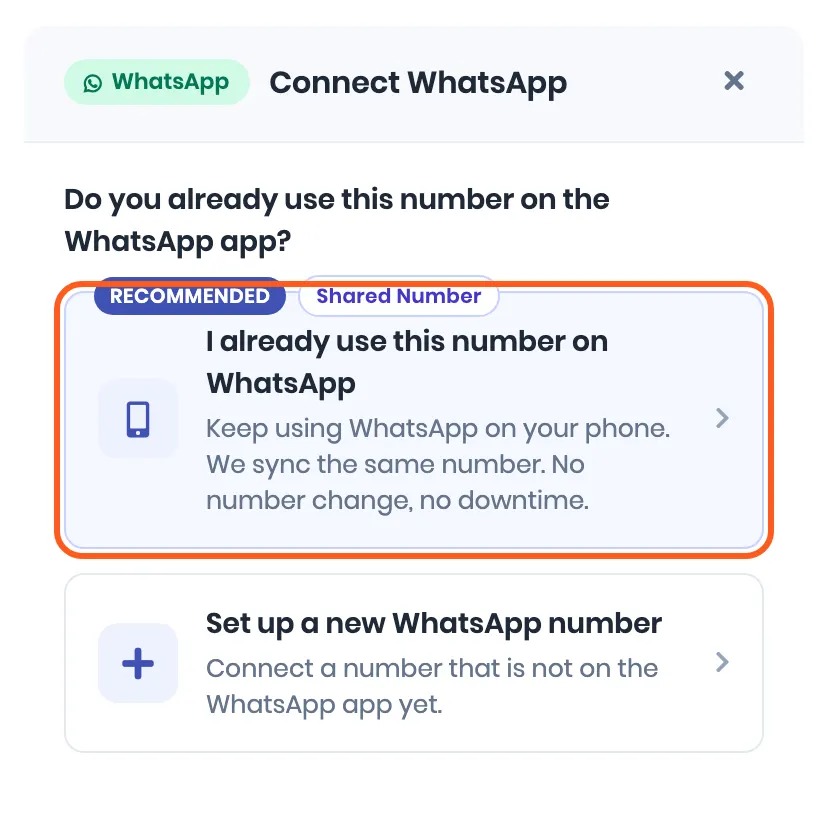
- I already use this number on WhatsApp, marked Recommended and Shared Number: for a number on the WhatsApp Business app.
- Set up a new WhatsApp number: for a number that is not on any WhatsApp app.
On the Business plan the dialog also shows Link with a QR code, under No Meta Business account? That is WhatsApp Web, a different way with its own risk to the number. It has its own guide: Link your WhatsApp with a QR code.
Clicking either of the first two opens Meta’s window. It belongs to Meta, so it looks like Facebook, not ViveLead.
3. Finish in Meta’s window
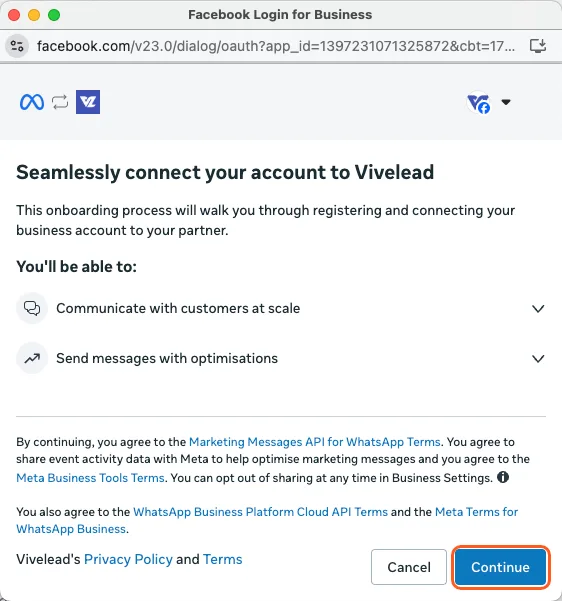
A Facebook window opens over ViveLead. It belongs to Meta, so it looks like Facebook, not ViveLead. If it asks you to log in first, use the Facebook account that manages your business on Meta. Meta changes these screens from time to time, so yours may differ a little.
If you picked Shared Number
Seamlessly connect your account to Vivelead says what comes next. Click Continue.
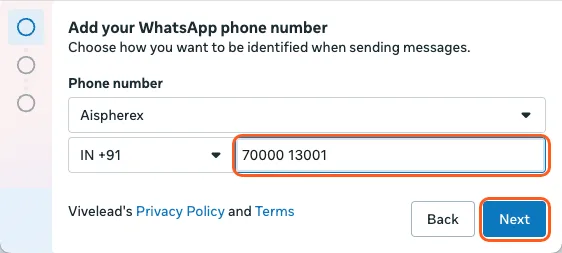
Add your WhatsApp phone number. Pick the country and type the number that is on your WhatsApp Business app. Click Next.
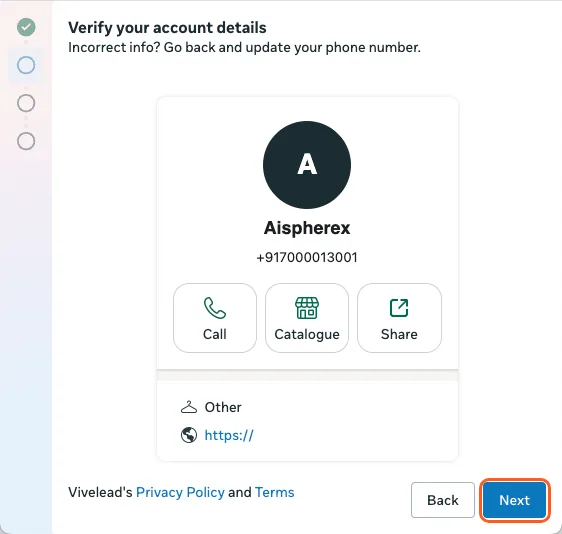
Verify your account details. Meta shows the profile of that number from your WhatsApp Business app: name, number, category and website. If it is not your business, click Back and correct the number. Otherwise click Next.
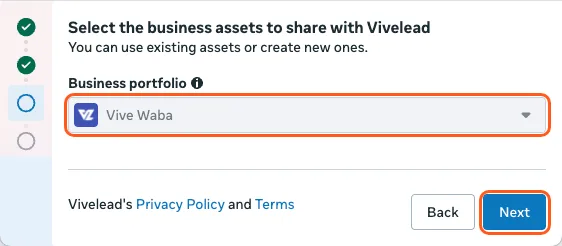
Select the business assets to share with Vivelead. Under Business portfolio, pick your business on Meta, or create one. Click Next.
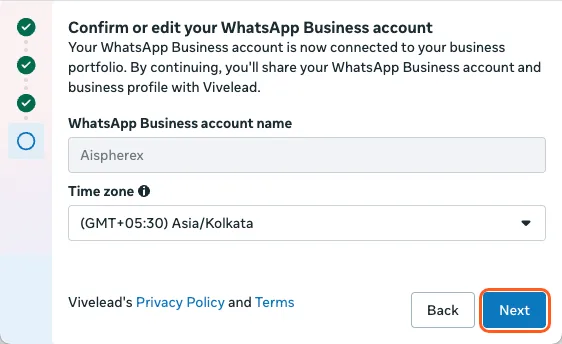
Confirm or edit your WhatsApp Business account. Meta fills in the account name from the app. Check the Time zone, then click Next.
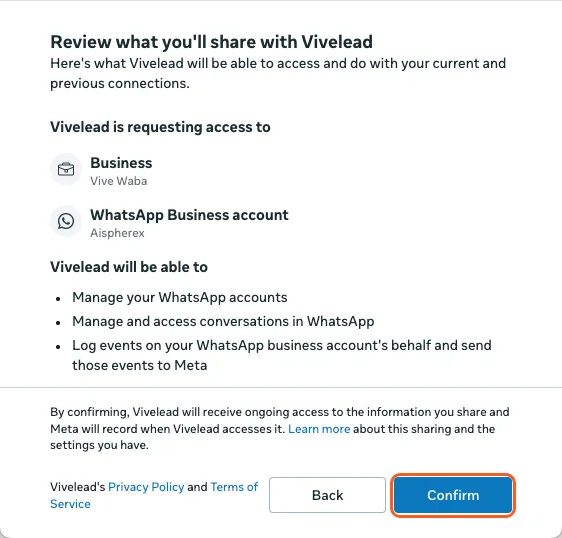
Review what you’ll share with Vivelead. It lists your business and your WhatsApp Business account, and what ViveLead will be able to do with them. Click Confirm.
Finish on the phone. Meta’s window asks you to confirm in the app. On the phone, open WhatsApp Business: a message from Facebook Business asks you to connect. Tap Connect, then Connect to the Business Platform, choose whether to share your chat history, and tap Confirm. When the app asks for a code, enter the one Meta’s window shows. If Meta’s window shows a QR code instead, scan it from the app.
Back at the computer, Meta’s window says you are done. Click Finish.
💡 Meta’s window can hide behind your browser. After the phone step it waits for you to click Finish, and ViveLead shows nothing until you do. If the dashboard looks stuck, look for the Facebook window behind it.
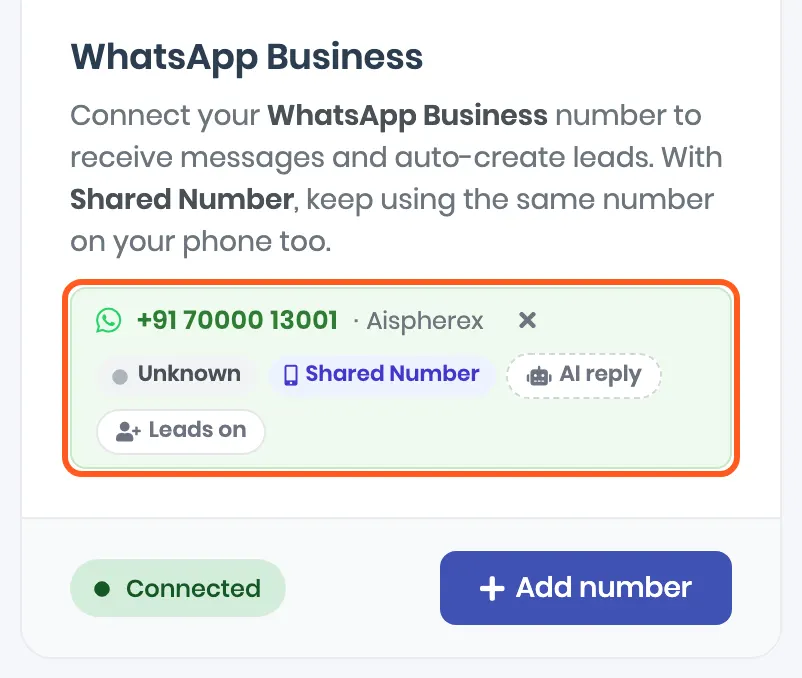
ViveLead then says WhatsApp connected successfully, and the number appears on the card with a Shared Number label.
Old chats. If you chose to share your chat history, ViveLead brings in the last 6 months of one-to-one chats shortly after the number connects. They show in the Inbox as earlier messages. Bringing them in creates no leads and sends nothing. Photos and files older than 14 days come in as a placeholder, and group chats do not come in. If you did not share, threads start from the moment you connected. A person from those old chats who writes again becomes a lead like anyone else.
What changes on the phone. These are Meta’s rules for a number used on the app and on a platform like ViveLead at the same time:
- Your chats, calls, catalog and business profile stay as they are.
- In one-to-one chats, disappearing messages, view once and live location are turned off.
- You cannot create new broadcast lists in the app. Send broadcasts from Marketing, then WhatsApp, then Broadcasts instead.
- Group chats stay on the phone only.
- Open the WhatsApp Business app at least once every 14 days. If the phone does not open it for about 14 days, Meta disconnects the number from the platform, messages stop reaching ViveLead, and you have to connect it again.
If you picked a new number
It starts on the same Continue screen as a Shared Number and ends on the same Review what you’ll share with Vivelead screen. In between, Meta asks for:
Business portfolio: pick your business on Meta, or create one.
WhatsApp Business account: pick one, or create one with your business name.
⚠️ Check this account before you continue. It is the one ViveLead keeps. If you connect again later and pick a different account, ViveLead removes the first one, and the chats under it, from ViveLead. See Add, change or disconnect a number.
The phone number and the display name people will see. Meta reviews the display name, so use your real business name.
A code, sent to the number by text message or phone call. Type it in.
Then click Confirm on the review screen, and Finish.
ViveLead then says WhatsApp connected successfully and finishes the number’s registration with WhatsApp by itself. You are never asked for a 6-digit PIN. That step is ours.
A number that is still on a WhatsApp app cannot be added this way. If Meta’s window says the number is already on WhatsApp, go back and pick Shared Number instead, or delete that number’s WhatsApp account on the phone first.
4. Check the number on the card
A number that is ready shows in green, with no warning next to it.
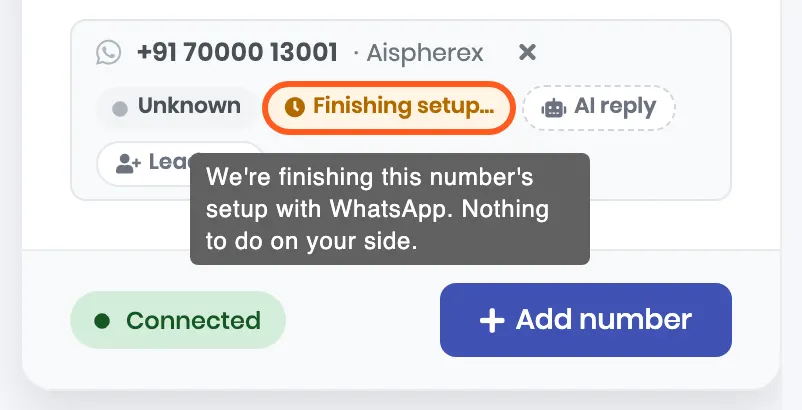
A new number can read Finishing setup… for a while. Hover it to see why.
What each label on the number means:
| On the number | What it means | What to do |
|---|---|---|
| Shared Number | Also live on the WhatsApp Business app on your phone | Nothing |
| Unknown, grey dot | Meta has not rated the number or set its sending limit yet. Normal for a new number | Nothing. It changes to a limit like 1,000 / 24h, with a green, amber or red dot for quality |
| Finishing setup… on a new number | ViveLead is finishing its registration with WhatsApp | Nothing. If it still reads this after an hour, write to us and we finish it from our side |
| Finishing setup… on a Shared Number | The phone step is not finished | Open WhatsApp Business on the phone and finish the steps there. The label clears by itself a few minutes later |
| Can’t send | Meta will not start conversations from this number | See When a number says Can’t send |
| Restricted | Meta has restricted the number over quality or the number of messages sent | It lifts when Meta lifts it. WhatsApp Manager says why |
| AI reply or AI on | The AI auto-reply for this number, off or on | Click to set it up. Business plan |
| Leads on or Leads off | Whether a new person messaging this number becomes a lead | Click to switch. Off still keeps every chat; it only stops new leads |
5. Send a test message
From a different phone, send a WhatsApp message to the number. Within a few seconds:
- The chat shows in Marketing, then Inbox.
- If the sender is not a lead yet, a new lead is made, and its page shows the chat. If they already are a lead, the chat lands on that lead.
- Reply from the Inbox or from the lead’s page. On a Shared Number you can also reply from the phone, and that reply shows in ViveLead marked Sent from phone.
You can reply freely for 24 hours after a person’s last message. After that, and to message someone first, WhatsApp needs an approved template. Templates are under Marketing, then WhatsApp, then Templates.
When a number says Can’t send
Meta can stop a connected number from sending. The card then reads needs attention under the numbers. Click View details to see Meta’s reason in Meta’s own words, and Fix this in WhatsApp Manager to go and fix it.
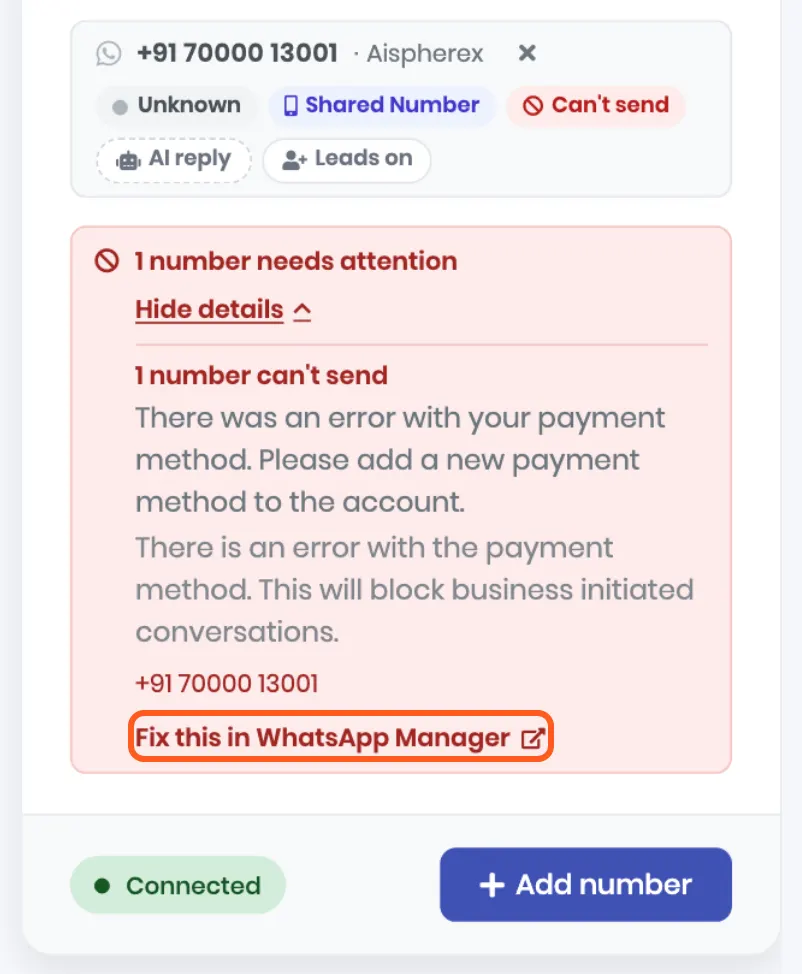
The usual reason is the one above: no working payment method on the WhatsApp Business account. Meta then blocks the conversations you start, such as template messages and broadcasts. Add a payment method in WhatsApp Manager; the link opens it. If the details read has sending limits instead, Meta limits the number rather than blocking it, and says how.
Add, change or disconnect a number
- Another number: click Add number on the card and go through the same steps. For a new number, pick the WhatsApp Business account you already connected, and the number is added next to the first. A Shared Number comes with a WhatsApp Business account of its own, so read the next point before you add a second one.
- A different WhatsApp Business account: if you connect again and end up on a different account, ViveLead replaces the account you connected before. Its numbers come off the card and their chats are deleted from ViveLead. This goes by person: an account another admin connected is not touched. If you are not sure which account is the right one, ask us before you connect.
- Disconnect: click the × next to the number and confirm. Messages stop reaching ViveLead and the number leaves the card. Messages already in ViveLead are kept. A Shared Number keeps working in the WhatsApp Business app. To unlink it from Meta’s platform as well, open the app and go to Settings, then Account, then Business Platform, then Disconnect Account.
If it does not work
| What you see | Why | What to do |
|---|---|---|
| Upgrade to connect on the card | Your plan does not include WhatsApp | It is on the Professional plan and above |
| Connect is greyed out, and hovering says Disconnect AiSensy first | AiSensy is connected | Disconnect AiSensy on the same page |
| Clicking an option opens nothing | The browser blocked Meta’s window | Allow pop-ups for dashboard.vivelead.com and click again |
| WhatsApp signup was cancelled, or was closed at the “…” step | Meta’s window closed before Finish | Click Connect again and go through to Finish |
| WhatsApp signup stopped: followed by Meta’s message | Meta refused a step | The message is Meta’s own and says what to change |
| Failed to connect WhatsApp. Please try again. | The hand-over from Meta to ViveLead timed out | Click Connect again |
| Nothing happens after the phone step | Meta’s window is waiting behind your browser | Find the Facebook window and click Finish |
| This WhatsApp Business Account is already connected to another workspace | That account is connected to a different ViveLead account | Disconnect it there, or pick another account |
| Meta’s window says the number is already on WhatsApp | You picked the new-number way for a number on a WhatsApp app | Pick Shared Number instead, or delete that number’s WhatsApp account on the phone |
| Finishing setup… does not clear | See the table in step 4 | Shared Number: finish on the phone. New number: write to us after an hour |
| Can’t send | Meta is blocking the number | View details, then Fix this in WhatsApp Manager |
| Messages arrive, but no lead is made | The number reads Leads off, or the sender is already a lead | Click Leads off to turn it back on |
| A Shared Number stopped getting messages | The WhatsApp Business app was not opened for about 14 days | Open the app, then connect the number again |
Quick answers
- Will my number change? No. Both ways use the number you type.
- Do I need a new SIM? No. Use the number you have as a Shared Number. A new SIM is only for when you want a separate number that lives in ViveLead.
- Can I keep using WhatsApp on my phone? Yes, with a Shared Number. With a new number there is no app; your team uses it through ViveLead.
- Will I be asked for a PIN? No. If WhatsApp needs a registration PIN, ViveLead sets it.
- Do my old chats come in? With a Shared Number, the last 6 months, if you agreed on the phone. With a new number there are none to bring.
- Can I connect more than one number? Yes, with Add number. Read Add, change or disconnect a number first: each Shared Number comes with a WhatsApp Business account of its own.
Related
- Set up the WhatsApp AI assistant to answer new leads on this number in seconds.
- Reply when a lead taps a WhatsApp button
- Add your team and set what they can see
- Onboarding and free data migration covers what our team sets up with you on the kickoff call.
- WhatsApp CRM: what ViveLead does with the number once it is connected.
Still stuck on this step?
Send us what you are seeing and we will sort it out with you.