Export your leads with their calls, notes and follow-ups
Download your leads as a CSV with an Activity Timeline column: every call, note, follow-up, stage change and message on each lead, one line each, in the order they happened.
This downloads your leads as a CSV file you can open in Excel or Google Sheets. Tick Activity Timeline and each lead’s row also carries its history: who called, what was noted, when the follow-up is due and how the stage moved.
The screenshots follow one example: a builder’s team with 6 leads and two sales reps, Priya Sharma and Aarav Mehta.
Before you start
- Who can do it: anyone whose role has Export leads. Without it, the download button in step 1 is not there. An admin ticks it under Users, then Roles.
- Plan: export is on every plan.
- Where: the web dashboard. The mobile app has no export.
1. Pick the leads
Open Leads. The export follows what the list is showing:
- No rows ticked: every lead that matches your current search and filters, across all pages.
- Some rows ticked: only those leads.
Then click the download button at the right end of the toolbar.
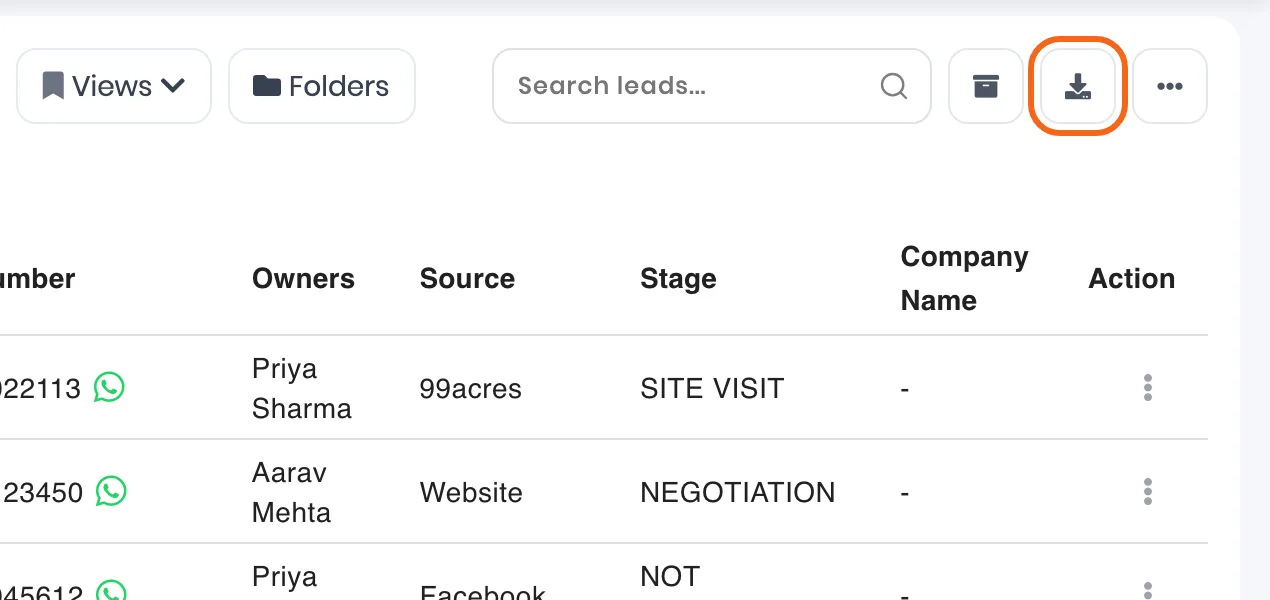
✅ Done when the Export to CSV panel opens and its first line says how many leads it will download, like All 6 leads.
2. Tick Activity Timeline and choose the activities
Fields to export lists your lead fields in the order of your table columns. Tick the ones you want as columns in the file. Activity Timeline is at the bottom of the list.
Tick Activity Timeline. A second list opens under it, Activities in the timeline, and only the activities ticked there go into the file.
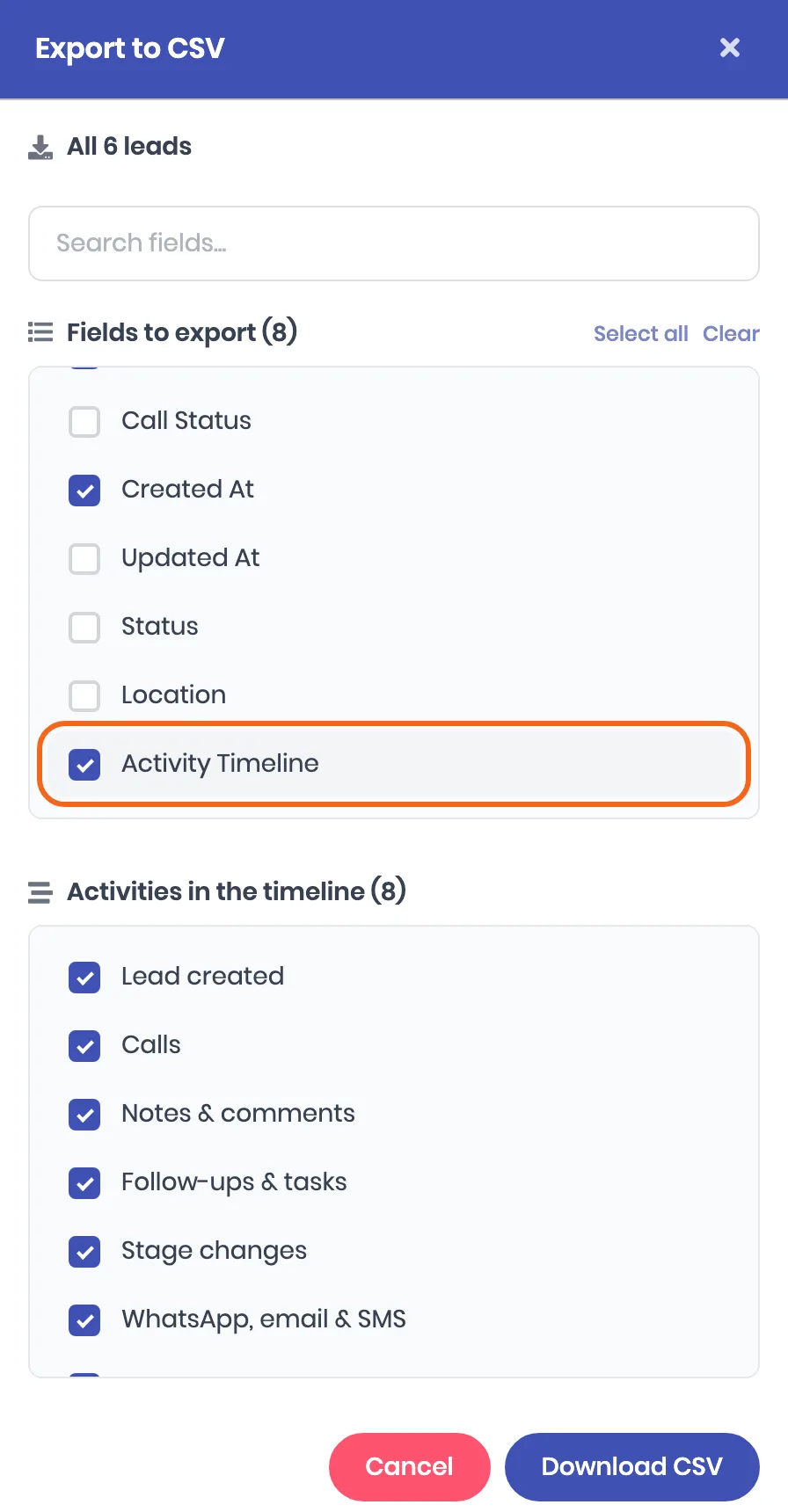
What each choice brings in:
| Choice | What goes in | Ticked to start |
|---|---|---|
| Lead created | When the lead came in, and from where | Yes |
| Calls | Each call with its direction, result and length, and AI call summaries | Yes |
| Notes & comments | The text of each note and comment | Yes |
| Follow-ups & tasks | Each follow-up with its comment and due time, and tasks | Yes |
| Stage changes | The stage it moved from and to | Yes |
| WhatsApp, email & SMS | Messages your team sent | Yes |
| Meetings & appointments | Meetings, and appointments booked, changed or cancelled | Yes |
| Deals | A deal created from the lead | Yes |
| Email opens & clicks | When the lead opened or clicked a campaign email | No |
| Assignment & SLA | Who the lead was assigned to, and missed response times | No |
| Lead edits | Every edit to the lead’s fields | No |
| Repeat enquiries & re-imports | The same person enquiring again, or found again in an import | No |
| Automation runs | Each automation that ran on the lead | No |
The last five are off to start because ViveLead writes them on its own and a busy lead has many. Tick them only when you need them.
Click Download CSV. The file downloads as all-Leads-details.csv. A large list takes a while: the button shows how many leads are done so far.
💡 Your choices are kept. The next export from the same browser opens with the same fields and activities ticked.
3. Read the timeline in the file
Each lead stays on one row. Its Activity Timeline cell holds one line per activity, oldest first:
[date and time] Activity by Who: details
Activities ViveLead wrote on its own, like a lead arriving from a form, say by System. A lead with no activities of the kinds you picked has an empty cell.
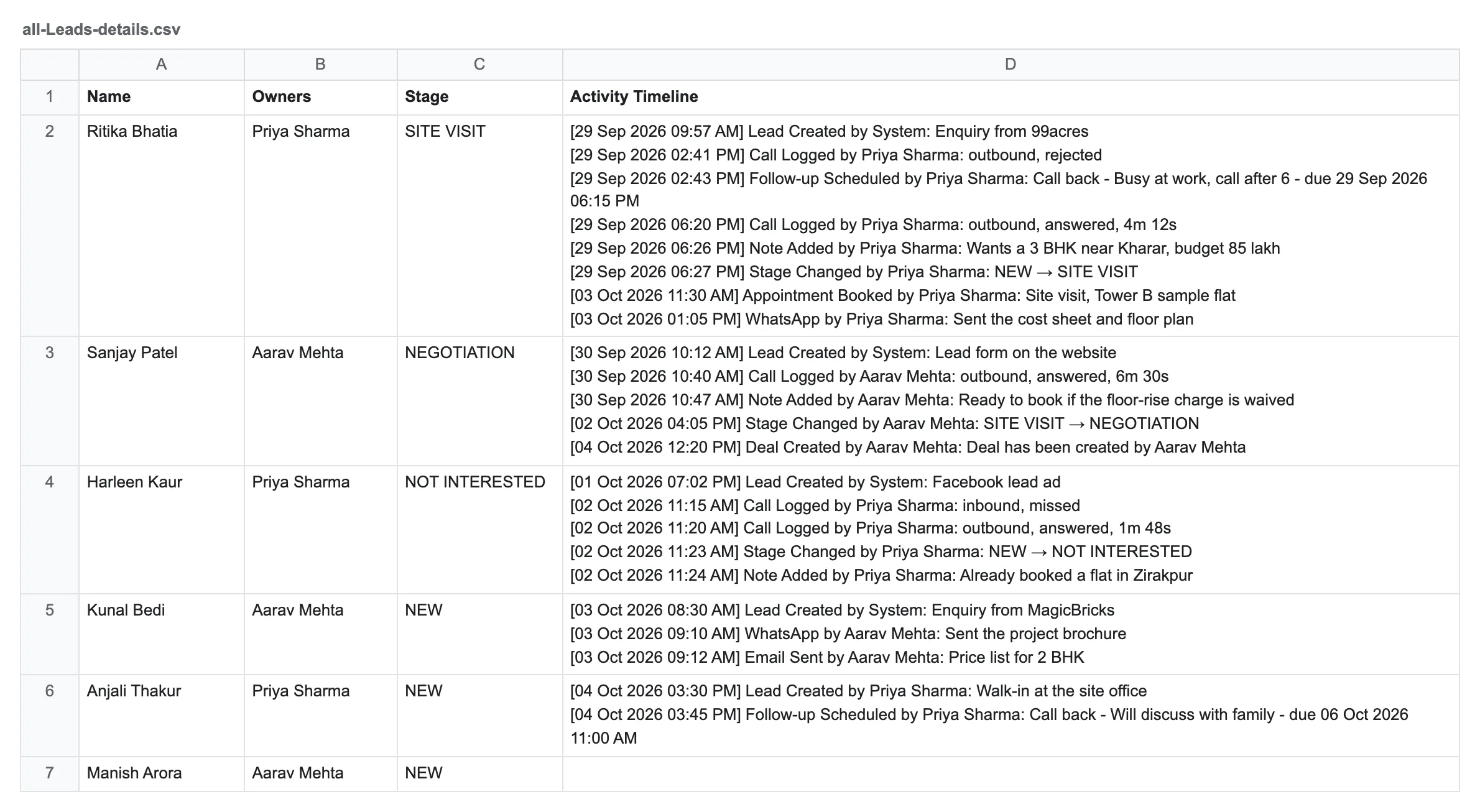
⚠️ The cell shows only one line? The other lines are in the cell already. In Excel, select the Activity Timeline column and click Wrap Text on the Home tab. In Google Sheets, select it and choose Format, then Wrapping, then Wrap.
✅ Done when the file opens with one row per lead and the timeline cells read like the lead’s Timelines tab.
Good to know
- Times are in your computer’s time zone, the same as the Created At column.
- One cell holds up to 32,767 characters, the most Excel allows. A lead with a longer history keeps its latest activities, and the cell starts with a line like (12 earlier activities not shown). The lead’s Timelines tab still has all of it.
- Recordings, files and full WhatsApp conversations are not in the file. They stay on the lead’s page.
Related
Still stuck on this step?
Send us what you are seeing and we will sort it out with you.