Import your leads from a CSV or Excel file
Bring a lead list from Excel, Google Sheets or another CRM into ViveLead: add the fields your sheet needs in Forms Desk, match each column on the mapping screen, check the preview, and find the leads afterwards.
This brings an existing lead list into ViveLead in one upload. Your sheet does not have to look like ours: on the mapping screen you say what each column is, and nothing is saved until you press Import.
The screenshots follow one example, a builder’s enquiry sheet with 8 leads and 10 columns: S.No, Customer Name, Phone Number, Email, Property Type, Preferred Location, Source, Lead Owner, Lead Date and Comments.
Before you start
- Who can do it: anyone whose role has the Lead Create Bulk permission. If Bulk upload CSV is missing from the menu in step 3, ask your admin to tick it under Users, then Roles.
- Plan: import is on every plan.
- File:
.csv,.xlsx,.xls,.ods,.tsv,.txt,.xlsmor.xlsb, up to 50 MB. Only the first sheet is read. From Google Sheets, use File, then Download, then Microsoft Excel (.xlsx). - Each lead needs a phone number or an email. The import will not start until one column is matched to one of them.
1. Get the sheet ready
The first row of the sheet is read as the column names. Every row under it becomes one lead, so delete totals, notes and blank-looking rows at the bottom first.
- Phone numbers: numbers from your own country work as they are, with or without the country code and spaces. A number from another country needs its
+and country code, like+971 50 123 4567. - Two numbers in one cell: the mobile becomes the lead’s phone and the rest are kept on the lead under Other Numbers, so nothing is lost.
- Owner: the user’s name exactly as it is in ViveLead, or their email.
- Dates: day first, like
14/09/2026, or2026-09-14.03/06/2026is read as 3 June, not 6 March. The lead keeps that date as its created date. - Source and Stage: write them the way your lead form lists them, like
WebsiteorHOT. A value that is not on the list still imports as written, but it is not one of the choices your team picks from later. With no Stage column, leads come in at NEW.
💡 Starting from a blank sheet? Download Sample on the upload screen gives you a CSV with your lead form’s fields as the column names. You do not need it for a sheet you already have.
2. Add the fields your sheet needs, in Forms Desk
Do this when your sheet has columns ViveLead does not have yet, like Property Type, Budget or Course. You can also create a field from the import itself in step 4, but Forms Desk gives you more control: you pick the type, type the dropdown choices yourself, and decide where the field shows.
Open Controls, then Forms Desk. Lead Form is selected at the top. Click Add Field and pick a type.
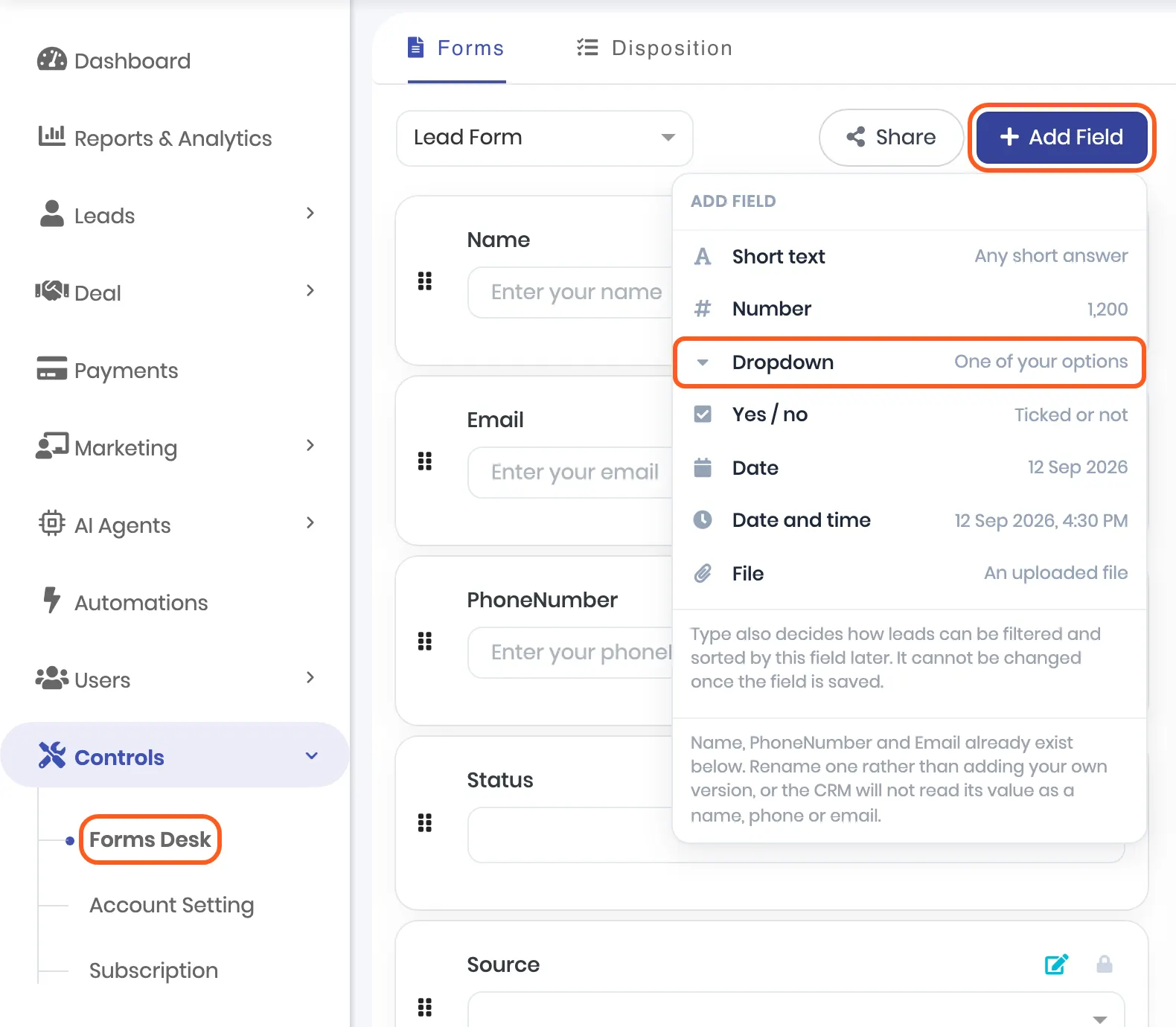
Pick the type by what the column holds. The type also decides how leads can be filtered and sorted by this field, and it cannot be changed after you save.
| Your column holds | Pick |
|---|---|
| One of a few fixed choices, like 2 BHK, 3 BHK, Plot | Dropdown |
| An amount or a count | Number |
| A date | Date |
| Yes or no | Yes / no |
| Anything else | Short text |
Under Field Name, type the column’s name exactly as it is in your sheet, so step 4 matches it for you. For a dropdown, type each choice under Options and press Enter. Keep Show on team form ticked so your team can fill it on new leads too. Then click Save.
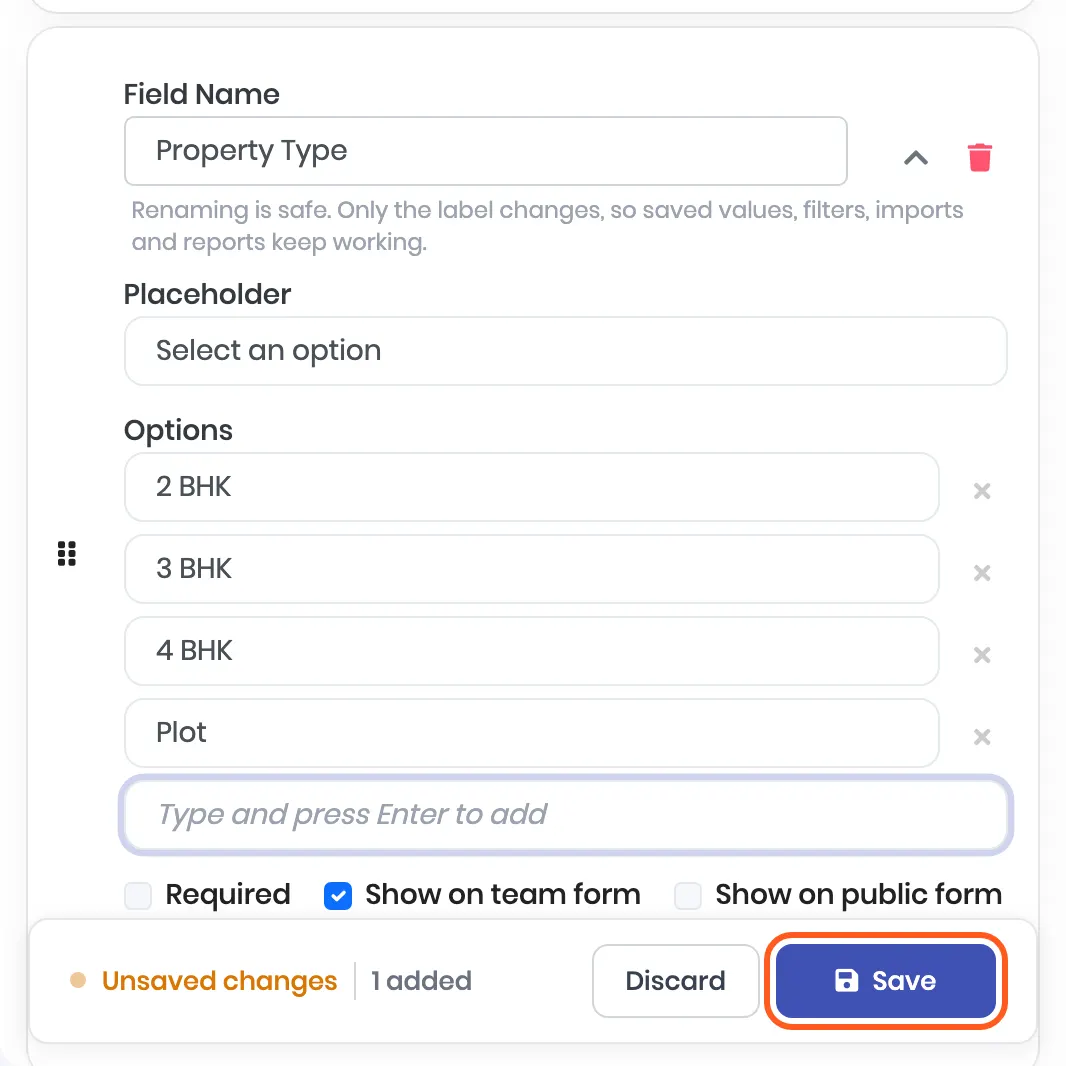
✅ Done when Save shows Updated successfully and the field appears in the Lead Form Preview on the right.
The same editor adds choices to a dropdown you already have. If your sheet’s sources include 99acres or MagicBricks, click the pencil on Source, add them under Options, and save before you import.
⚠️ Do not add your own Name, Phone or Email field. Those exist already. Rename one if you want different wording. A phone number kept in a field of your own is not called, messaged or checked for duplicates.
3. Upload the file
Open Leads. Click ⋯ (More actions) at the right end of the toolbar, then Bulk upload CSV under Import. An empty lead list also has an Import a list button that opens the same screen.
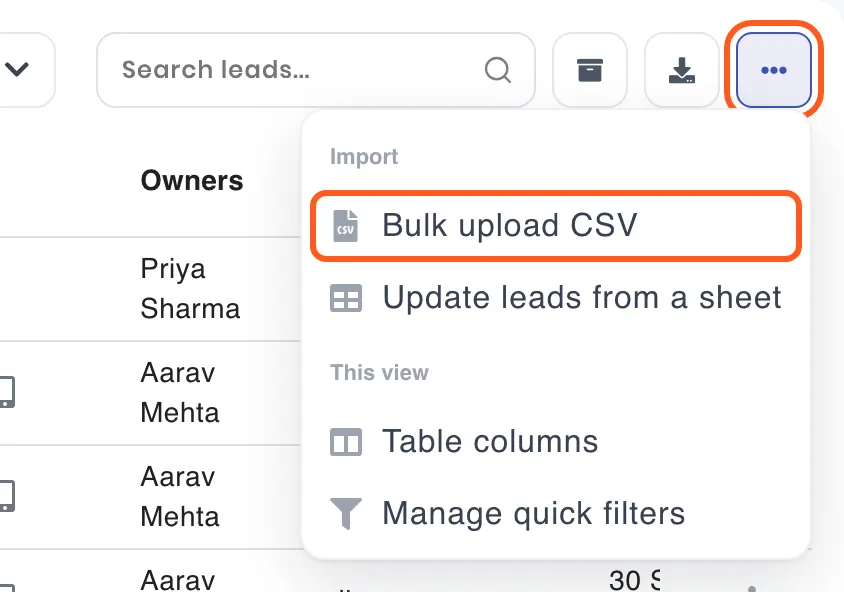
Click Upload File and choose your file.
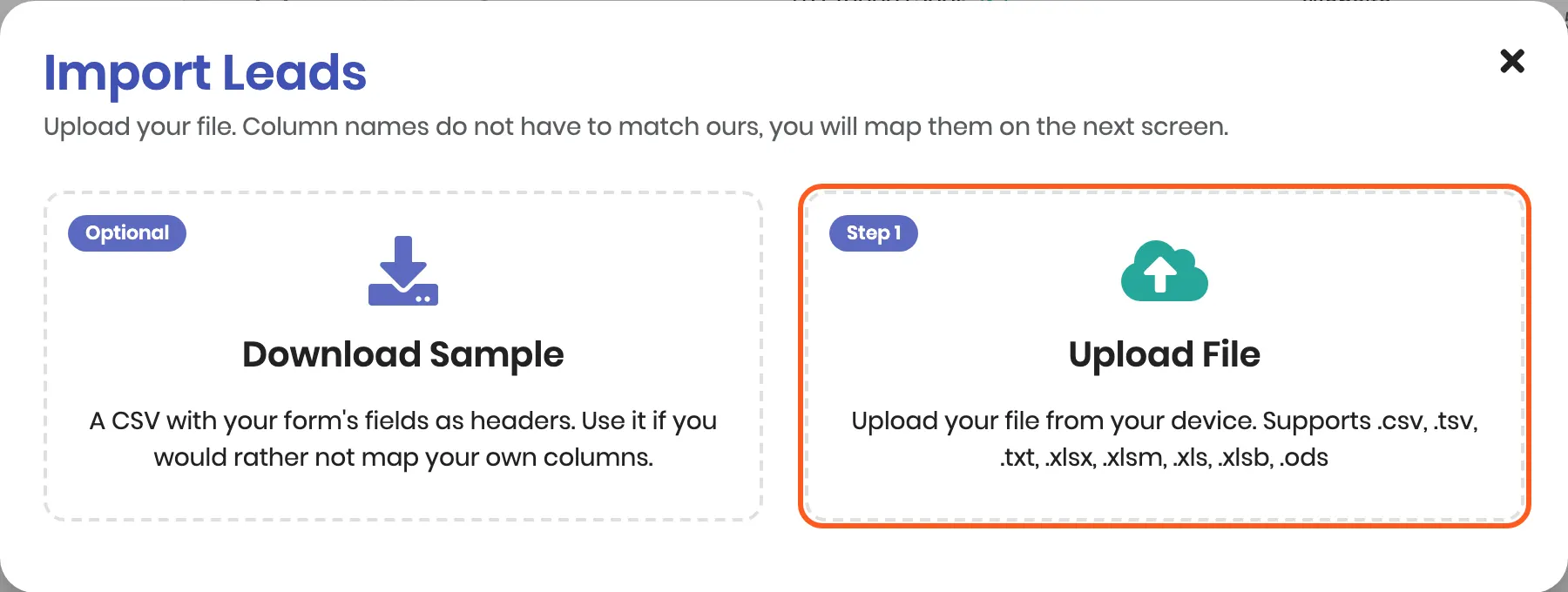
✅ Done when the next screen names your file with its rows and columns, like mohali-site-enquiries.xlsx · 8 rows · 10 columns.
4. Match each column
Every column in your file gets a row: Your column is its name, First row is the value from your first lead so you can recognise it, and Import into is where it goes.
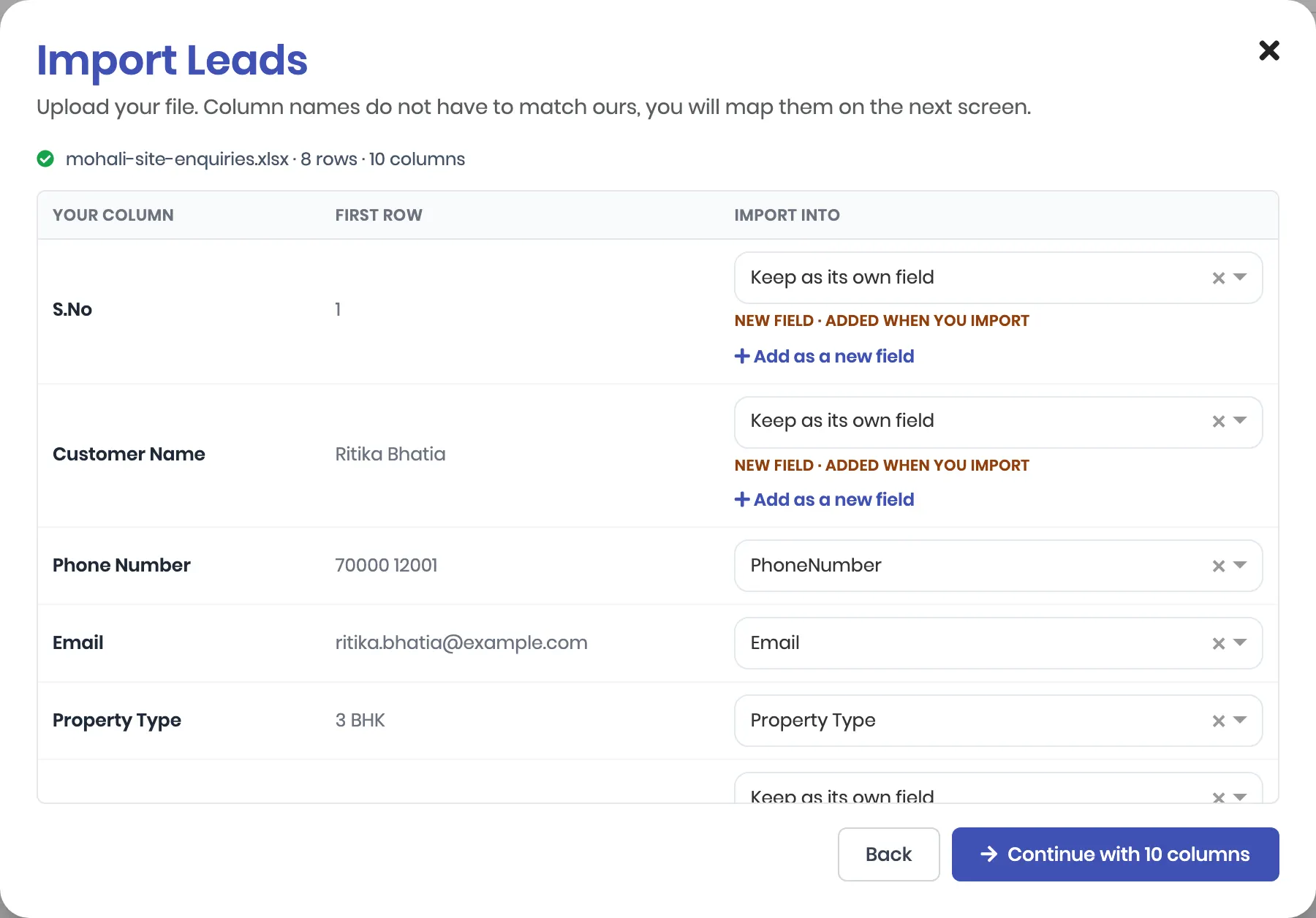
ViveLead fills in what it can:
- A column with the same name as one of your fields, like Phone Number, Email, Source, or the Property Type field from step 2. Case, spaces, underscores and hyphens do not matter.
- Lead Owner for an owner column, like Owner or Assigned To.
- Created Date for a date column, like Lead Date or Created Date.
- Everything else opens on Keep as its own field.
Go down the list once and fix each row.
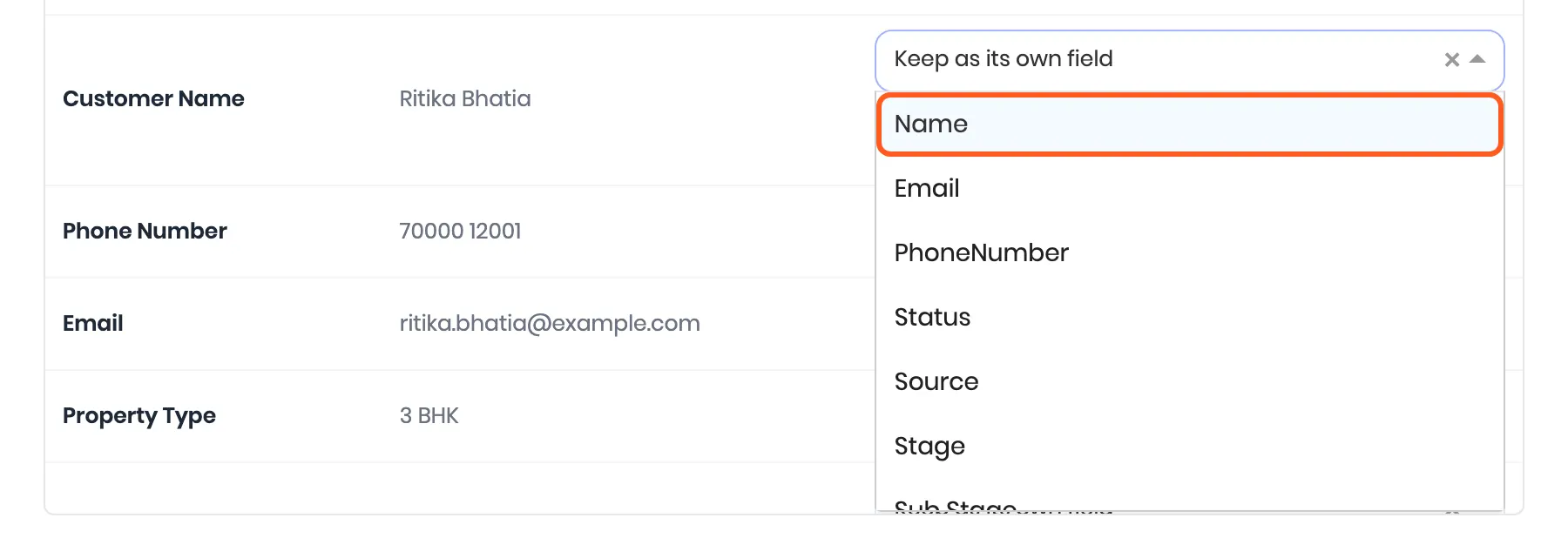
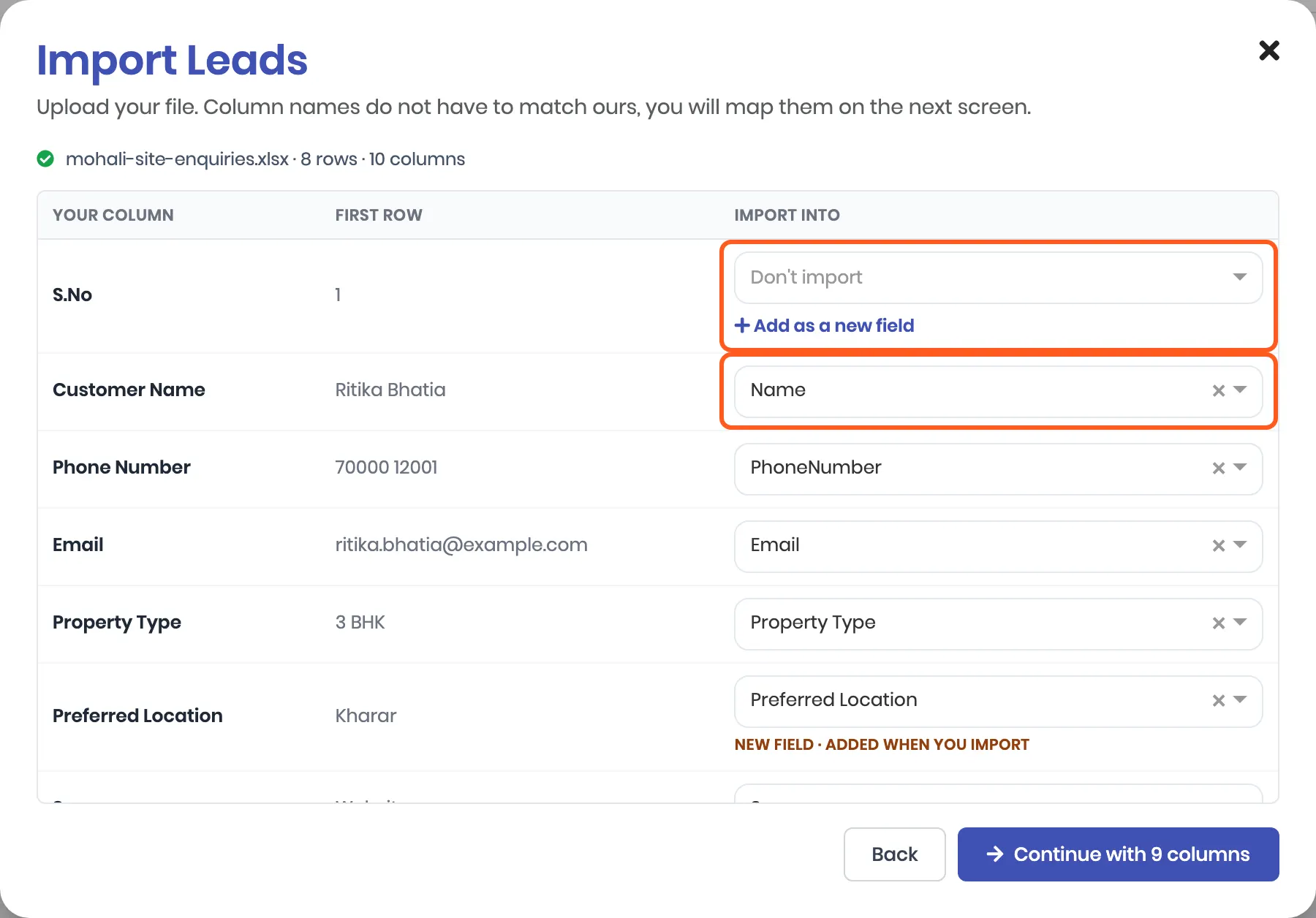
A column that is one of your fields under another name. Open its box and pick the field. Here Customer Name is the lead’s name.
A column you do not need, like S.No. Click the × in its box. It then reads Don’t import.
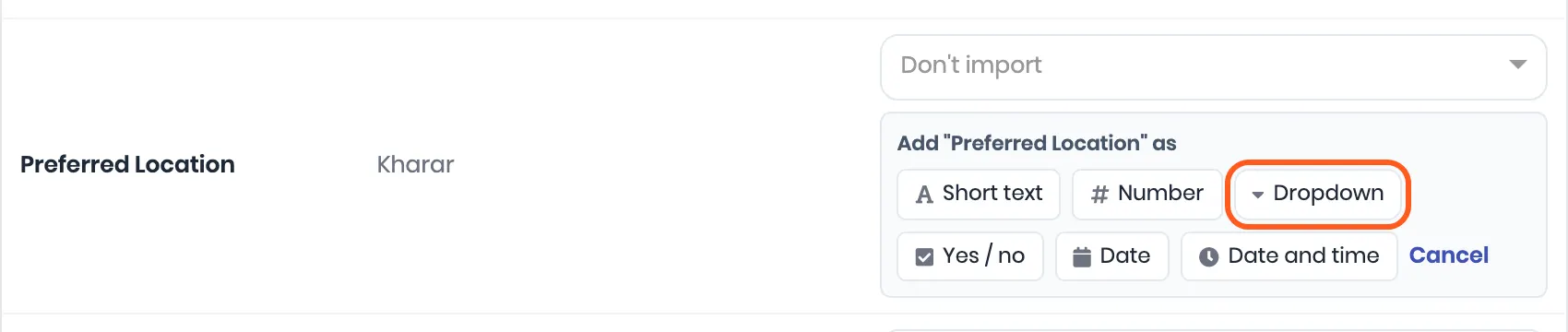
A column your team will keep using, with no field yet. Click Add as a new field and pick its type. The field takes the column’s name. A Dropdown takes its choices from the values in that column, up to 50. It is added to your lead form when you import, not before, so going back or closing changes nothing.
A column worth keeping for reference, like Comments or an old CRM ID. Leave it on Keep as its own field. It is saved on each lead as a hidden field: it shows on the lead’s page and can be added as a column to the lead list, but it does not appear on the Add Lead form.
Then click Continue with N columns. The count leaves out the columns set to Don’t import.
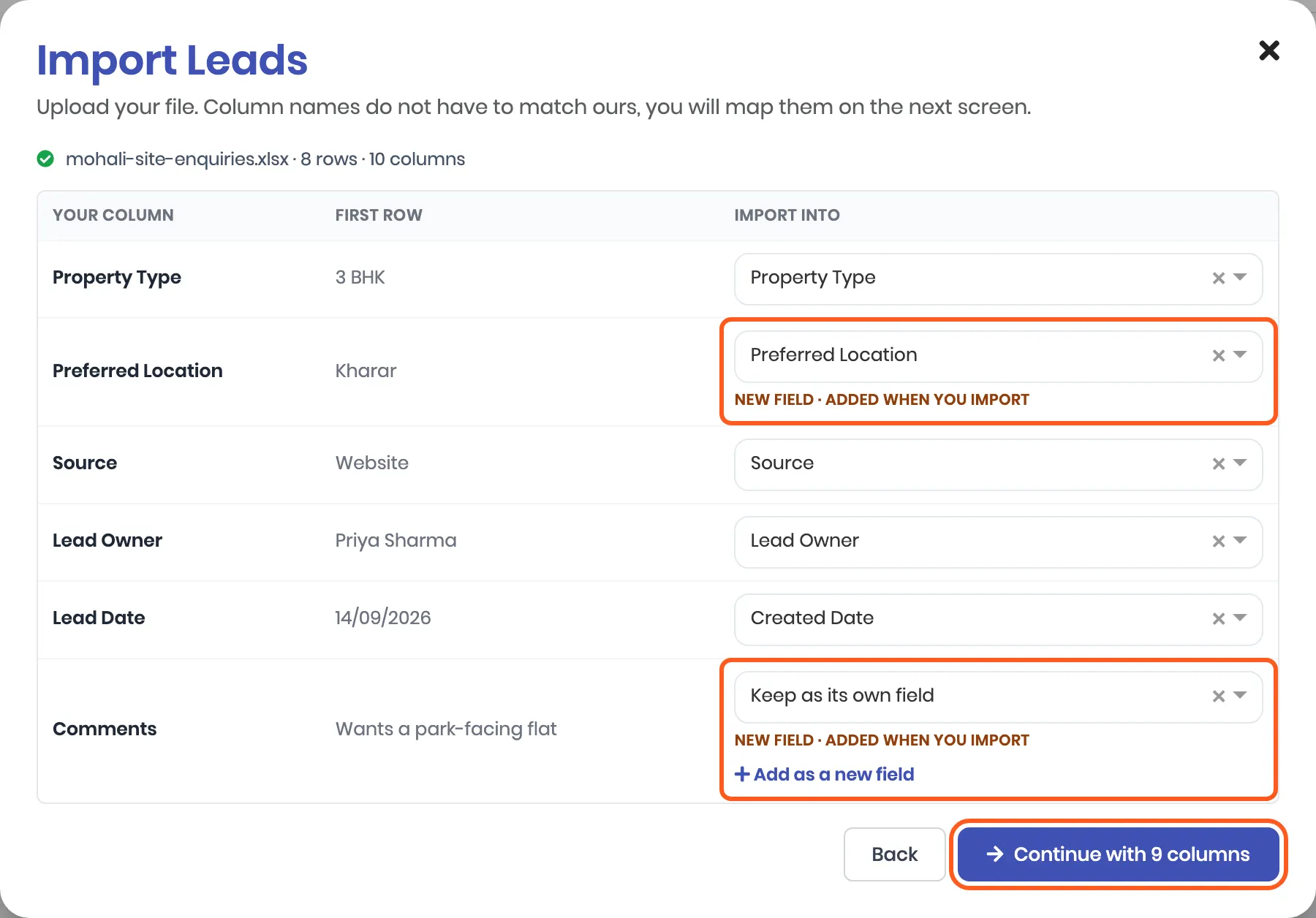
What each choice in Import into does:
| Choice | What happens on import |
|---|---|
| A field, like Name, Email or Property Type | The value goes into that field |
| PhoneNumber or Email | The lead can be called, messaged or emailed. The phone number is also how ViveLead spots leads you already have |
| Lead Owner | The lead is assigned to the user with that name or email |
| Created Date | The lead keeps its original date instead of the import date |
| Add as a new field | A new field named after the column, on the Add Lead form too |
| Keep as its own field | A hidden field named after the column |
| Don’t import | The column is left out |
⚠️ Continue is greyed out? The screen says Point one column at Email or Phone. Find your phone or email column and pick PhoneNumber or Email for it.
Next time it is quicker. Upload a sheet with the same columns again and ViveLead fills in your last answers, and says so. Check anything that has moved, or click Start fresh. A mapping is only remembered once it has been used to import.
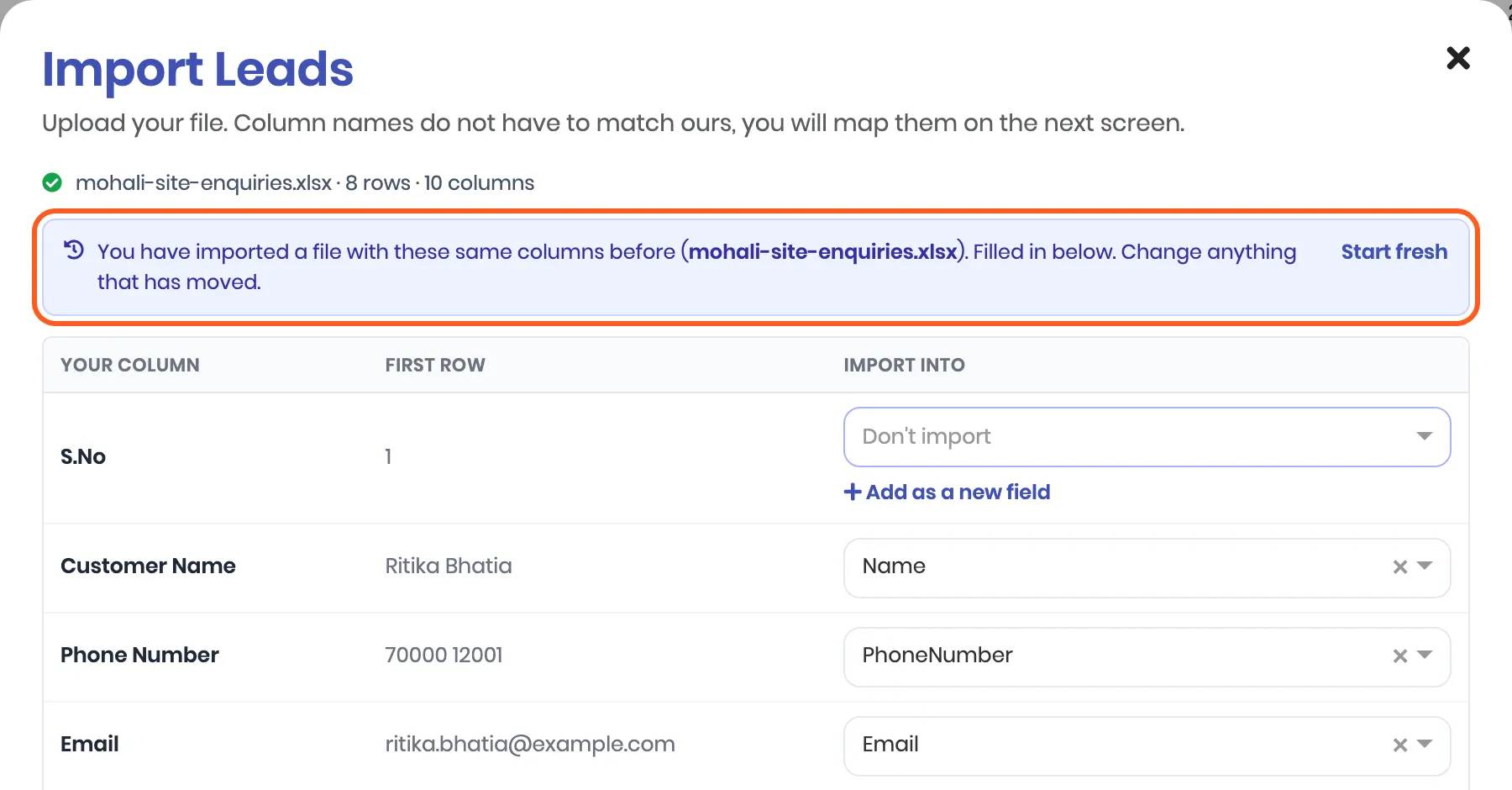
5. Check the preview, then import
The preview shows every row under the fields you chose. Nothing has been saved yet.
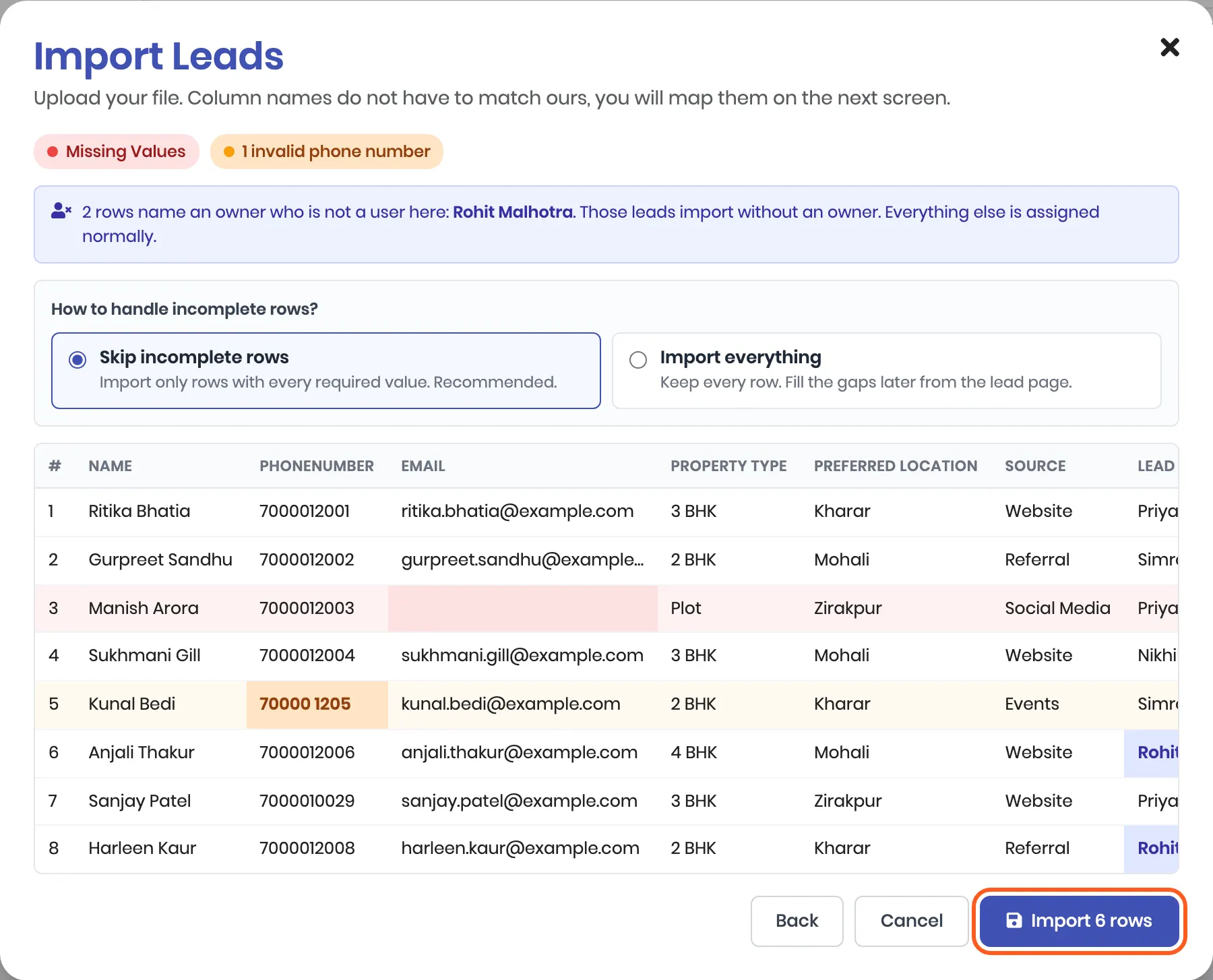
Above the rows, ViveLead lists what it found:
| You see | It means |
|---|---|
| Missing Values (red) | A row is empty in the phone or email column. Here Manish Arora has no email |
| 1 invalid phone number (amber) | A number that cannot be read. Kunal Bedi’s 70000 1205 is a digit short |
| Duplicate Data (grey) | The same phone number or email twice in this file. Both rows import, so merge them in the sheet first |
| Owner note (blue) | Owners that match no user in your account. Those leads import with no owner |
How to handle incomplete rows? Skip incomplete rows imports only the complete ones. Import everything brings in every row, gaps and unreadable numbers included, to fix later on the lead page.
💡 Many leads with a phone number but no email? Choose Import everything. With Skip incomplete rows, every row with an empty email is left out.
Click Import N rows. The message says what happened:

- Imported 5 rows: five new leads.
- 1 already in your CRM: Sanjay Patel’s number already belonged to a lead, so that row was skipped.
- 2 skipped (incomplete): the rows with the missing email and the unreadable number.
Leads you already have are not changed or doubled. A row is matched to an existing lead by its phone number, and by email too if Email is ticked Primary in Forms Desk. That lead’s details stay as they were, and its Timelines tab gets one note naming the file:

To change leads you already have, use Update leads from a sheet instead.
✅ Done when the message shows your count and the screen closes.
6. Find the imported leads
The lead list refreshes behind the screen. Search for one of the new leads. Each one carries its owner, its source and the date from your sheet.
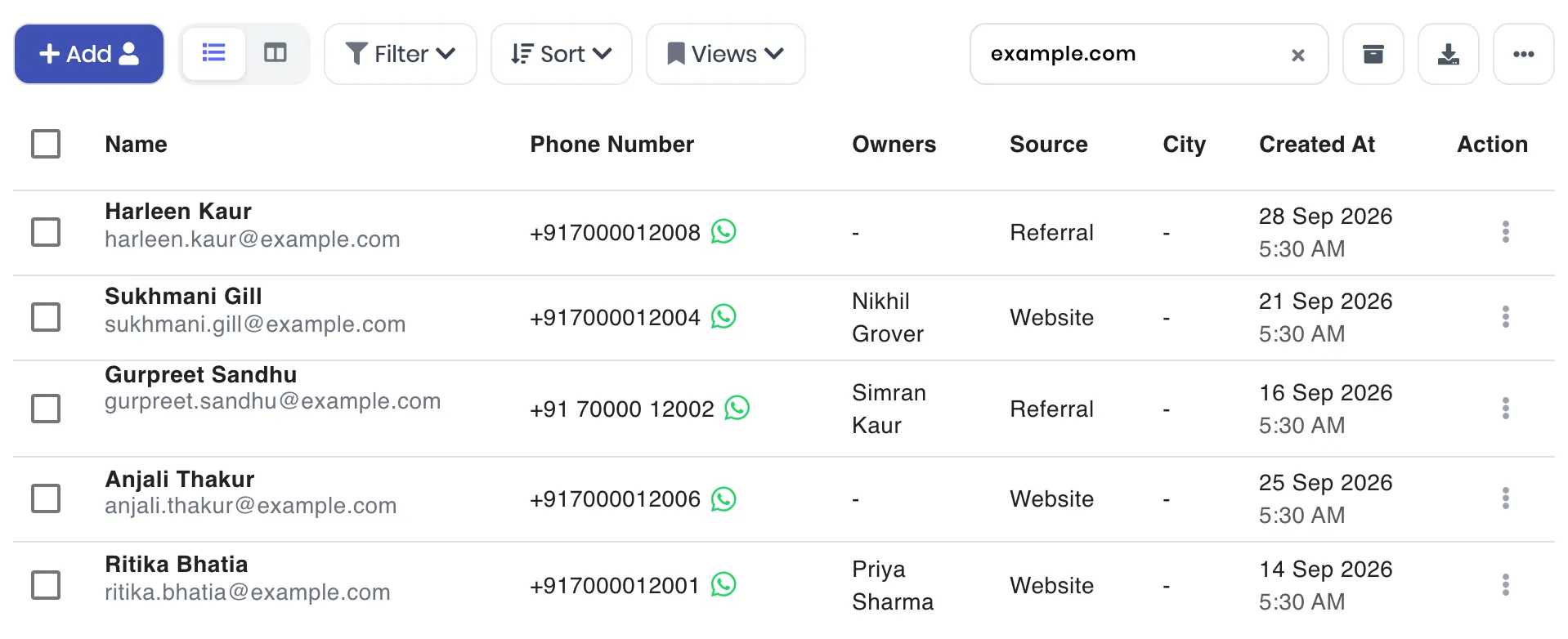
Open a lead. Lead Details shows the fields that came from your sheet.
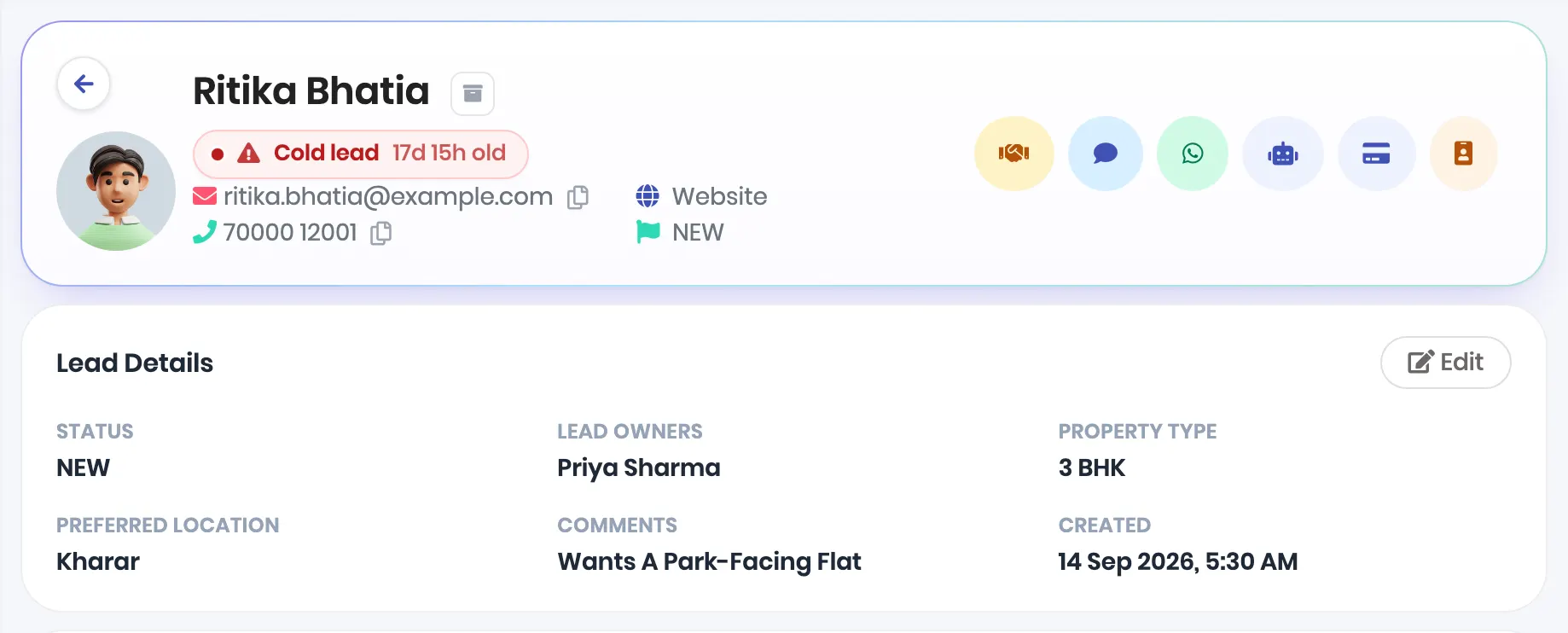
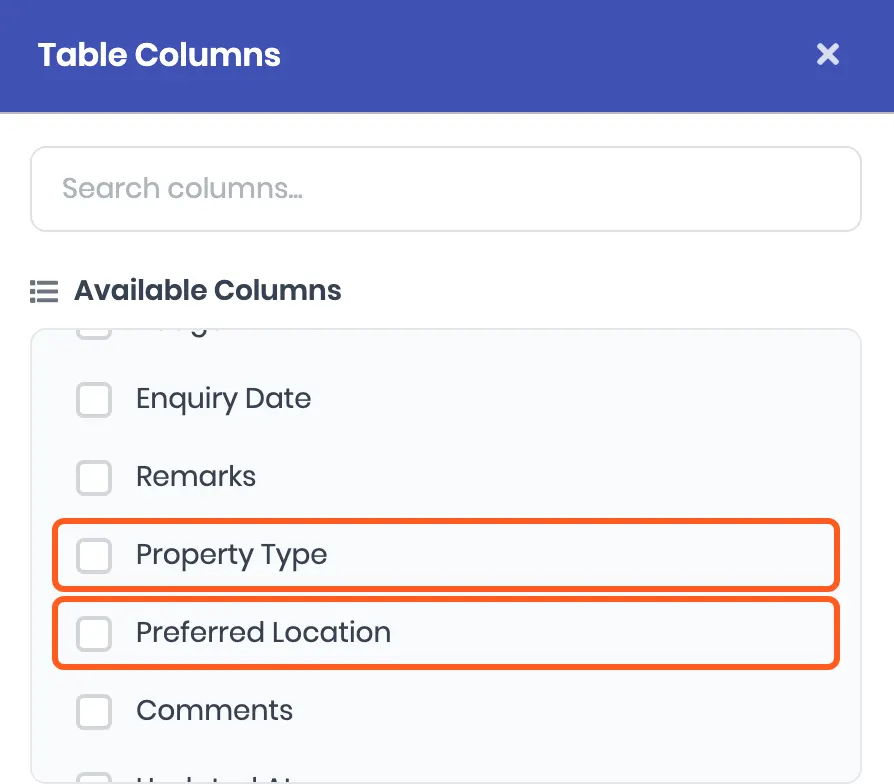
To see the new fields as columns in the list, click ⋯, then Table columns, and tick them.
Your distribution rules do not assign imported leads. For the ones with no owner, tick them in the list and click Assign Owner, or see Assign leads and control who sees them.
✅ Done when the leads are in the list and a lead’s page shows the values from your sheet.
What the import does not do
- It sends nothing. No automation runs, no distribution rule assigns, no WhatsApp message or email goes out, and nobody is notified. Old leads do not get a welcome message months late.
- It does not bring history. Notes, call logs, recordings, files and WhatsApp or email conversations from another CRM stay behind. A Notes column becomes a field on the lead, not a note.
- It only creates leads. Existing leads are skipped, not updated. Deals and quotations are made in ViveLead.
- There is no undo button. To remove an import, search for its leads, select them and click Delete.
Update leads you already have
To change one field on many existing leads, like the stage after a week of site visits, use Update leads from a sheet in the same ⋯ menu. It matches each row to a lead by phone number and creates nothing. It needs the Lead Update permission.
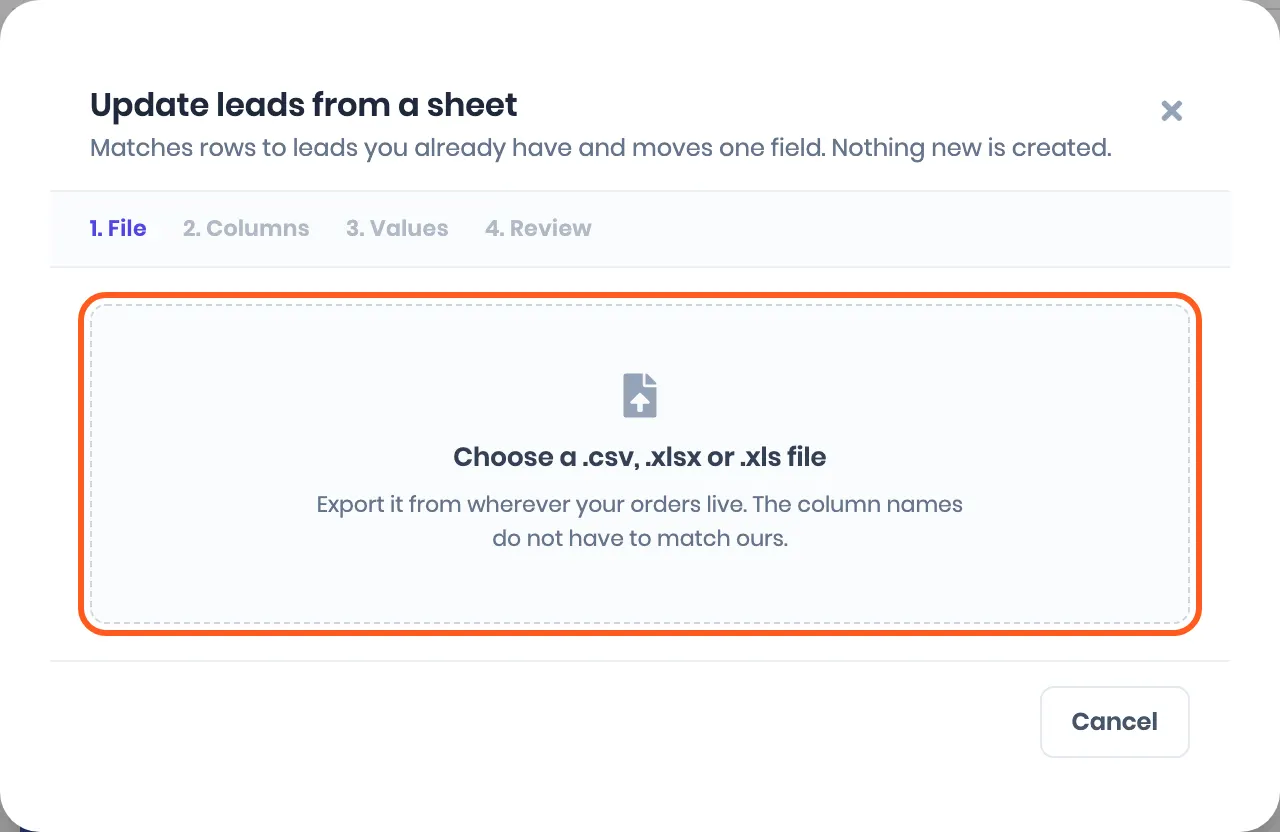
1. File. Choose a .csv, .xlsx or .xls file of up to 50,000 rows. The column names do not have to match ours.
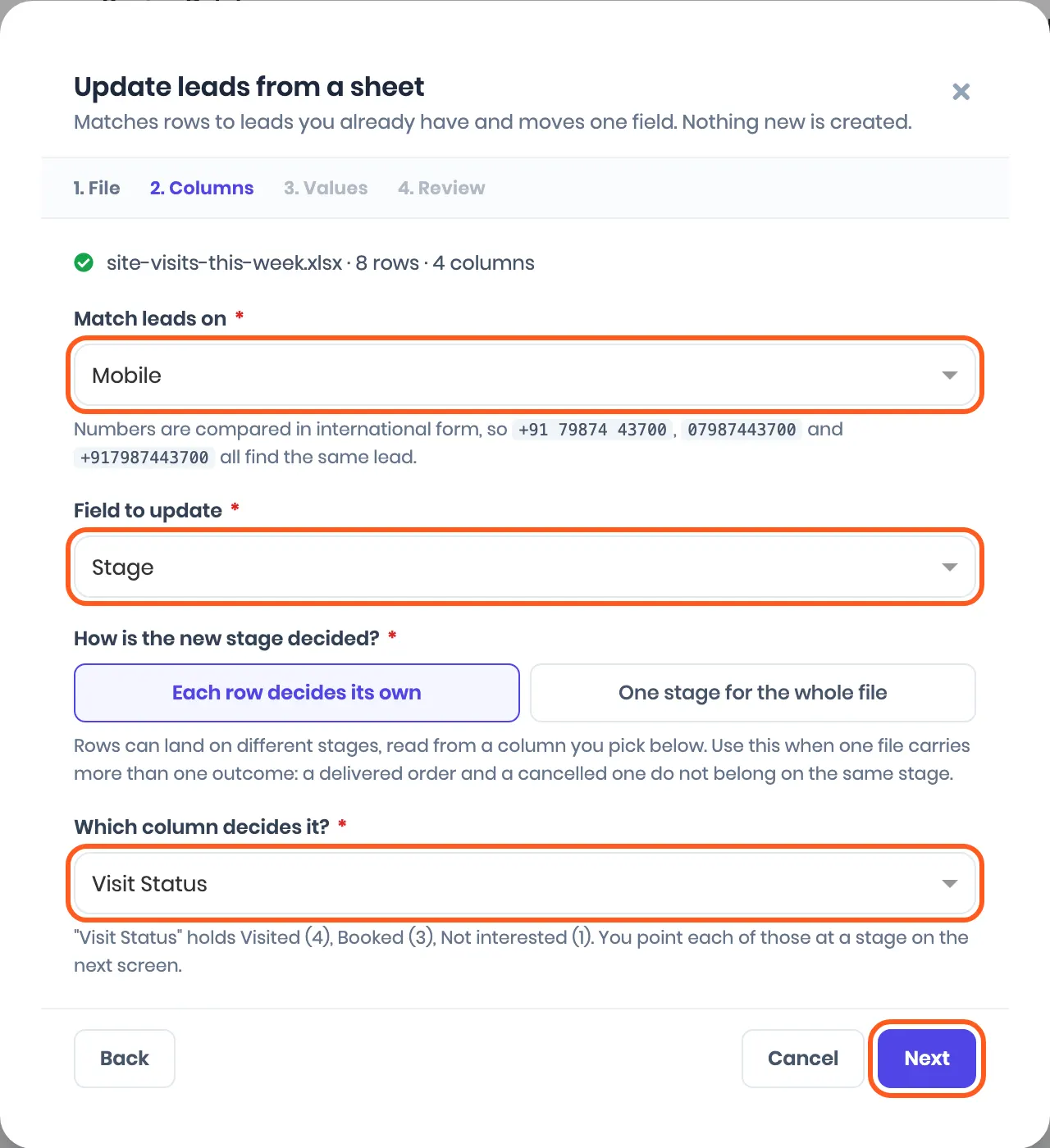
2. Columns. Under Match leads on, pick the column with the phone number. +91 79874 43700, 07987443700 and +917987443700 all find the same lead. Under Field to update, pick the field: Stage and Status come first, then the other fields on your lead form. Owner is not on the list, because assigning is done from the lead list. Then choose Each row decides its own and the column that decides it, or One stage for the whole file.
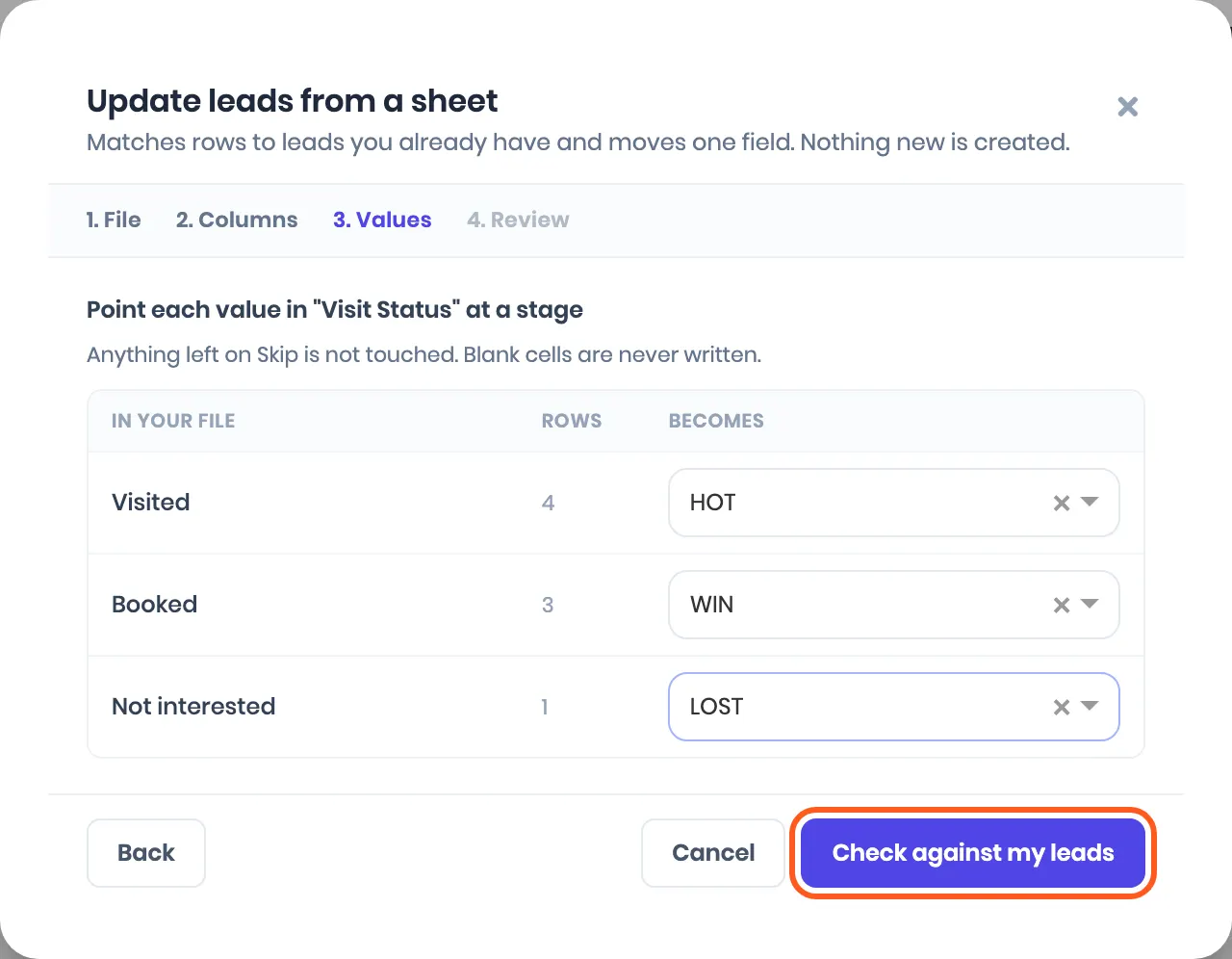
3. Values. For a dropdown field like Stage, point each value in your file at one of your choices. Here Visited becomes HOT, Booked becomes WIN and Not interested becomes LOST. A value left on Skip is not touched, and a blank cell never wipes what a lead already has. For a text field, each lead simply gets the cell’s text.
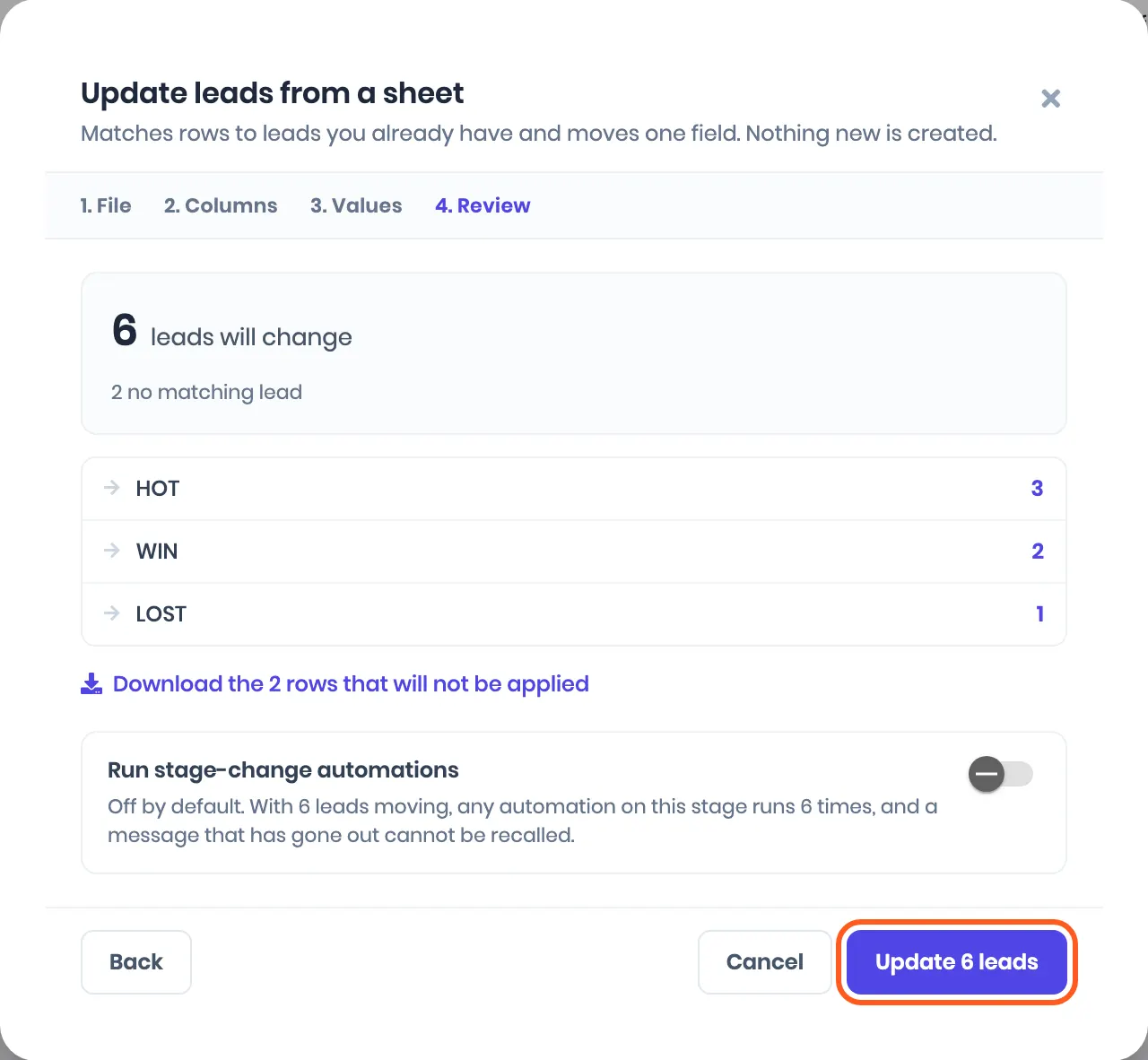
4. Review. Check against my leads counts what would change before anything is written: here 6 leads change and 2 numbers match no lead. Download the rows that will not be applied if you want to fix them in the sheet. Run stage-change automations is off unless you turn it on, so a bulk correction does not message anyone by accident. Click Update N leads to apply it.
If it does not work
| What you see | What it means | What to do |
|---|---|---|
| That file type is not supported | The file is not a spreadsheet, often a PDF or a Google Sheets link | Open it in Excel or Google Sheets and save it as .xlsx or .csv |
| Please provide data, file is empty. | The first sheet has a header and nothing under it | Check the leads are on the first sheet of the file |
| Could not read and your file name | The file is damaged or protected | Open it, save it again as .xlsx, and upload that |
| Continue with N columns is greyed out | No column is matched to PhoneNumber or Email | Pick PhoneNumber or Email for that column in step 4 |
| Far fewer leads imported than rows | Rows with an empty email were skipped as incomplete | Import the same file again with Import everything. Leads already brought in are skipped, not doubled |
| N invalid phone numbers | A number is too short, or it is from another country and has no + | Correct it, or write it in full like +971 50 123 4567 |
| Leads arrive with no owner | The owner’s name or email matches no active user, or matches two | Fix the spelling to match the user exactly, or assign the leads from the list |
| N already in your CRM | Those phone numbers already belong to leads | Nothing to fix. Use Update leads from a sheet to change them |
| A column’s values are not on the lead | It was set to Don’t import | Importing again skips those leads. Make the field in Forms Desk, then fill it with Update leads from a sheet |
| A field is on the lead page but not in the list | It is a hidden field, from Keep as its own field | Add it with ⋯, then Table columns |
| Dates are a month off | The sheet has month-first dates, like 12/03/2026 for 3 December | Write them day first, or as 2026-12-03 |
| No lead form found when you click Download Sample | Your account has no lead form yet | Set it up in Forms Desk first |
Quick answers
- Do I have to use your sample file? No. Upload your own sheet and match its columns in step 4.
- Will it message my leads? No. Import sends nothing and runs no automation.
- Can I import the same sheet twice? Yes. A row whose phone number is already a lead is skipped, so only new leads come in.
- Where do columns like Budget or Course go? Into a field. Make it first in Forms Desk (step 2), or use Add as a new field or Keep as its own field in step 4.
- Can I change a field’s type after importing? No. Pick the type carefully when you make the field.
Related
- Just signed up? Set up ViveLead in 30 minutes
- Assign leads and control who sees them
- Onboarding and free data migration, for exports from Zoho, HubSpot, Salesforce or Pipedrive
- Put a lead form on your website so new enquiries arrive without a sheet.
Still stuck on this step?
Send us what you are seeing and we will sort it out with you.