Link your WhatsApp with a QR code (WhatsApp Web)
Bring a phone's WhatsApp chats into the ViveLead inbox by scanning a QR code, and reply from there. The risk to the number, the rules that keep it safe, every step, and the terms you accept.
This links one phone’s WhatsApp to ViveLead the way WhatsApp Web links it to a computer. You scan a code with the phone, its chats come into the Inbox, and you and your team reply from ViveLead. You need no Meta account, and it takes about five minutes.
It is not the WhatsApp Business API, and WhatsApp does not support it. Read the first section before you link a number.
Read this first: the risk to your number
⚠️ ViveLead is not part of WhatsApp or Meta, and WhatsApp does not support linking a business tool this way. To WhatsApp, a tool linked like this is an unofficial app, and its help centre says an account used with an unofficial app can be banned, for a while or for good, or stopped from linking devices (About unofficial apps).
What this means for you:
- WhatsApp can limit, log out or ban any number you link, at any time. The rules on this page lower the risk. Nothing removes it.
- We cannot undo a ban or appeal one for you.
- Link a number you can afford to lose. For broadcasts, templates, automation or anything you send in volume, connect a number through the WhatsApp Business API, WhatsApp’s own platform for businesses.
WhatsApp Web or the WhatsApp Business API?
| WhatsApp Web (this guide) | WhatsApp Business API | |
|---|---|---|
| How you connect | Scan a QR code with the phone | Meta’s signup window, with a Facebook login |
| Meta Business account | Not needed | Needed |
| Supported by WhatsApp | No | Yes, it is WhatsApp’s own platform |
| WhatsApp on the phone | Keeps working as before | Shared Number: keeps working. New number: no phone app |
| Old chats | The last 180 days | Shared Number: the last 6 months, if you agree on the phone |
| Someone new writes in | The chat comes in. No lead is made until you click Add as lead | A lead is made by itself |
| Templates, broadcasts, automation, AI replies | No | Yes |
| Plan | Business | Professional and above |
WhatsApp Web suits a team whose people sell from their own WhatsApp and talk to one customer at a time. If you send in volume or want automation, use the API.
Use it for this, not for that
WhatsApp Web is for conversations a person has, one chat at a time.
Good uses:
- Answering people who wrote to the number first.
- Following up with someone who asked you to: an enquiry, a customer, someone who booked a call or a meeting.
- Sending what someone asked for: a quote, a price list, a photo, a document.
- Starting a chat with a lead who gave you their number and expects to hear from you.
- Letting a team leader or an admin see a rep’s chats and answer while the rep is away, so nobody waits.
Never:
- Messaging numbers from a list you bought, rented, scraped or copied.
- Sending the same message to many people, one after another. A broadcast typed by hand is still a broadcast.
- Messaging someone who never gave you their number, or who asked you to stop.
- Using a bot, a script, an auto-sender or any tool that sends from the linked phone or checks numbers in bulk.
- Linking a phone without its owner’s agreement, or a colleague’s personal number they have not agreed to share.
These break the terms and WhatsApp’s own, and they are how numbers get banned.
Keep the number safe
- Let people write first, or write only to people who expect you. WhatsApp uses reports from the people who receive messages, along with its own systems, to find numbers that send unwanted ones.
- Start new chats slowly. WhatsApp limits how many new chats a number can start with people who have not written back, and past that limit it pauses new chats from the number. ViveLead asks WhatsApp before every new chat and stops you while the number is paused or at its limit. Replies in chats where the person wrote to you still go out.
- Write each message for the person. Pasting the same text into chat after chat is bulk messaging, which WhatsApp’s terms do not allow.
- Run the number on WhatsApp Business. WhatsApp’s terms keep regular WhatsApp for personal use unless WhatsApp allows otherwise. The WhatsApp Business app is the one WhatsApp makes for businesses.
- Link the number your customers already know, not a SIM bought for this.
- Do not link and unlink again and again. After a few links in a short time, WhatsApp stops the account from linking new devices for some hours, and the phone says Can’t link new devices right now. Trying again sooner makes it last longer.
- Open WhatsApp on the phone at least once every 14 days. WhatsApp logs linked devices out of a phone that has not been used for 14 days, and ViveLead stops getting its messages until you link it again.
Before you start
- Plan: WhatsApp Web is on the Business plan. On other plans, Link with a QR code does not show.
- Numbers on your plan: a linked phone counts as one WhatsApp number. A company can connect one number per paid user, any mix of API numbers and linked phones. The WhatsApp Business card shows how many are in use.
- An admin goes first. An admin accepts the terms once for the company. After that, each person links their own phone from the same page.
- The phone: in your hand, signed in to the number you want to link on WhatsApp or WhatsApp Business, with a working camera.
- The number: not connected to ViveLead through the WhatsApp Business API already, since its chats come in that way, and not linked by someone else in your company.
- Tell the people whose chats will show. Everything on the phone syncs, personal chats too, and your admins and team leaders can read them.
1. Open Integrations and pick Link with a QR code
In the left sidebar, open Marketing, then Integrations. On the WhatsApp Business card, click Connect, or Add number if a number is already connected.
The dialog asks Do you already use this number on the WhatsApp app? Leave those two options and click Link with a QR code, under No Meta Business account?
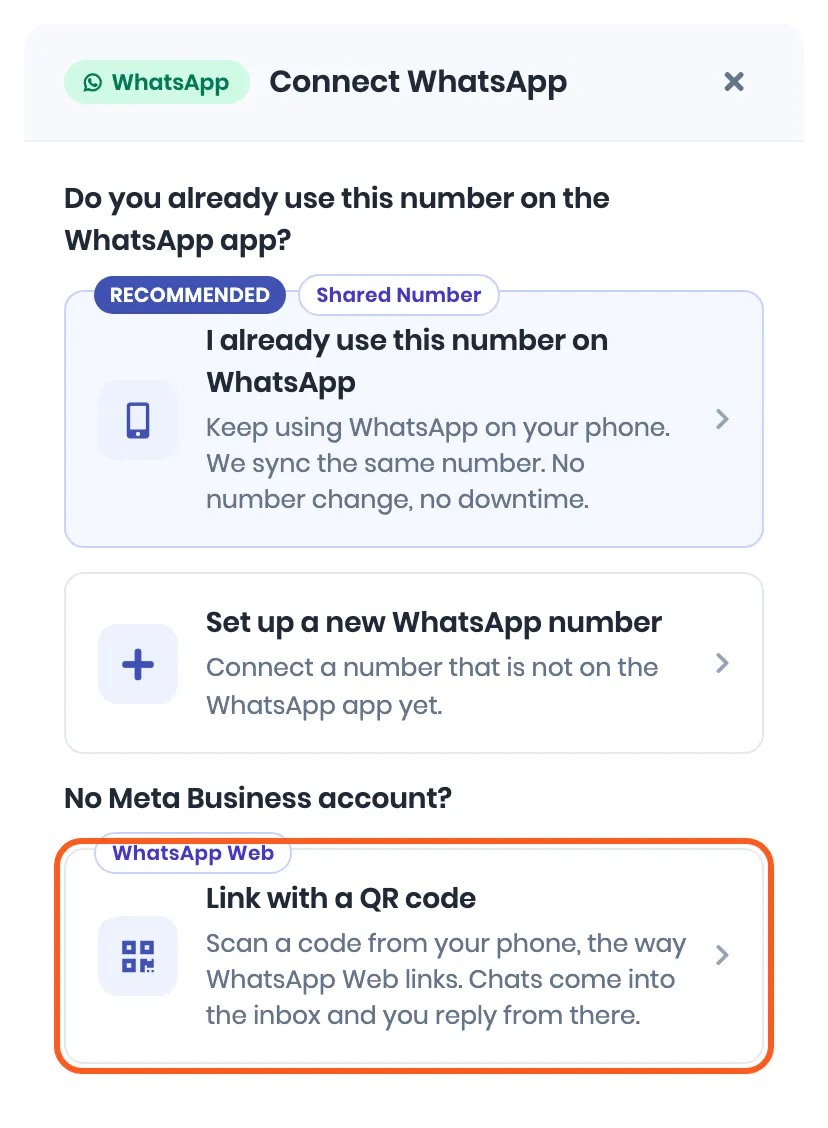
The WhatsApp Web page opens.
2. Accept the terms (an admin, once)
The first time, the page shows Before you turn this on: what syncs, that personal chats come in too, what the inbox sends, and what it never sends.
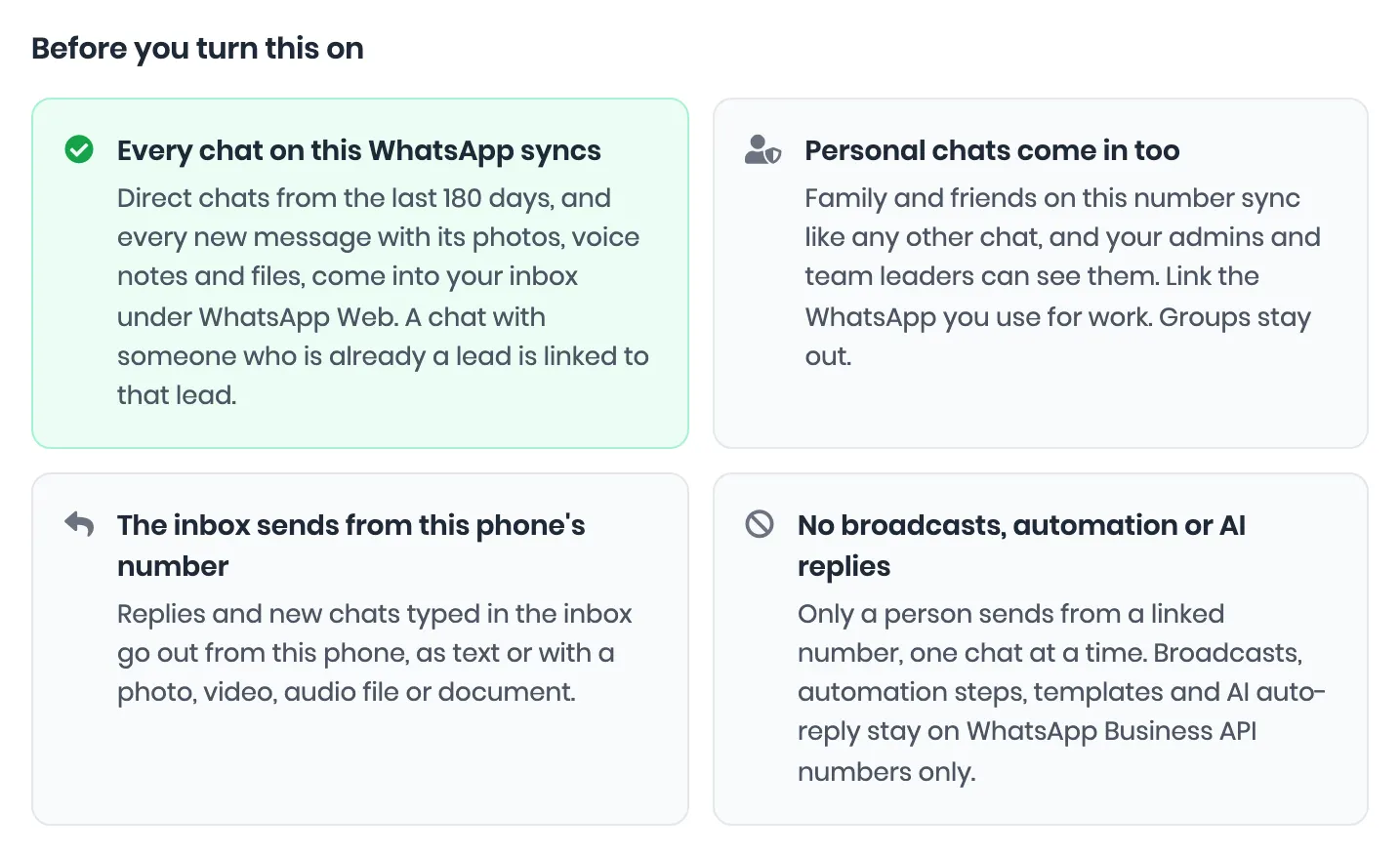
Read the warning under it, tick I understand the limits above, accept the risk to the linked number, and agree to the WhatsApp Web terms, and click Accept and continue. The link in that line opens the full terms.
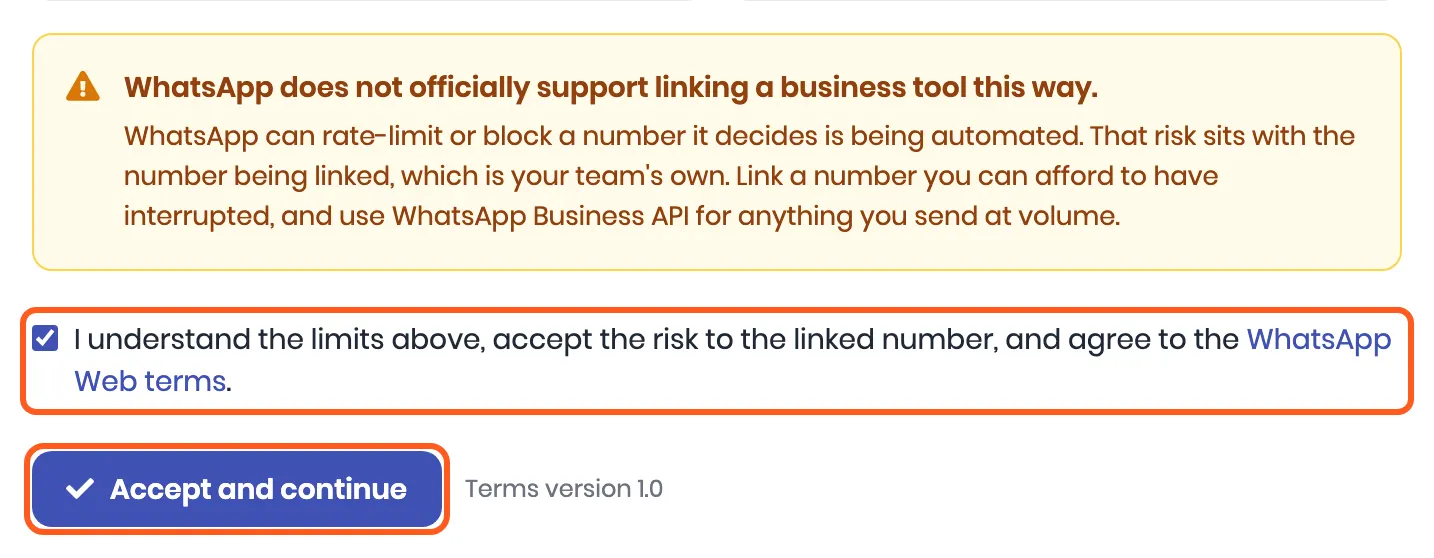
Only an admin can accept. Anyone else sees Only an admin can turn WhatsApp Web on for this company. By accepting, the admin agrees to the terms for the company.
If we change the terms in a way that matters, the page asks an admin to accept the new version before anyone links another phone. Phones already linked keep syncing meanwhile.
3. Click Link WhatsApp
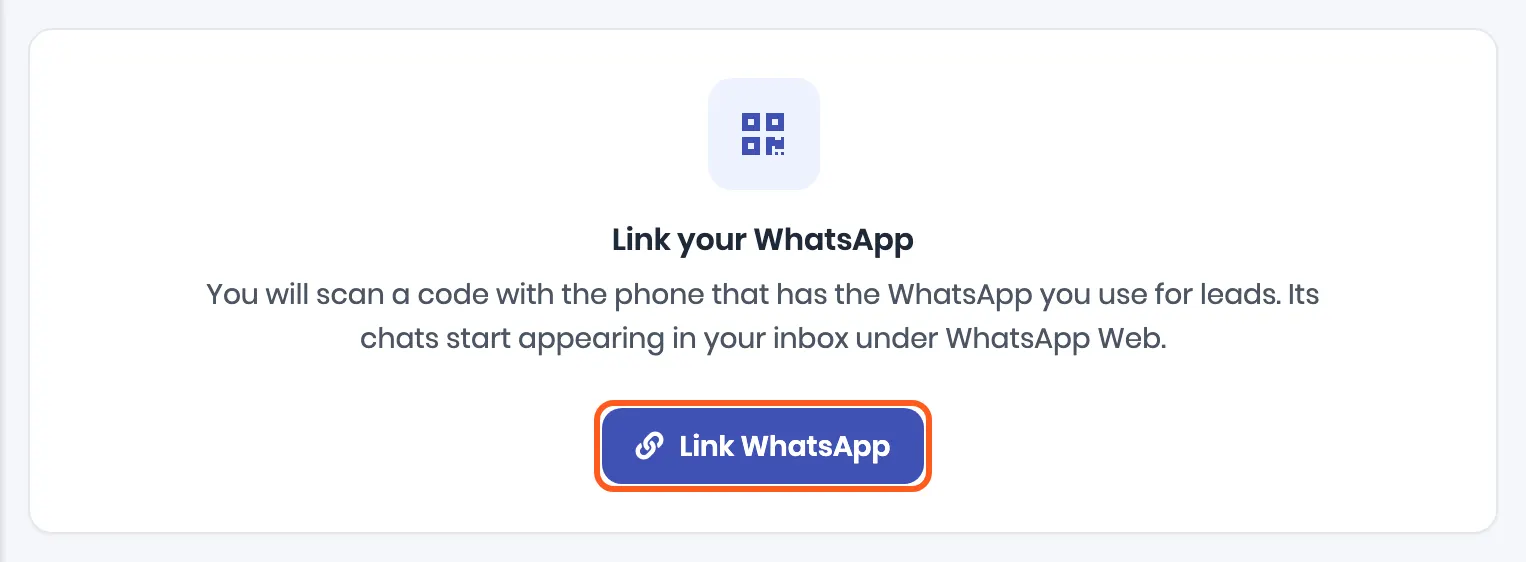
4. Scan the code with the phone
ViveLead shows a QR code next to the steps.
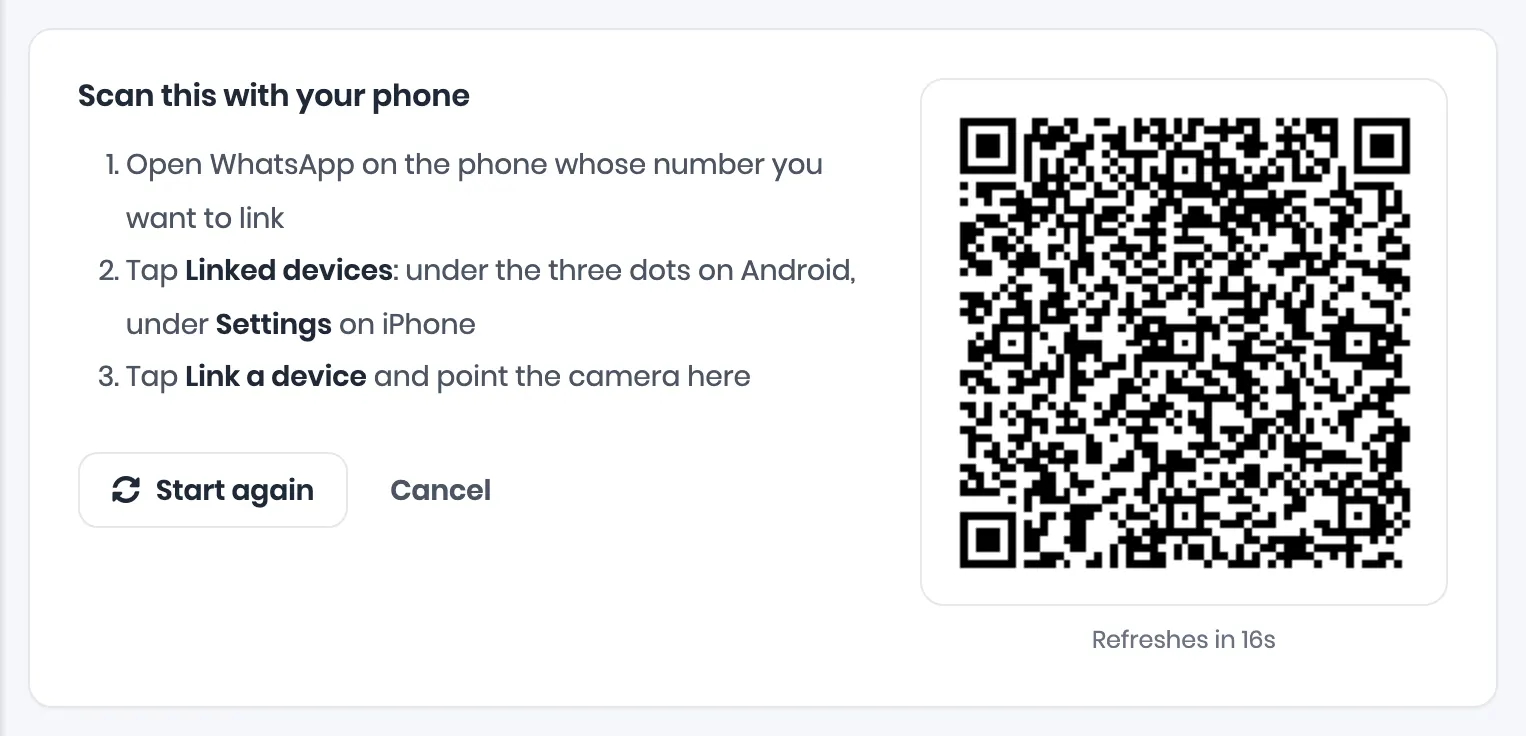
On the phone:
- Open WhatsApp, or WhatsApp Business.
- Android: tap the three dots at the top right, then Linked devices. iPhone: tap Settings, then Linked devices.
- Tap Link a device, unlock the phone if it asks, and point the camera at the code on your screen.
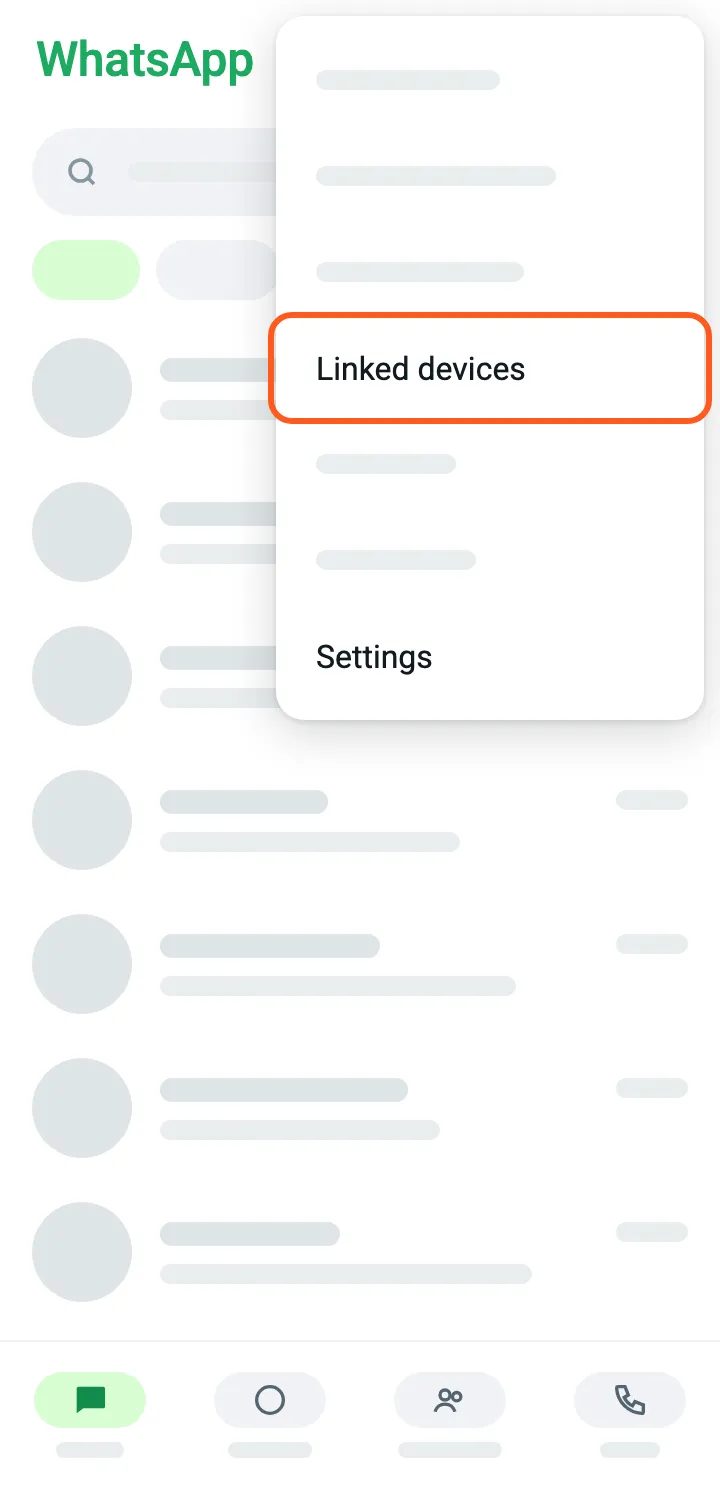
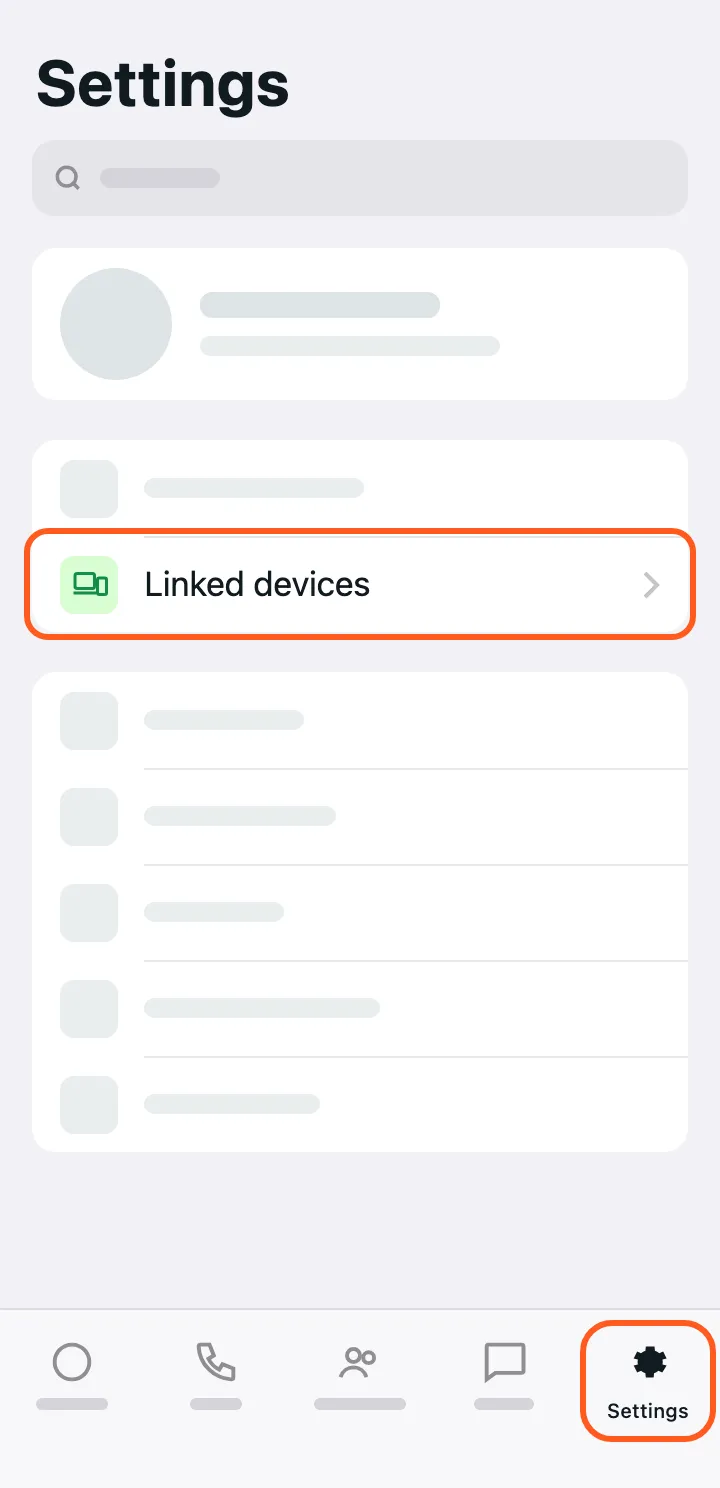
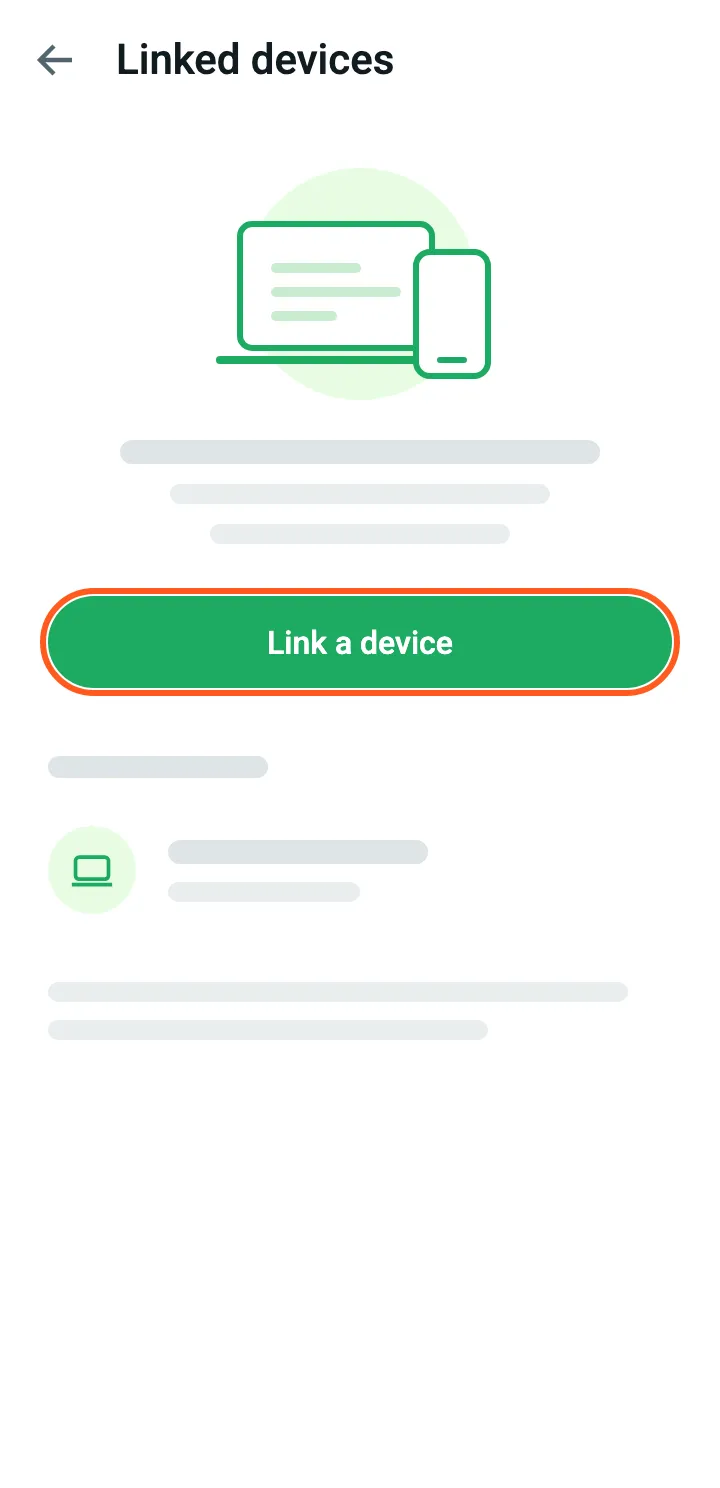
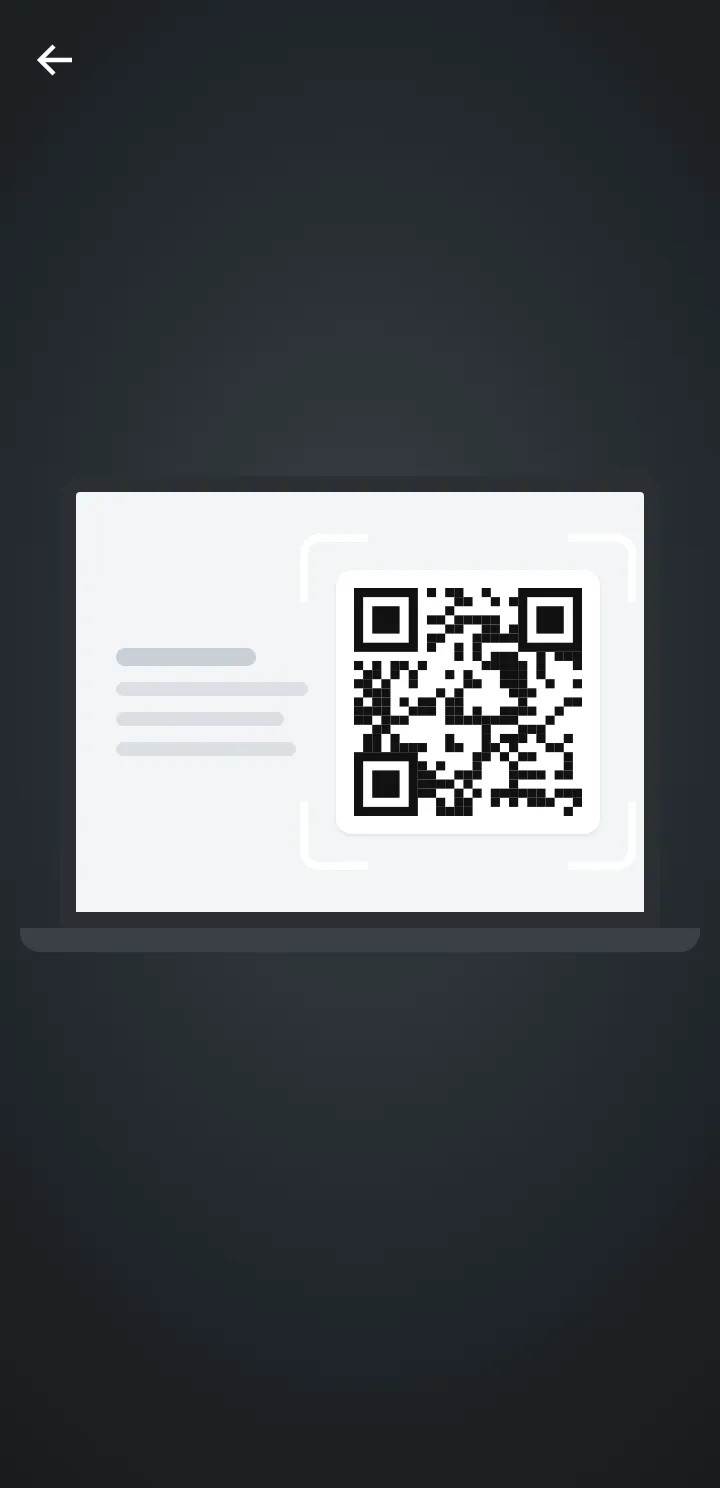
These are drawings of WhatsApp’s screens, to show where to tap. WhatsApp changes its screens from time to time, so yours may look a little different.
The code changes every 20 seconds or so, and the page fetches the next one by itself. Scan whichever code is on screen. If nobody scans for five minutes, the page says This code expired. Click Start again once the phone is in your hand.
5. Check the phone is linked
A few seconds after the scan, ViveLead says WhatsApp linked. and the page shows Your linked WhatsApp: the number, its WhatsApp name, Connected, and what syncs.
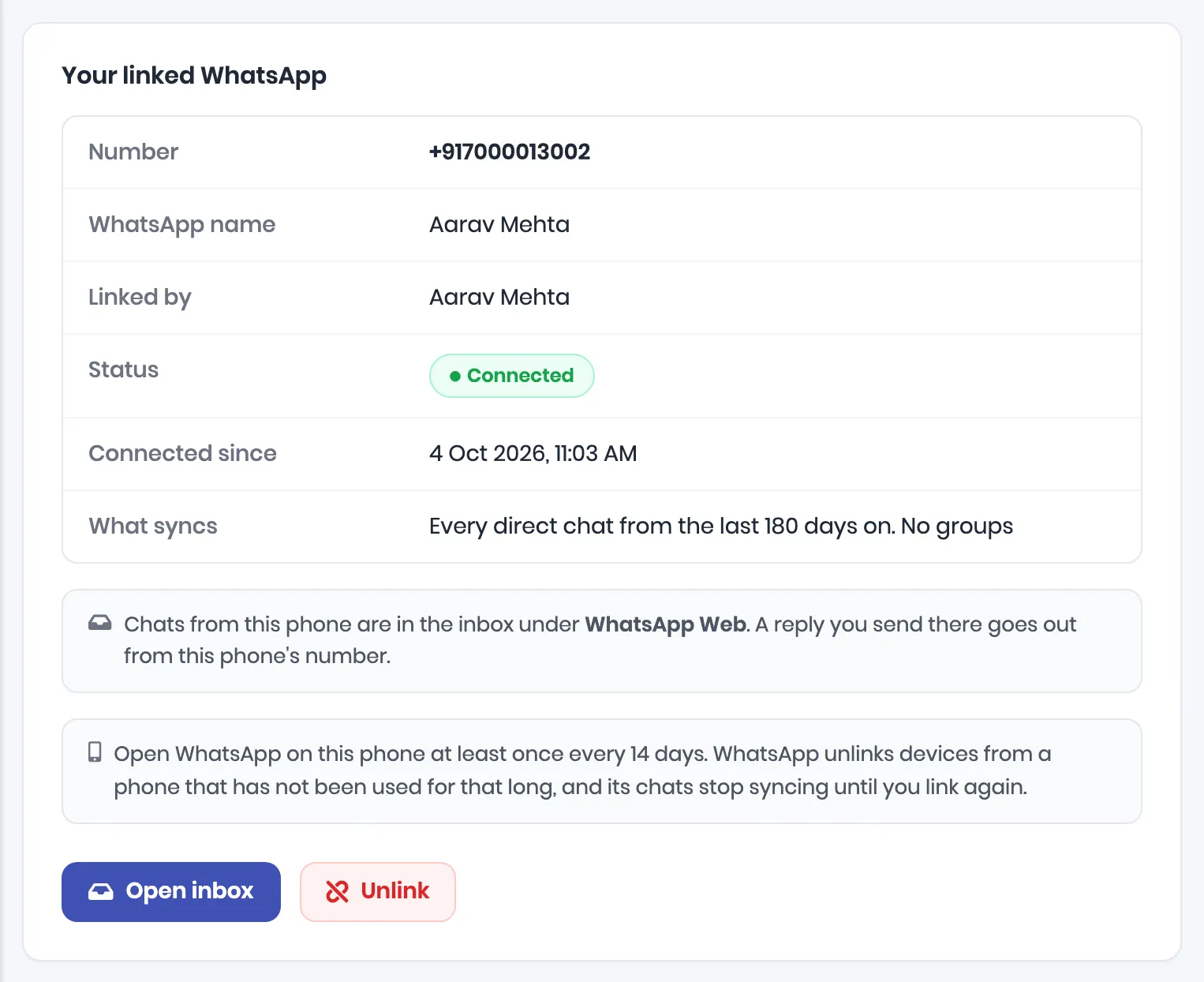
Chats from the last 180 days start coming in straight away. On a busy phone they take a while to all arrive. They come in once, when the phone is linked.
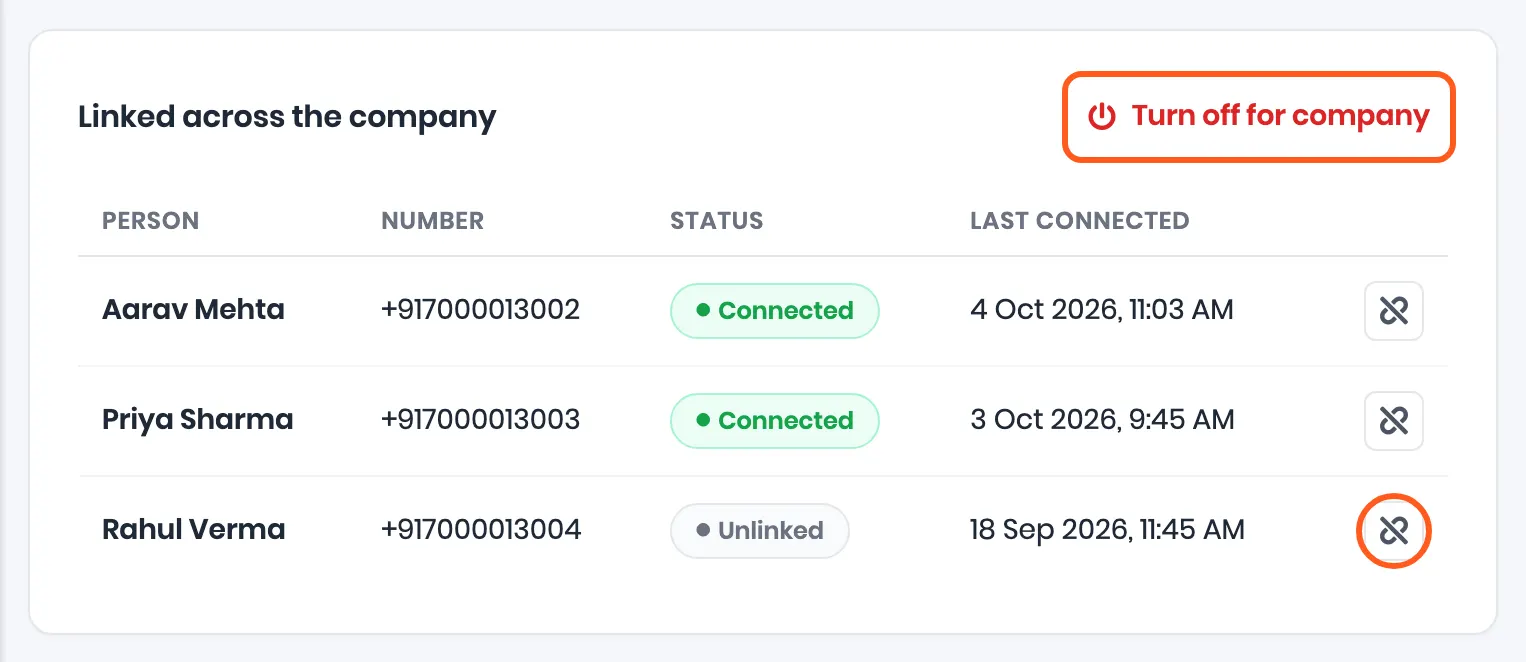
Admins also see Linked across the company: every linked phone, whose it is, and its status.
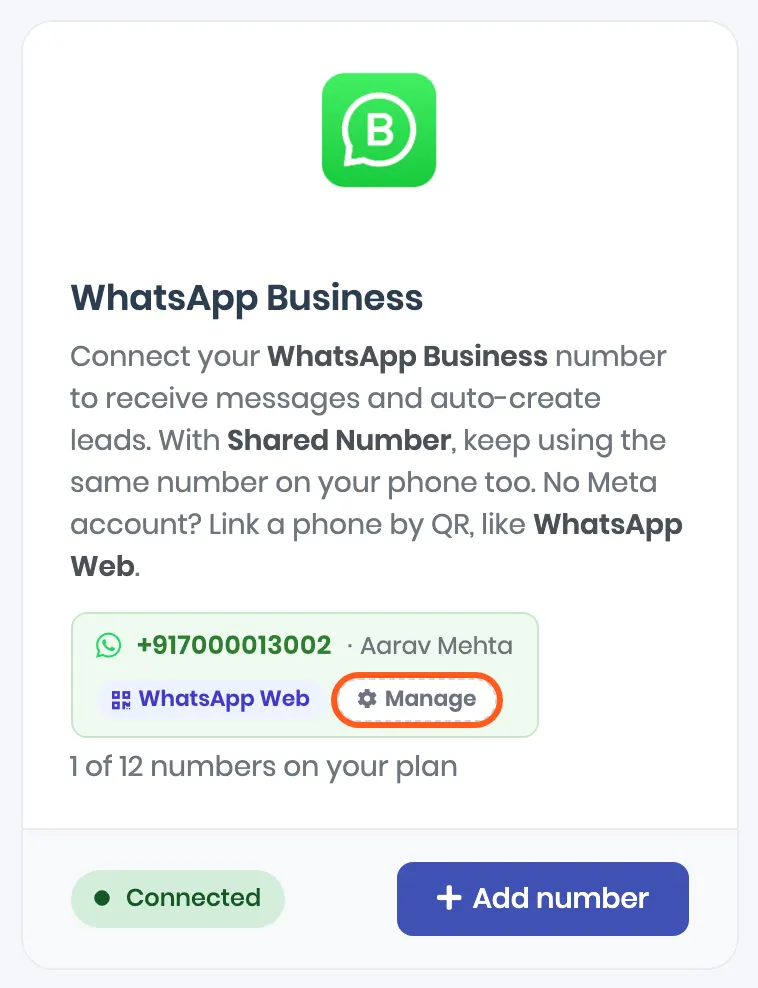
On Integrations, the phone now sits on the WhatsApp Business card with a WhatsApp Web label. Manage opens this page again.
6. Reply from the Inbox
Open Marketing, then Inbox. The phone’s chats are listed in a frame shaped like a phone. If your company also has an API number, click WhatsApp Web under Channel first.
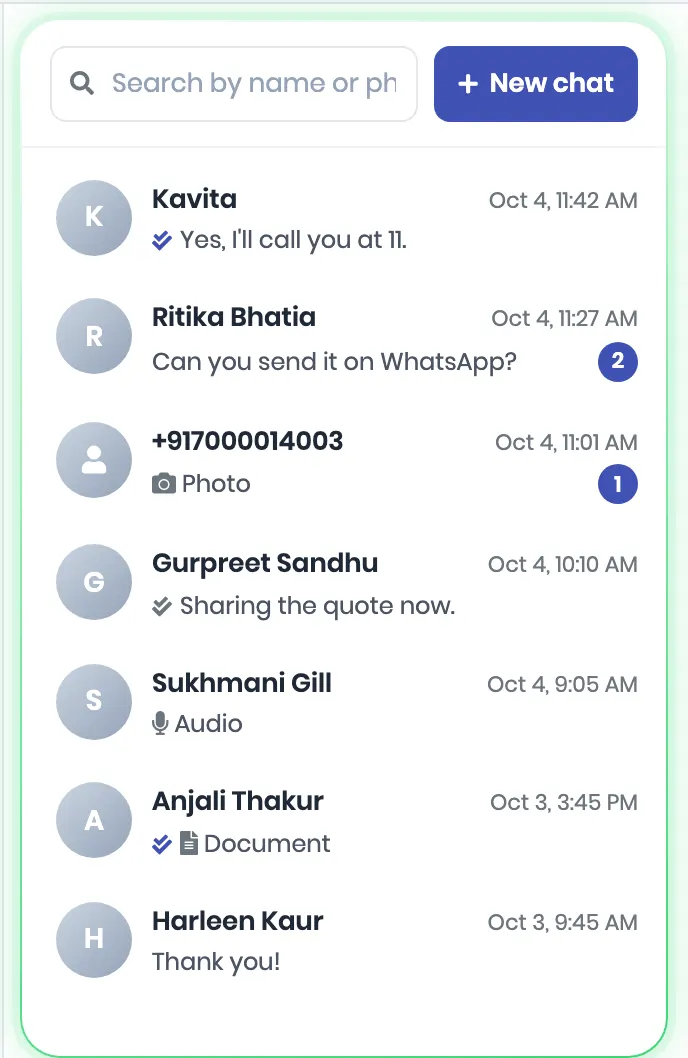
Open a chat and reply as you would on the phone. The reply goes out from the linked phone’s number, with a photo, video, audio file or document if you attach one. Messages typed on the phone show here too.
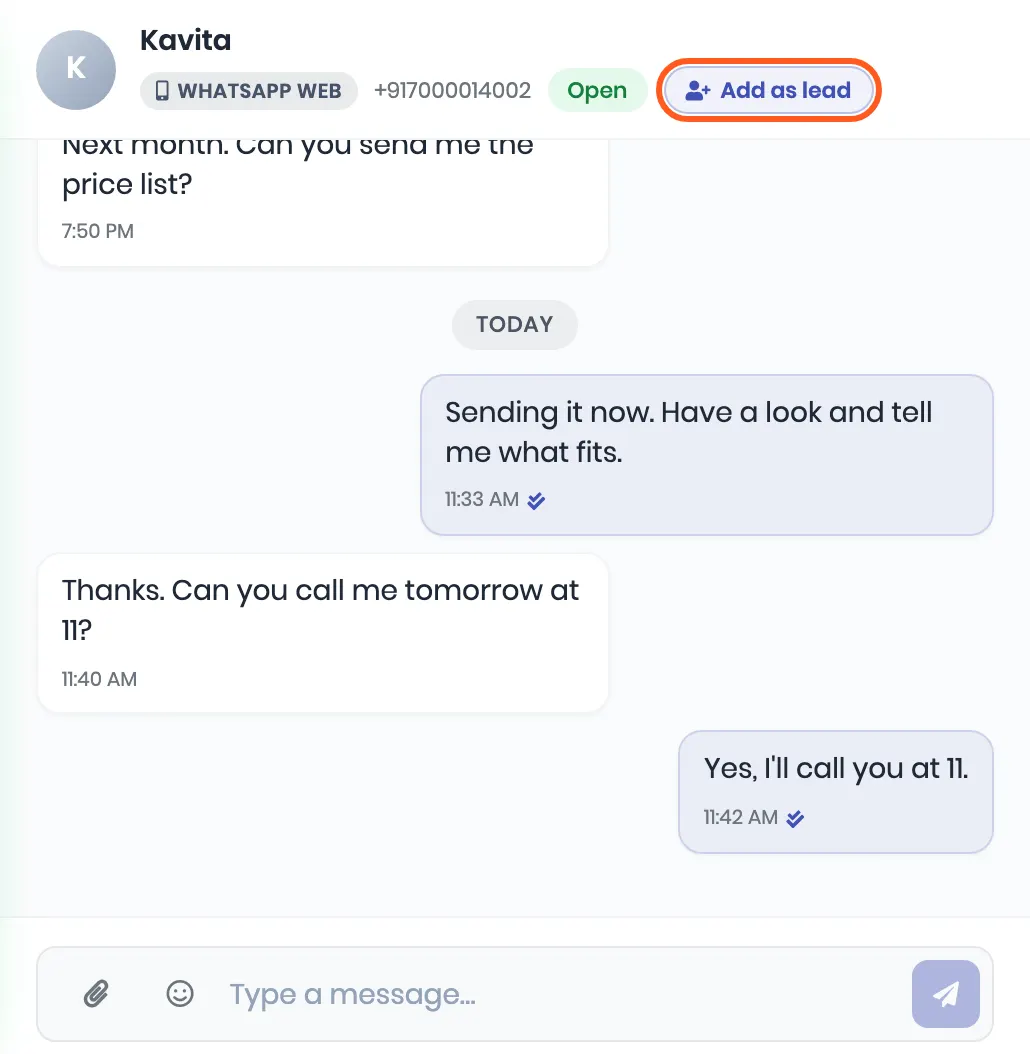
Leads. A chat with someone who is already a lead is filed under that lead by itself. Other chats make no lead on their own. Click Add as lead, next to Open, to make one. It takes the name the person uses on WhatsApp, or WhatsApp Lead when there is none, and you can rename it on the lead’s page. If a lead with that number already exists, the chat is filed under it instead. The button shows to people whose role can create leads.
7. Start a new chat
Click New chat at the top of the list. From WhatsApp Number shows the linked phone. Type the number with the country code, the name if they are not a lead yet, and your message. Then click Send message.
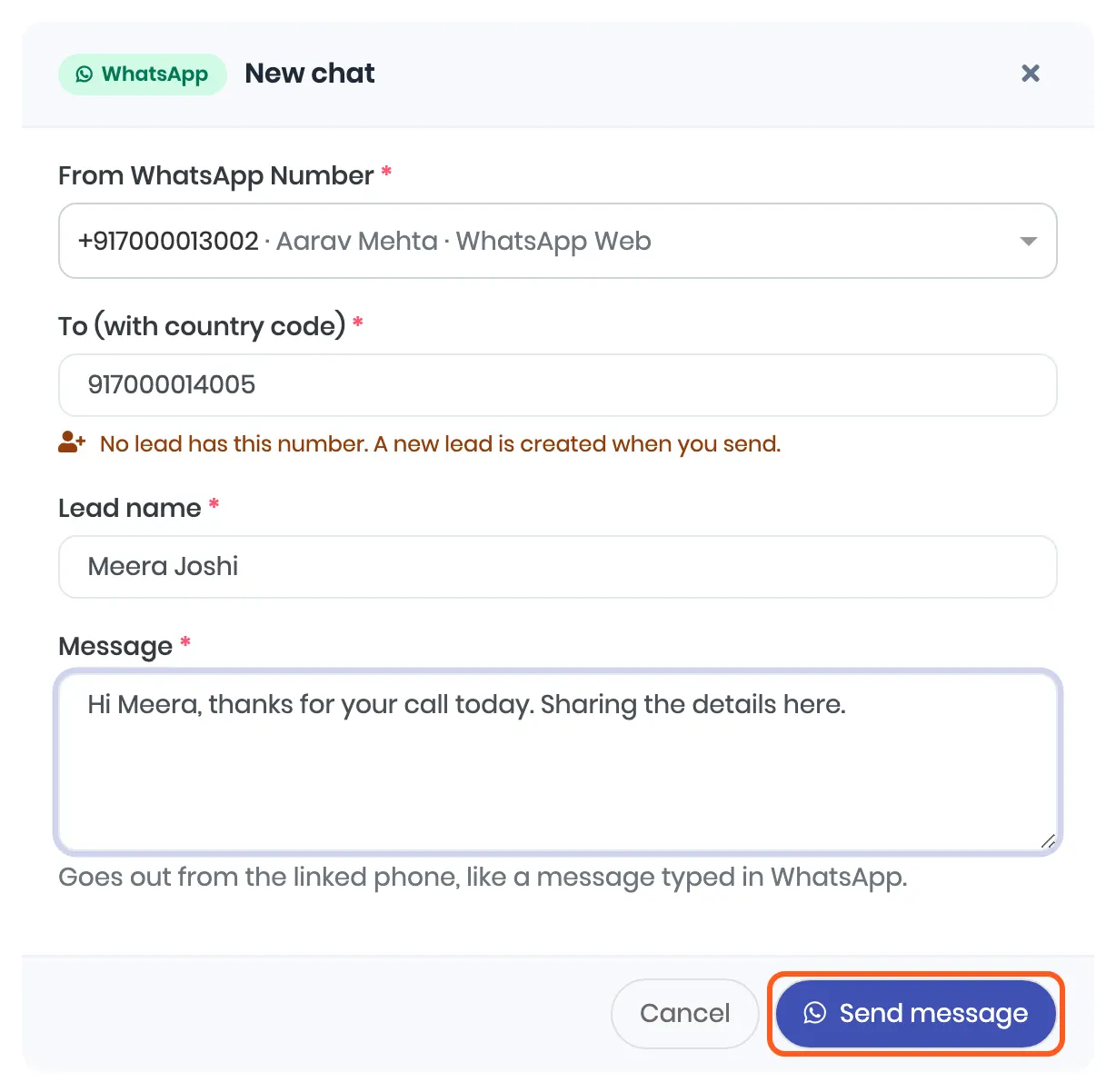
Before anything goes out, ViveLead asks WhatsApp two things: whether that number is on WhatsApp, and whether WhatsApp lets your number start a new chat right now. A number that is not a lead yet becomes one when you send.
What comes in, and what does not
| Comes into ViveLead? | |
|---|---|
| One-to-one chats from the last 180 days | Yes, once, when the phone is linked |
| New messages, both ways, including ones typed on the phone | Yes, as they happen |
| Photos, videos, voice notes, documents and stickers | Yes, up to 25 MB and up to 14 days old. Older or bigger ones show as Attachment not available; open them on the phone |
| View once photos and videos | No. WhatsApp keeps them off linked devices |
| Groups, status updates, channels and broadcast lists | No |
| Chats older than 180 days | No. They stay on the phone |
| Messages that arrive while the link is Reconnecting | Yes, once it is back |
Some chats show Number hidden by WhatsApp instead of a number, because WhatsApp did not share it. You can still read and reply. To make that person a lead, ask them for their number.
Who can see the chats and reply
- The person who linked the phone, the leader of their team and your admins can open its chats and reply. Every reply goes out from that phone’s number.
- When the person who linked the phone opens a chat in ViveLead, the contact sees blue ticks, as if it was read on the phone. When an admin or a team leader opens it, nothing is sent and the unread count stays.
- Personal chats come in like any other chat. Link the WhatsApp you use for work.
Unlink a phone, or turn it off
- Your own phone: open the WhatsApp Web page, or click Manage on the card, and click Unlink. New messages stop coming in. Chats already in ViveLead stay.
- From the phone: in Linked devices, tap the device ViveLead added, then Log out. ViveLead then shows WhatsApp is no longer linked.
- Someone else’s phone (admins): click the unlink button on their row under Linked across the company.
- Everyone at once (admins): Turn off for company unlinks every phone straight away, and nothing syncs until an admin accepts the terms again.
- Someone who leaves: removing or deactivating them under Users unlinks their phone.
Whenever a phone stops syncing, whatever the reason, the person who linked it gets a notification in ViveLead and on the ViveLead app.
If it does not work
| What you see | Why | What to do |
|---|---|---|
| No Link with a QR code in the Connect dialog | Your plan does not include WhatsApp Web | It is on the Business plan |
| Only an admin can turn WhatsApp Web on for this company. | Nobody has accepted the terms yet | Ask an admin to open the same page and accept |
| The terms show again after you accepted them | We changed the terms | An admin accepts the new version. Linked phones keep syncing meanwhile |
| This code expired. | Nobody scanned for five minutes | Click Start again with the phone in your hand |
| The phone says Can’t link new devices right now | WhatsApp paused new device links on the account after several links and unlinks | Wait a few hours. Trying sooner makes it last longer |
| Reconnecting | The link dropped for a moment | Nothing. Messages that arrive meanwhile come in once it is back |
| WhatsApp is no longer linked and The linked device was removed from your phone. | Someone logged ViveLead out under Linked devices on the phone | Click Link again |
| Someone else in your company has already linked this number. | Another person linked the same number | An admin unlinks it under Linked across the company, then link it here |
| This number is already connected to the CRM through the WhatsApp Business API, so its chats already come in. | The number is on the API | Nothing to link |
| An admin turned WhatsApp Web off for the company. | Turn off for company was used | An admin accepts the terms again, then link again |
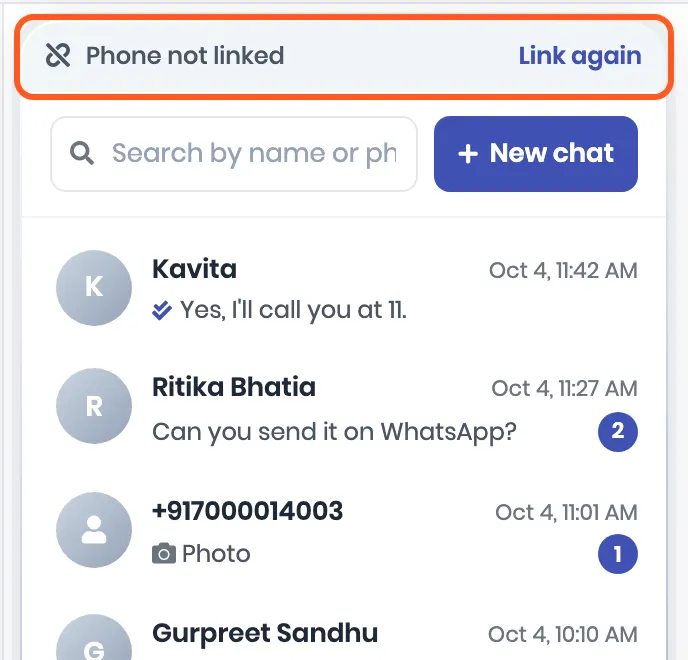
| The inbox frame turns grey with Phone not linked | Your phone is no longer linked | Click Link again |
| WhatsApp has blocked this number | WhatsApp refused the account | Do not try to link it again: repeated attempts make the block harder to lift. Chats already in ViveLead stay |
| … is not on WhatsApp. on a new chat | That number has no WhatsApp account | Check the number and its country code |
| WhatsApp has paused new chats from this number. or This number has used up WhatsApp’s limit on new chats. | WhatsApp’s limit on new chats with people who have not written back | Answer chats where people wrote to you. Start new ones later |
| You can connect … WhatsApp numbers, one per user on your plan. | Every number counts, API or linked | Disconnect one, or add users |
| No new messages for about two weeks | WhatsApp was not opened on the phone for 14 days, so it logged out its linked devices | Open WhatsApp on the phone, then click Link again |
When the phone is no longer linked, the inbox shows it on top of the list:
The terms you accept
WhatsApp Web has its own terms, in our Terms and Conditions. An admin accepts them for the company before anyone links a phone. In short:
- It is not a WhatsApp product. WhatsApp and Meta do not make, approve or support it.
- The risk to the number is yours. WhatsApp can limit, log out or ban a linked number at any time. We cannot prevent or reverse that, we are not liable for a lost number or its chats, and fees are not refunded because WhatsApp acted against a number.
- Link only numbers you are entitled to link, with the owner’s agreement, after telling them their chats, personal ones included, will be visible to your admins and their team leader.
- Message only people who expect to hear from you. No bought or scraped lists, no unsolicited promotions, and stop when someone asks.
- A person sends every message. No bots, scripts, auto-senders or bulk number checks, inside or outside ViveLead.
- WhatsApp’s own terms still bind the account, and so does the rest of our Acceptable Use Policy.
- It is provided as it is, outside our Service Level Agreement, and it may stop working whenever WhatsApp changes how linked devices work.
- We can unlink a phone or turn it off for a company at once where we believe it is being misused or puts other customers at risk.
Quick answers
- Will WhatsApp ban my number? It can. WhatsApp does not support linking a business tool this way. Following the rules above lowers the risk; it does not remove it.
- Is this the WhatsApp Business API? No. It is a linked device, like WhatsApp Web on a computer. For the API, see Connect your WhatsApp number.
- Do I need a Meta or Facebook account? No.
- Does the phone have to stay on? No. Open WhatsApp on it at least once every 14 days.
- Does it use one of my linked devices? Yes. WhatsApp allows four linked devices per account, and ViveLead is one of them.
- Do new people who write in become leads? No. Click Add as lead on the chat, or start the chat from ViveLead with New chat.
- What happens to the chats when I unlink? They stay in ViveLead. Only new messages stop.
- Can two people link the same number? No. Each number can be linked by one person in the company.
- Can I send templates, broadcasts or automated messages from it? No. ViveLead blocks them on linked phones. They need a number on the WhatsApp Business API.
Related
- Connect your WhatsApp number through the WhatsApp Business API, with or without the app on the phone.
- Add your team and set what they can see, including team leaders.
- Terms and Conditions: WhatsApp Web
Still stuck on this step?
Send us what you are seeing and we will sort it out with you.