Plan every follow-up with tasks
Tasks replaced Follow-ups. Plan the next call, WhatsApp, email or meeting on a lead, work your day from one list, and let a call or message done from ViveLead tick its task off by itself.
A task is the next thing to do on a lead: call Asha at 4 PM, send the quote on WhatsApp, meet at the site on Friday. Each task has a type, a due time and one person it is assigned to. Call, WhatsApp and email tasks tick themselves off when the work is done from ViveLead, so the list shows what is really still pending.
🔁 Used Follow-ups before? Tasks replaced them. Every follow-up you had moved over as a task with the same due time, notes and outcome. The What happened to my follow-ups section has the details.
Before you start
- Plan: tasks are on every plan. Reminders, the overdue alert and Call from my phone come with Professional and above. See pricing.
- Who can do it: anyone whose role has the task permissions. The SALES EXECUTIVE role that new accounts come with already has them, and every role that could work follow-ups got the same rights for tasks. To change a role, see Who sees which tasks.
- On the phone: the Tasks screen needs the latest ViveLead app. An older version keeps working and shows your tasks under Follow-ups until it is updated.
1. Add a task
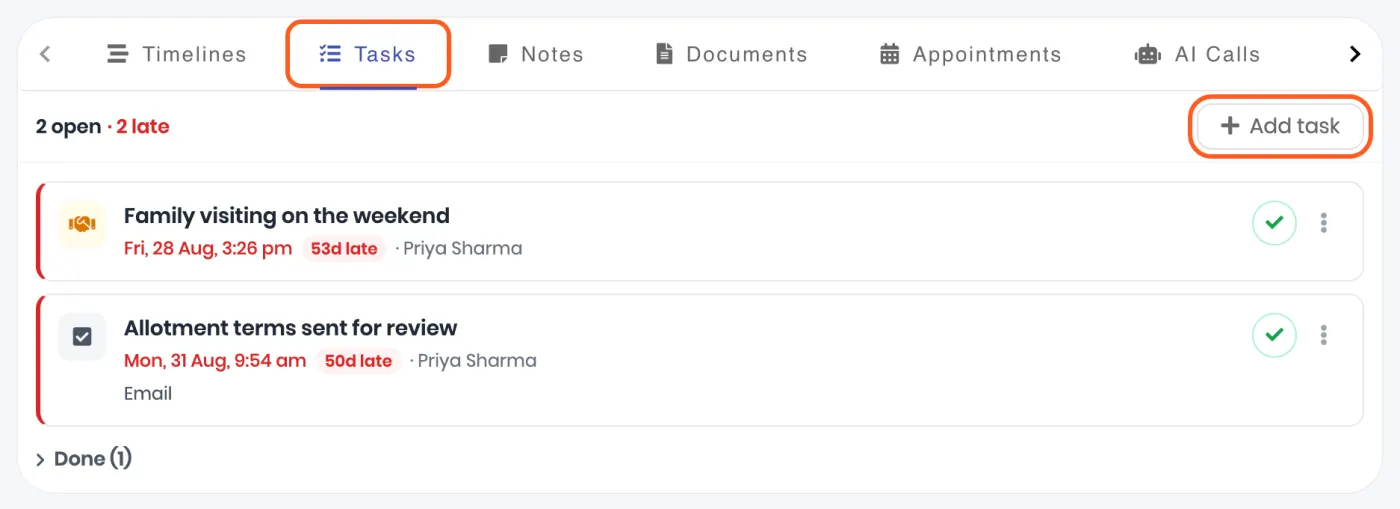
Open the lead and click the Tasks tab, then Add task. You can also click Add task in a row’s menu on the Leads page, or New task on the Tasks page.
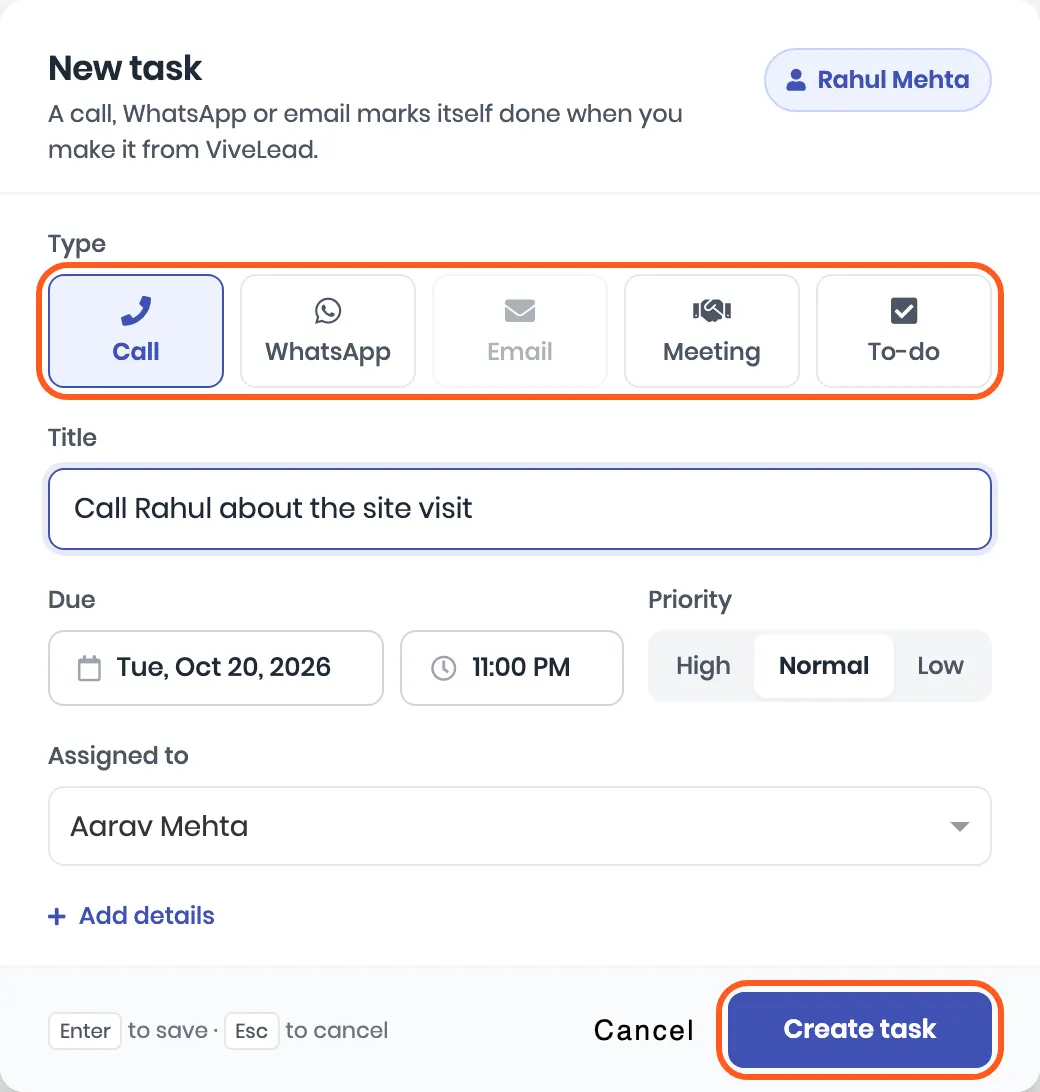
Pick the type. Call and WhatsApp need the lead to have a phone number, Email needs an email address. Meeting and To-do work on any lead. The title fills in from the type, for example Call Asha. Change it to say what the call is for.
Set the due time, the priority and who it is for. Assigned to starts on you. Pick a teammate to hand it over: they get a New task for you notification.
Click Create task. The task shows on the lead’s Tasks tab and on the Tasks page of the person it is assigned to.
A task that is not about a lead is a personal to-do. On the Tasks page, click New task and leave Lead empty.
✅ Done when the task shows under the lead’s Tasks tab with its due time.
2. Work your day from Tasks
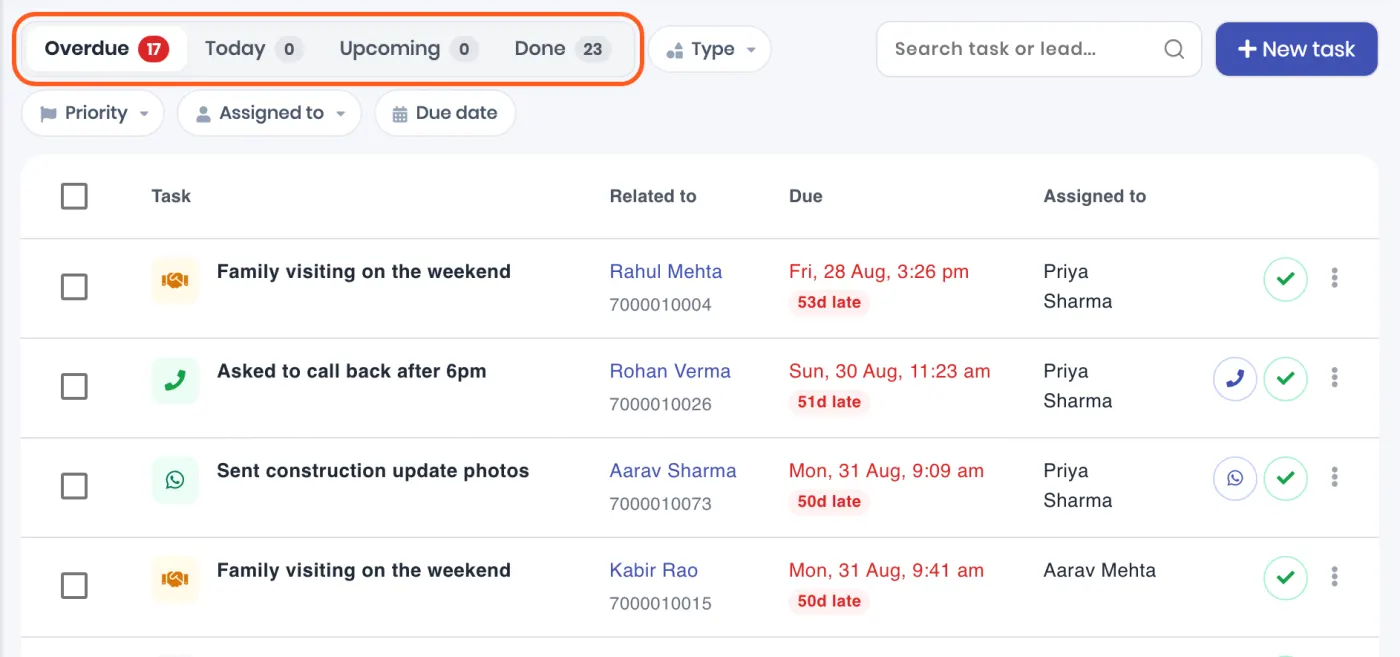
Click Tasks in the sidebar. Your tasks sit in four tabs:
| Tab | What is in it |
|---|---|
| Overdue | Open tasks past their due time, the oldest first |
| Today | Open tasks due between now and midnight |
| Upcoming | Open tasks due after today |
| Done | Tasks that were done or cancelled, the latest first |
The page opens on Overdue when anything is late, otherwise on Today. Narrow the list with Type, Priority, Assigned to and Due date, or search a task or a lead’s name or phone.
3. Do the work from the row
An open call, WhatsApp or email task has a button next to the tick that starts the work itself:
- Call rings the lead from your own Android phone (Call from my phone). It shows when the ViveLead app is signed in on your phone with Allow calls from dashboard switched on, under Profile in the app. Professional and above.
- WhatsApp opens the lead’s WhatsApp chat. Needs a connected WhatsApp number.
- Email opens the email composer addressed to the lead. Needs your Gmail connected.

When the call connects, the message goes out or the email is sent, the task moves to Done on its own.
How a task ticks itself off
| Task | Done by itself when | Does not count |
|---|---|---|
| Call | A call to or from the lead connects, logged by the ViveLead app on an Android phone | A call that does not connect: it adds a try to the task (2 tries) instead. Calls on an iPhone. |
| Someone on your team sends the lead a message from ViveLead, or from a phone linked to ViveLead | Automations, broadcasts and the AI assistant. A message that fails to arrive opens the task again, with a Task open again notification. | |
| Someone on your team sends the lead an email from ViveLead | Email campaigns | |
| Meeting and To-do | Never by themselves | Mark them done by hand |
One call, message or email ticks off one task: the open one of that type on the lead that is due first, and only if the task was created before the call or message. A done task says how it was done, for example Done by a call.
4. Mark a task done by hand
Click the tick on the task.
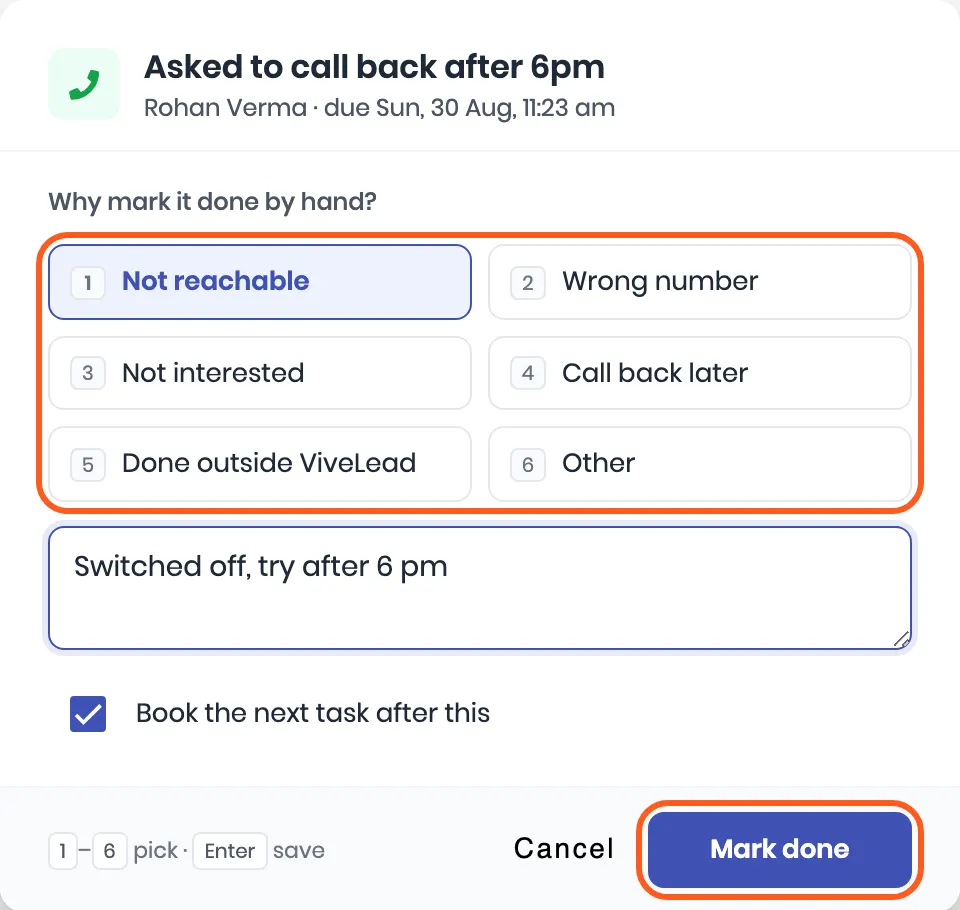
- A call, WhatsApp or email task asks Why mark it done by hand? Pick a reason: Not reachable, Wrong number, Not interested, Call back later, Done outside ViveLead or Other, and add a note if you like.
- A meeting or to-do on a lead asks What happened? Write it in a line: it shows on the lead’s timeline.
- Book the next task after this is on, so the next task on the same lead opens straight after. It switches off for Not interested and Wrong number.
Click Mark done.
A personal to-do needs no reason. Done by mistake? Open the Done tab, click the task’s menu and Reopen.
On the app
The same tasks are on the phone. Tap Tasks in the menu for the four tabs, or open a lead and tap its Tasks tab. The phone button on a call task dials from the phone, and the call ticks the task off once it has synced. The tick marks a task done the same way as on the dashboard. A personal to-do is done in one tap, with Undo on the message that follows.
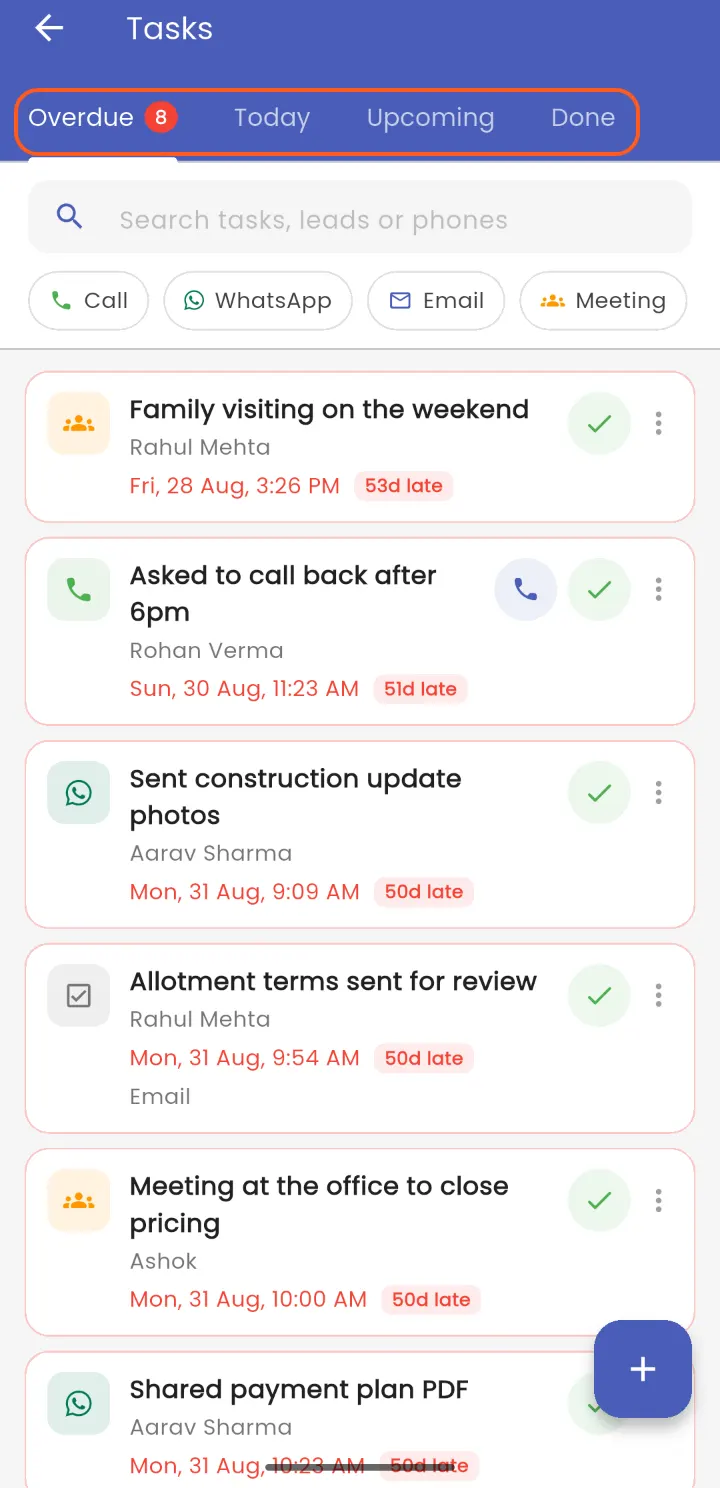
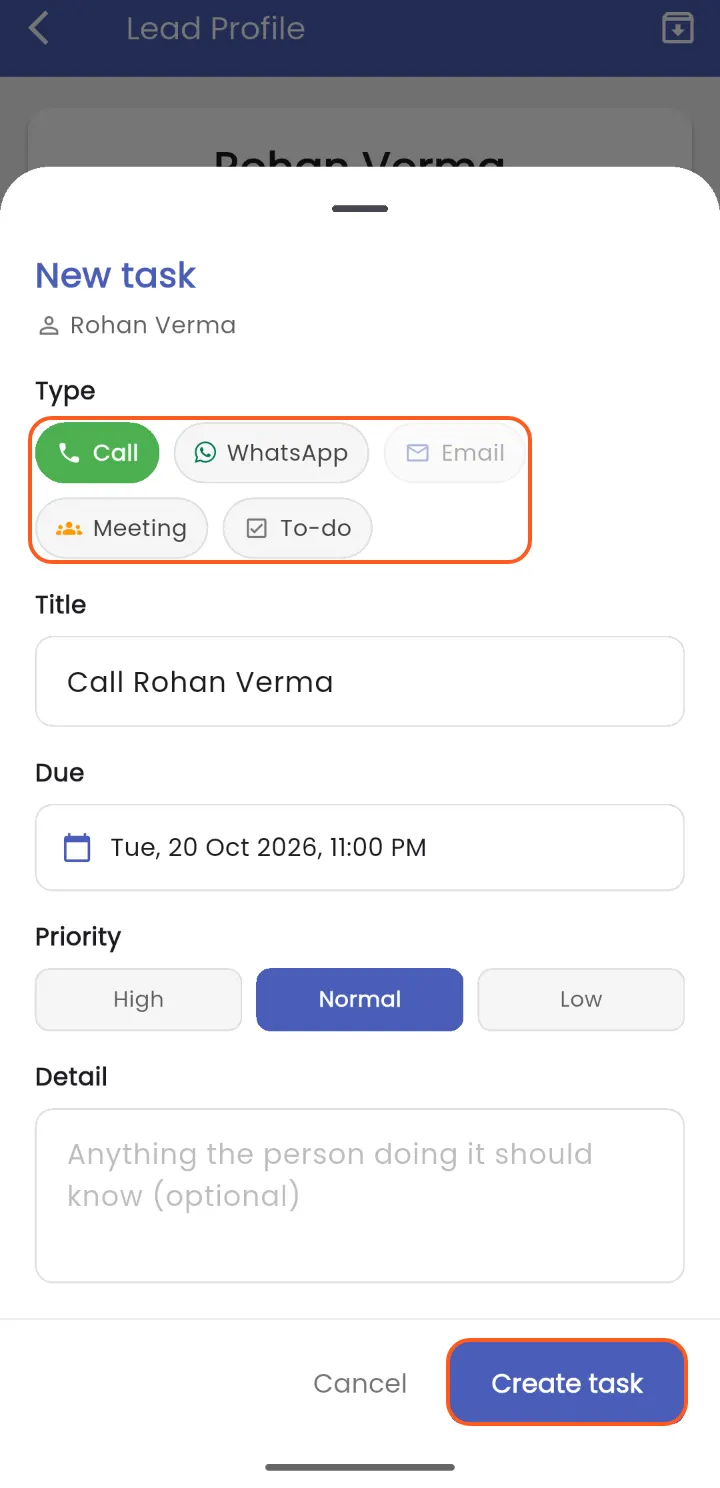
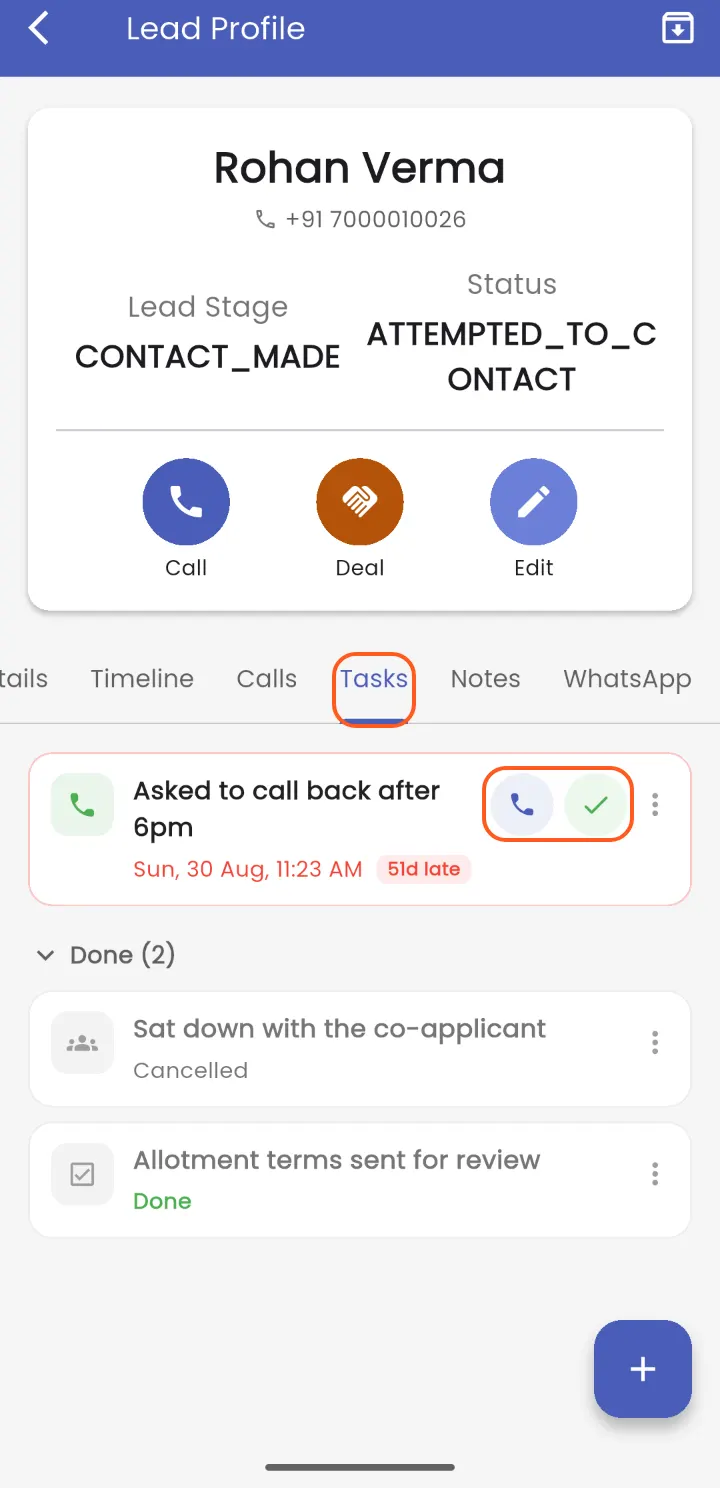
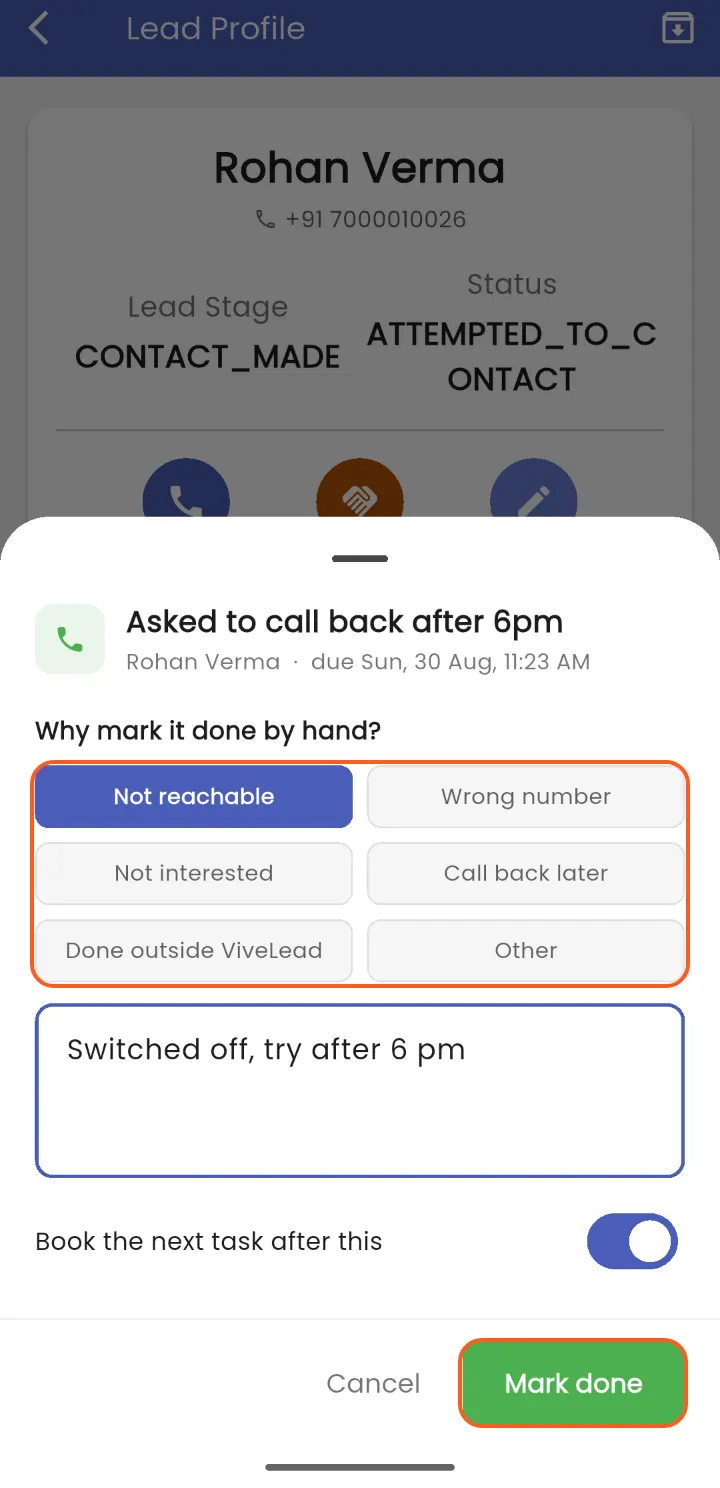
Home shows what is overdue and what is due today, with call and WhatsApp buttons on each card.
Reminders
Professional plan and above. Reminders go to the person the task is assigned to, as an app notification and an email:
- At the due time, by default: Task reminder.
- Earlier as well, if an admin sets it: open Controls, then Account Setting, then the Notifications tab, and under Task Reminders switch on Remind before tasks. Pick how many minutes before, and whether by Email, Push or both.
- When a task goes overdue, the person gets one app notification within 15 minutes, for example 3 tasks overdue. Tapping it opens their tasks.
The Email and Push switches higher up on the same Notifications tab turn that channel off, reminders included.
Who sees which tasks
| Role | Sees on the Tasks page |
|---|---|
| Admin | Every task |
| Location Admin | Every task in their branches, and the ones they created |
| A team leader | Their own tasks, their team’s, and the ones they created |
| Everyone else | Tasks assigned to them, and the ones they created |
A lead’s Tasks tab shows all of that lead’s tasks to anyone who can open the lead.
What each role may do with tasks is under Users, then Roles: Task Read, Task Create, Task Update and Task Delete. A task can be deleted by the person who created it, an admin or a Location Admin.
Move many tasks at once
On the Overdue, Today or Upcoming tab, tick the tasks, then pick Reschedule, Reassign, Mark done or Cancel from the bar that appears. Mark done asks one outcome for all the tasks you picked.
Automate with tasks
In Automations:
- Create record, then Task, adds a task to the lead. It starts as Call with the lead’s name, due a day later: change the title, the type and when it is due.
- The Task overdue trigger, under Tasks, starts a workflow when a task goes overdue: tell the owner’s manager, or send the lead a WhatsApp template. Overdue tasks are checked every 15 minutes.
See Set up your first automation.
What happened to my follow-ups
- Every follow-up became a task with the same due time, notes and outcome. Done follow-ups are on the Done tab.
- The type came from the follow-up’s own type: a call or call back became Call, a meeting, demo or visit became Meeting, WhatsApp and email kept their type, and anything else became To-do, with the old type at the start of its notes. A call, WhatsApp or email on a lead without a phone number or email address became a To-do.
- Each task is assigned to the person who created the follow-up. If they are no longer active, it went to the lead’s owner, or else to an admin.
- The lead’s timeline keeps every old follow-up as it was. New rows read Task created and Task done.
If it does not work
| What you see | What it means | What to do |
|---|---|---|
| Call is greyed out in the type chips | The lead has no phone number | Add the phone on the lead, or pick Meeting or To-do |
| A connected call did not tick the task off | The call was on an iPhone, the app has not synced it yet, or the task was created after the call | Open the app so it syncs, or tap Sync recent calls on the lead’s Calls tab. Then mark the task done by hand if it still shows |
| No Call button next to the tick | No phone of yours takes calls from the dashboard, or the plan is Starter | In the app, open Profile and switch on Allow calls from dashboard |
| No reminder came | Starter plan, the Push or Email switch is off, or the task is assigned to someone else | Check Controls, then Account Setting, then Notifications |
| A teammate cannot see a task | It is assigned to someone outside their scope | Reassign it, or open it from the lead’s Tasks tab |
Related
Still stuck on this step?
Send us what you are seeing and we will sort it out with you.