Put a lead form on your website
Paste your ViveLead lead form into any website with one embed code, so every enquiry lands in Leads. If your site already has its own form, send it to the Lead Capture API instead.
This puts your lead form on your website, so every enquiry arrives in ViveLead as a lead without anyone copying it across. The embed takes about five minutes and needs no developer.
Before you start
- Your role needs the Form Update permission. If Forms Desk is missing from your menu, ask your admin to switch it on for your role under Users, then Roles.
- The embed works on every plan. The Lead Capture API, covered at the end, is on the Professional plan and above. See pricing.
- You need to be able to edit your website, or have someone who can paste a piece of HTML into it.
Steps
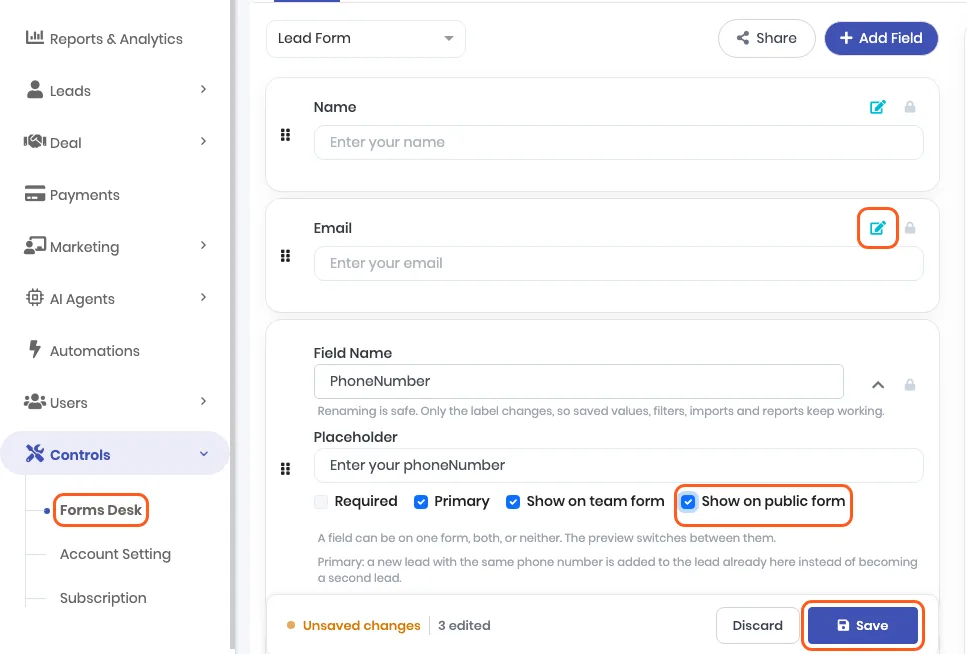
Open Controls, then Forms Desk in the left sidebar. The Forms tab opens. In the form picker at the top, choose Lead Form.
Pick the fields your visitors fill in. Click the pencil icon on a field to open its settings, then tick Show on public form. Do this for every field you want on the website. Fields ticked Required must be filled before the form will submit. Click Save in the Unsaved changes bar at the bottom. The bar disappears once the change is saved.
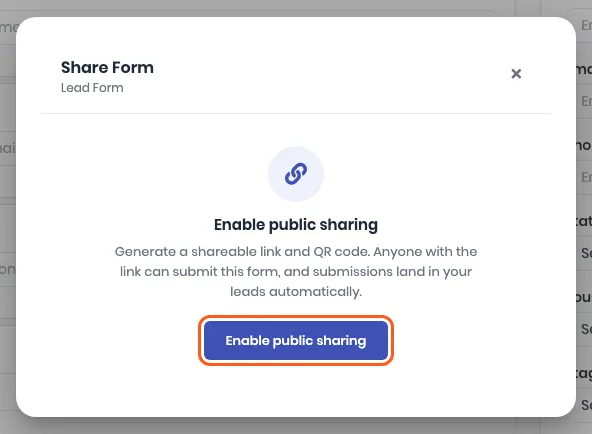
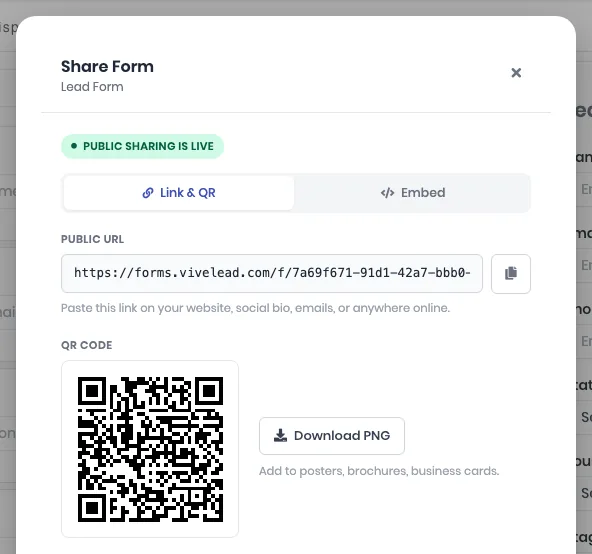
Click Share, then Enable public sharing. Share sits next to Add Field at the top of the form. The Share Form dialog opens. Once sharing is on, it shows Public sharing is live with two tabs, Link & QR and Embed.

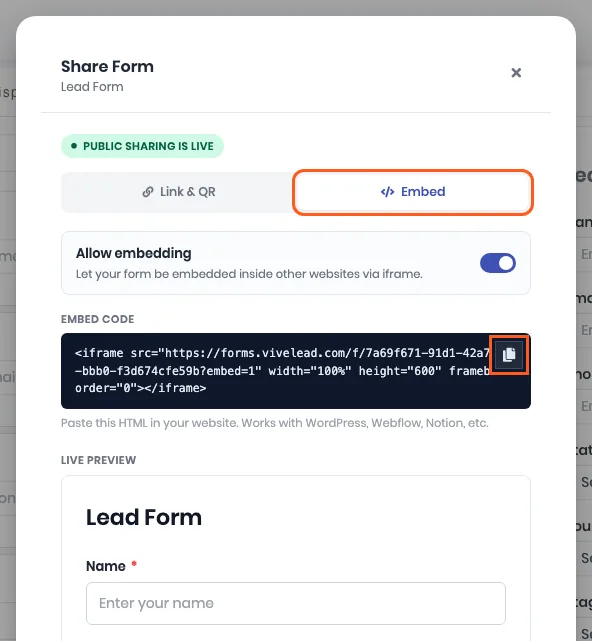
Open the Embed tab and copy the code. Leave Allow embedding switched on. Click the copy button beside Embed Code. Live Preview below it shows the form your visitors will see.
Paste the code into your website where the form should appear. It is one line of HTML. In WordPress, add a Custom HTML block and paste it there. On other site builders, use their HTML or embed element. The code sets the form to 600 pixels tall. If your form has more fields and shows its own scrollbar, change
height="600"to a larger number.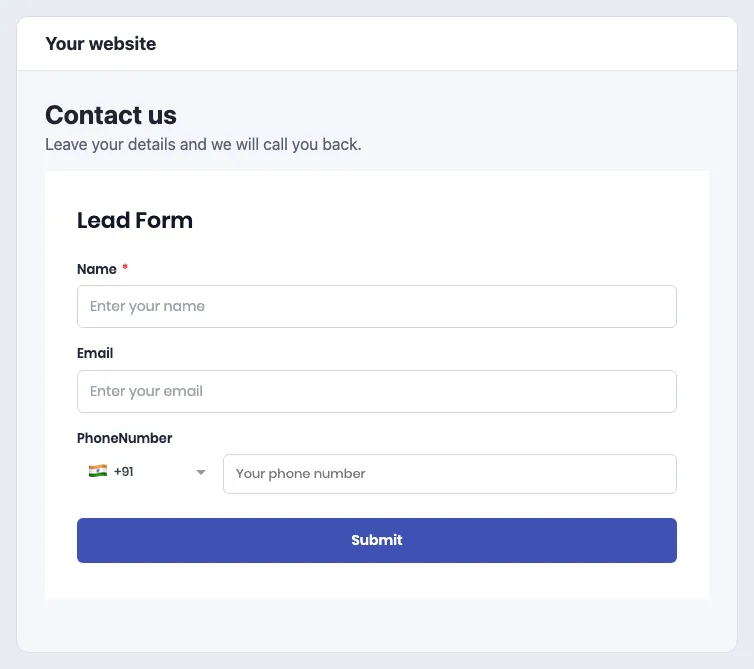
Send a test enquiry from your website. The form switches to a Thank you screen.
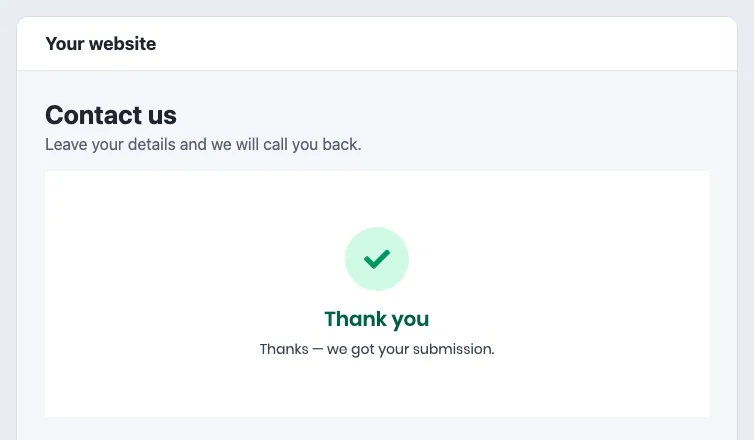
The enquiry appears in Leads as a new lead with the source PUBLIC_FORM.

The Link & QR tab has the same form as a link and a QR code, for places where you cannot paste code, such as a social bio, an email or a poster.
When the person is already a lead
If the phone number matches a lead you already have, no second lead is created. The same goes for the email if you have ticked Primary on the email field. The existing lead gets any empty fields filled from the form, and its timeline shows Submitted a public form, at most once a day. The visitor sees the same Thank you screen either way.
To have every submission arrive as a new lead, untick Primary on both the phone number and email fields in Forms Desk, then click Save.
Keep your own website form instead
If your website already has a form your developer built, send its entries to the Lead Capture API rather than embedding ours. This part needs a developer, and the Professional plan or above.
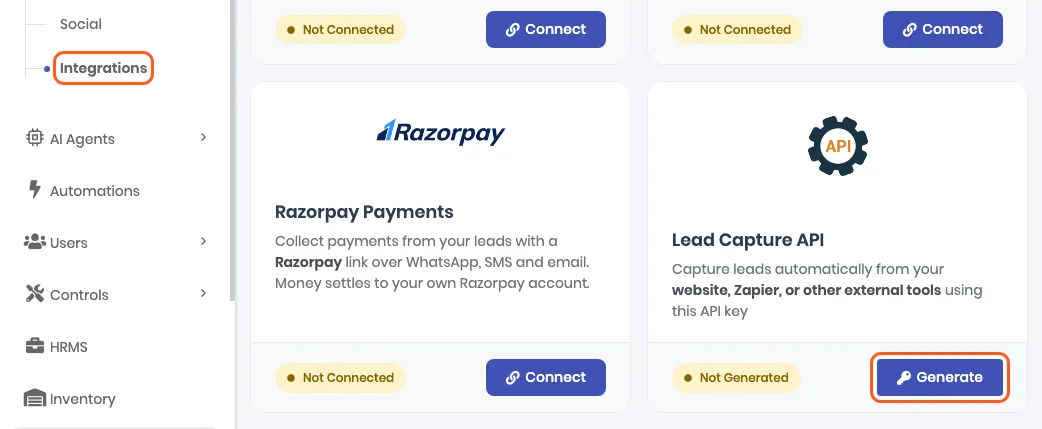
Open Marketing, then Integrations. On the Lead Capture API card, click Generate. The card now shows Active.
Click View Integration Guide. The API Docs tab shows your key, the endpoint, a sample request and every field. Send Test Lead adds a lead named Test Lead (API) with the source API Test, so you can watch one arrive. Delete it afterwards.
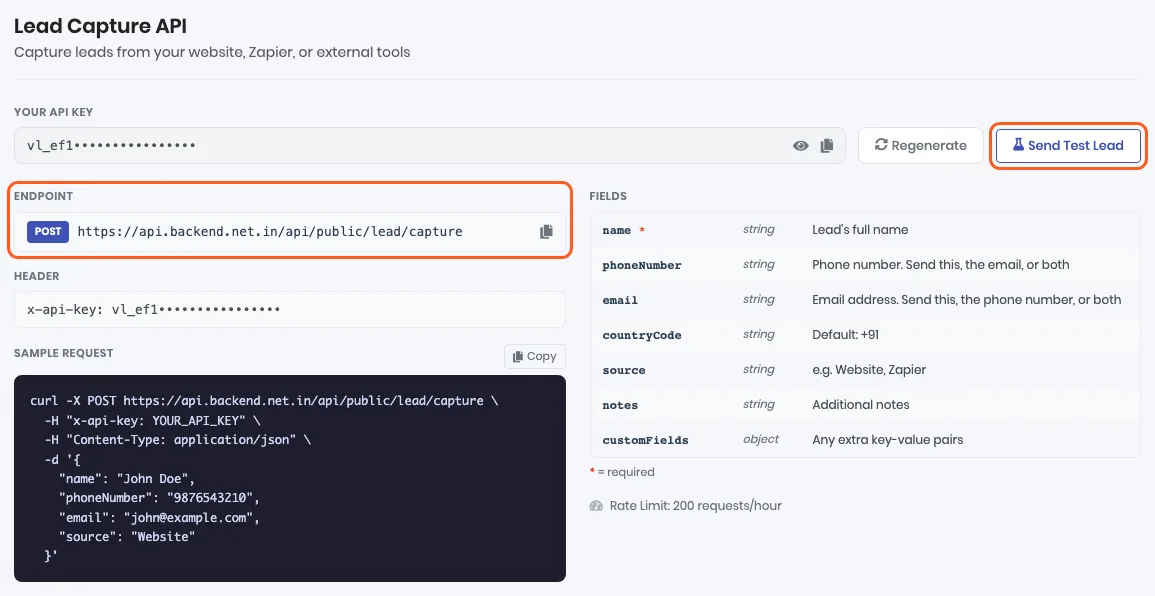
Have your developer send each enquiry from your website’s server.
POST https://api.backend.net.in/api/public/lead/capture x-api-key: YOUR_API_KEY Content-Type: application/json { "name": "John Doe", "phoneNumber": "9876543210", "email": "john@example.com", "source": "Website" }nameis required. SendphoneNumber,email, or both.countryCodedefaults to+91.notesandcustomFields(any extra key-value pairs) are optional.
Three things your developer should know:
- Call the API from the server, never from JavaScript in the page. Anything in a web page can be read by its visitors, and this key can also change your existing leads. If the key ever shows up in a page, click Regenerate on the card and put the new key on your server. The old key stops working at once.
- A new lead comes back with its
leadId. A person who is already a lead comes back as409with that lead’sleadId. Their empty fields are still filled, and the contact is logged on their timeline, at most once a day. - One key takes 200 requests an hour.
If it does not work
| What you see | What it means | What to do |
|---|---|---|
| Enable public sharing is greyed out, with “No fields are marked as public yet” | No field has Show on public form ticked | Tick it on the fields you want, click Save, then open Share again |
| The form on your site says “Form not found” | The link was regenerated, which retires the old code | Open Share, then Embed, copy the new code and replace the old one on your site |
| The form on your site says “This form is no longer accepting submissions” | Public sharing was disabled, or no saved field is ticked Show on public form | Open Share and click Enable public sharing. The link stays the same, so the code on your site works again |
| A scrollbar appears inside the form | The form is taller than 600 pixels | Raise the height="600" value in the code |
| The API answers “The lead capture API is not included in your current plan” | Your plan does not include the API | Move to Professional, or use the embed above, which works on every plan |
| The API answers “Invalid API key” | The key was regenerated, or was copied wrongly | Copy the key again from the API Docs tab |
| The API answers “Send a phoneNumber or an email” | The request carried neither | Send at least one of them |
| Send Test Lead says “Lead with this phone number already exists” | The test lead from an earlier click is still in Leads | Delete Test Lead (API) from Leads, then try again |
Related
Still stuck on this step?
Send us what you are seeing and we will sort it out with you.