Qualify leads with AI
Tell ViveLead what a qualified lead looks like for you. The AI reads every call, chat and change on each lead, shows reps what is still missing, and suggests the verdict.
Every team qualifies leads its own way: one wants a connected call and a stated budget, another a booked site visit, a third just a reply on WhatsApp. ViveLead does not decide for you. You write down what a qualified lead looks like, and the AI reads every lead against it: what happened on the lead, what is filled in, and what the lead said on recorded calls and WhatsApp. Each lead then carries the AI’s reading, what is still missing, and the verdict the AI suggests. A person confirms it, or you let the AI mark leads qualified on its own.
Before you start
- Plan: Business. See pricing.
- Who can do it: an admin.
- To qualify on what the lead said on a call, set up call recording and switch on Call Recording AI Summaries with at least one question in its format. Without them you can still qualify on what happened and on lead fields.
- Decide your criteria. Two to four are enough to start. Write them the way you would tell a new rep: “we spoke to them”, “they are interested”, “budget above 50 lakh”, “not if they said wrong number”.
Steps
Open Controls, then Account Setting, then the Account Configuration tab, and find AI Lead Qualification. Click Set up (it reads Criteria once a definition exists).

Add your criteria. Click Add a criterion, name it, and say what it checks:
- Something happened: a connected call, any call, the lead reaching out again (a repeat call or a WhatsApp message), an appointment booked, a follow-up closed with an outcome, a deal created, an email opened or clicked. Add at least N times and in the last N days when it matters.
- A lead field: any field on your lead form, or the lead score. Pick the test that fits the field: is one of, is above, is known, contains.
- Said on a call: a question from your call summary format, for example Outcome is one of Interested, Callback. The AI answers it from recorded calls and from the lead’s WhatsApp messages, always with the lead’s own words as the quote.
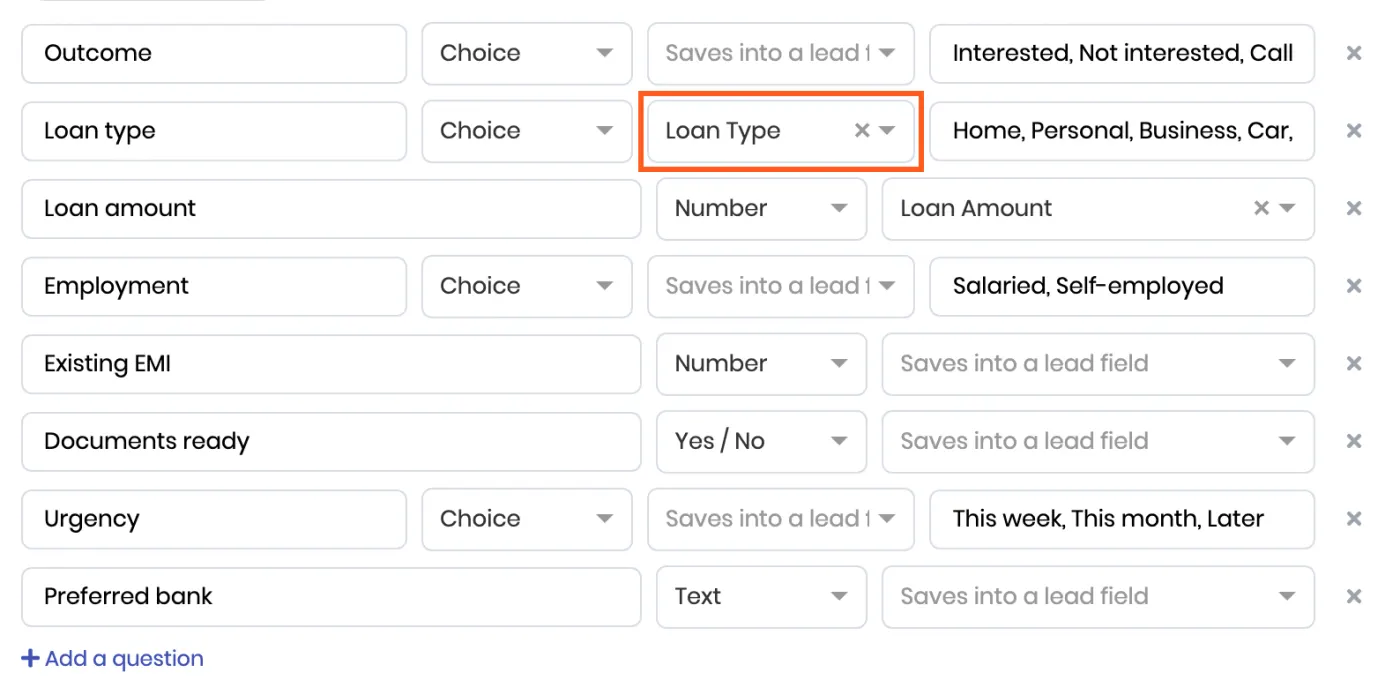
Each question in the Summary format editor also says which lead field its answer saves into, proposed from your form when the names match. Bind the ones you qualify on, so a budget said on a call also fills your Budget field.
Mark each criterion Required, Good to know (shown on the lead, does not decide), or Rules the lead out (true means not a fit, whatever else is true).
Start from the recommended set adds the three most teams begin with: spoke to the lead on a call, interested on the call, said not interested or wrong number.
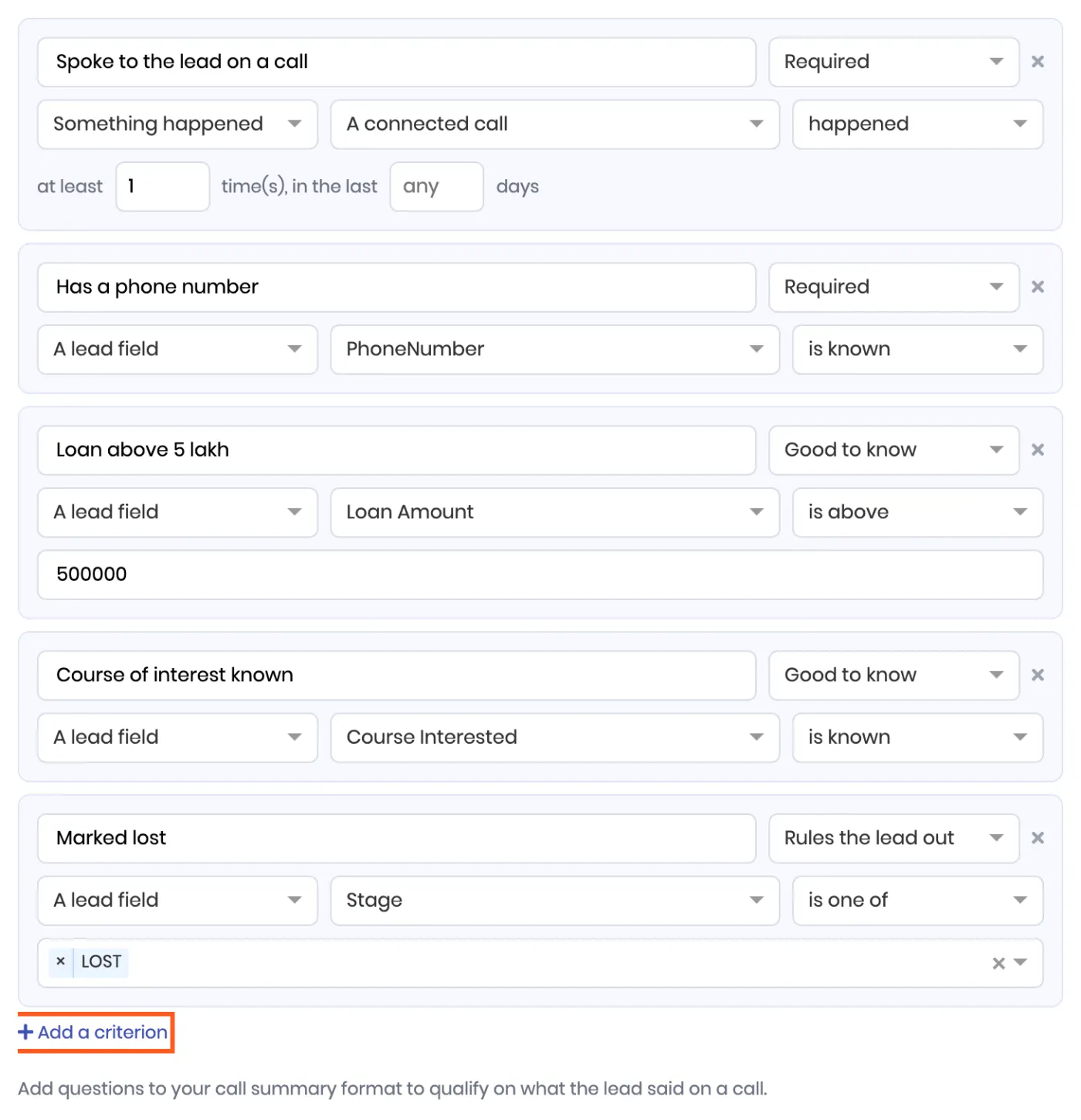
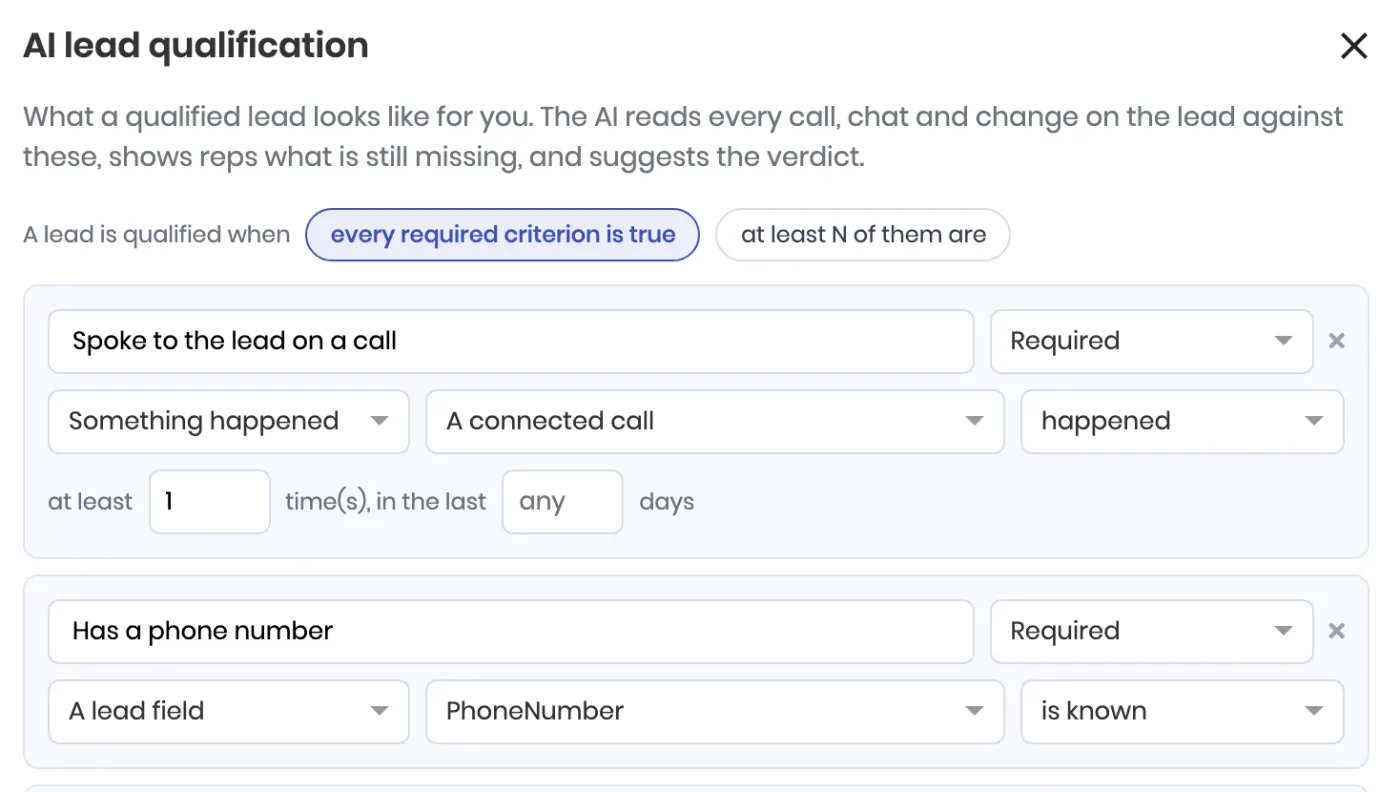
Choose the rule. A lead is qualified when every required criterion is true, or when at least N of them are. Pick the second when your criteria are alternatives rather than a checklist.
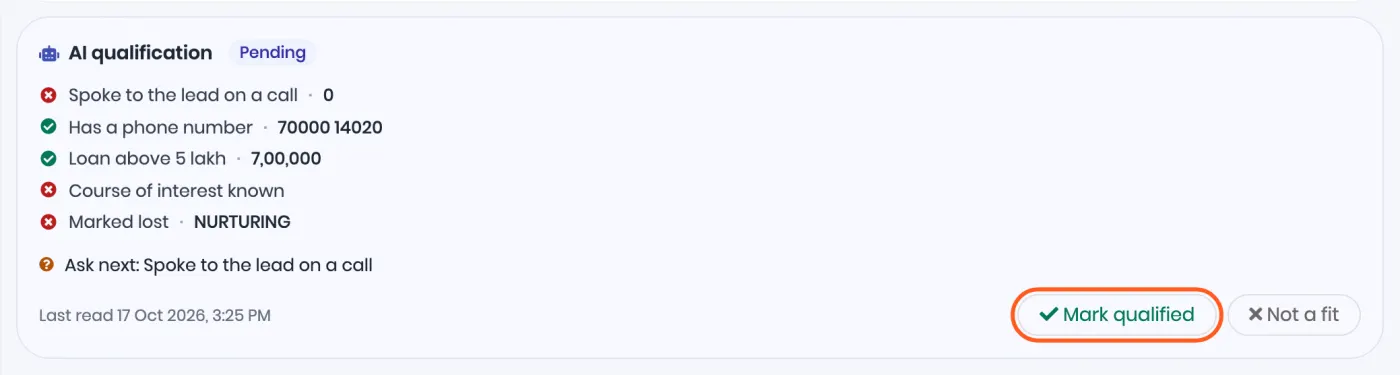
Choose who decides. The AI suggests, a person confirms is the default: the lead page shows the verdict the AI suggests and the rep clicks Mark qualified or Not a fit. The AI marks leads qualified on its own turns that into an automatic verdict; tick the extra box if it may also mark leads not a fit without a person.

Save. Saving switches qualification on. Every lead is read the next time something happens to it, or when someone opens it.
What the team sees
On the lead page, an AI qualification card: each criterion with a tick, a cross or a question mark, the value it was read from, a quote icon where the AI heard it on a call or read it on WhatsApp, and Ask next with what is still unknown. The buttons take the verdict; a decided lead can be reopened or given the opposite verdict.
In the leads list, the AI Qualification filter: AI suggests qualified, Qualified, AI suggests not a fit, Not a fit, Pending. AI suggests qualified is the queue to confirm. The same column can be switched on in the list and exported.
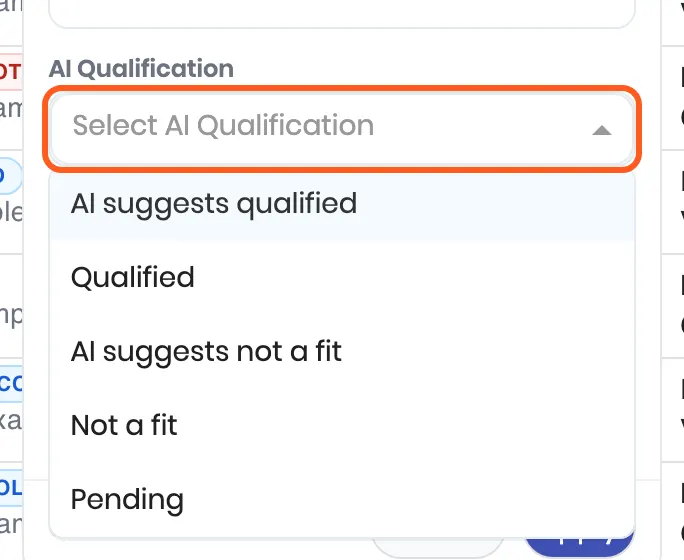
The filter sits in the bar when the company has qualification on. If you have arranged your own bar, add it from Manage quick filters in the list’s more-actions menu.
On the timeline, every verdict: who took it, or that the AI did, and the checks it rested on.
In the app, the same card on the lead, and the same filter.
Automate what happens next
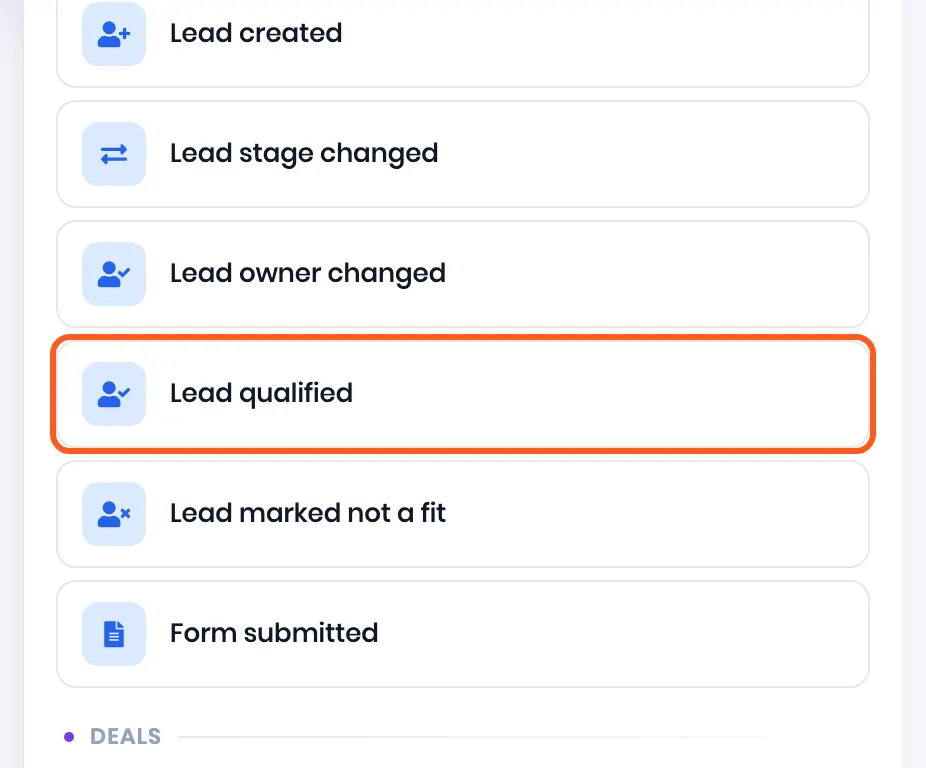
In Automations, two new triggers: Lead qualified and Lead marked not a fit. Use them the way you use any trigger: notify the owner, move the stage, send a WhatsApp template, book a follow-up. Each fires once per lead, when the verdict is taken, whether by the AI or by a person.
Good to know
- Unknown is never no. A budget that was not discussed does not read as “no budget”. The lead stays pending with that criterion under Ask next.
- A choice or a yes/no is only accepted with a quote. If the AI cannot point at the words the lead said, the answer stays unknown.
- The AI never overwrites what a rep typed. A call-summary answer fills the lead field it is bound to only when that field is empty, or when the AI filled it earlier.
- Reopen hands the lead back to the AI. In auto mode it reads the lead again at once; to overrule the AI, take the opposite verdict instead.
- Changing the criteria re-reads a lead the next time someone opens it. Verdicts already taken stay.
- Cost. Call summaries are billed as before. A WhatsApp read is one small AI call per lead message while a criterion is still unknown, at most ten a day per lead, on your AI wallet.
Still stuck on this step?
Send us what you are seeing and we will sort it out with you.