Reply when a lead taps a WhatsApp button
Make the quick-reply buttons on your WhatsApp templates do something: send the next message, tell your team, or run any other automation step.
When a lead taps a quick-reply button on one of your WhatsApp templates, an automation can answer for you. This guide builds one that sends the next question when a lead picks a day, and tells your team what they picked. It takes about five minutes.
Before you start
- Automations are on the Professional plan and above. See pricing.
- Automations has to be in your left sidebar. If it is not there, your role does not have the workflow permission yet, and an admin can add it.
- A WhatsApp number must be connected, with an approved template that has quick-reply buttons. See Connect your WhatsApp number.
- Nothing runs until you switch the automation on, so you can build it safely.
Steps
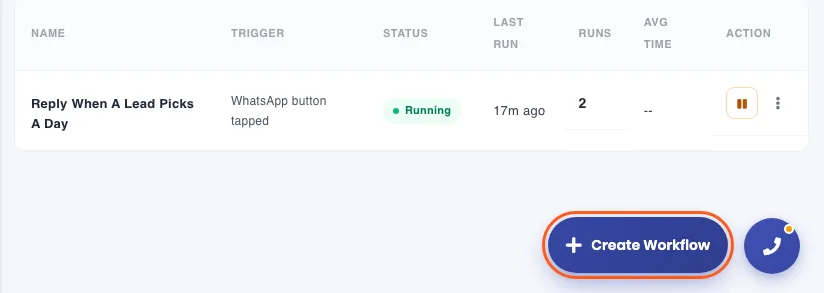
Open Automations and click Create Workflow. The button sits at the bottom right of the list. In the builder, type a name at the top, such as “Reply when a lead picks a day”.
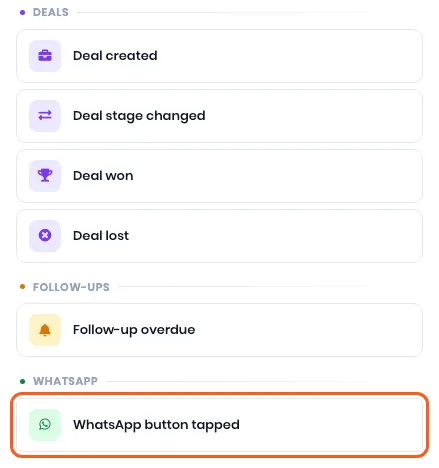
Click Choose a trigger and pick WhatsApp button tapped. It is the last trigger, under WhatsApp.
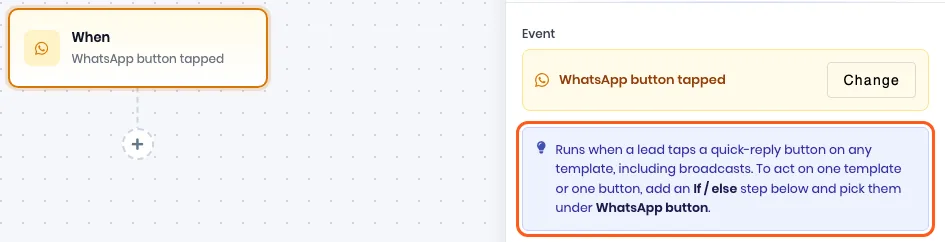
The trigger box now reads When: WhatsApp button tapped. It runs for a tap on any of your templates, whether the template went out from an automation, a broadcast or the inbox.
Click the + under the trigger, choose If / else (filter), then click Add condition. Open the field list, which starts on Name, and scroll to WhatsApp button. It has two fields: Template is the template the lead tapped on, and Button is the text of the button.
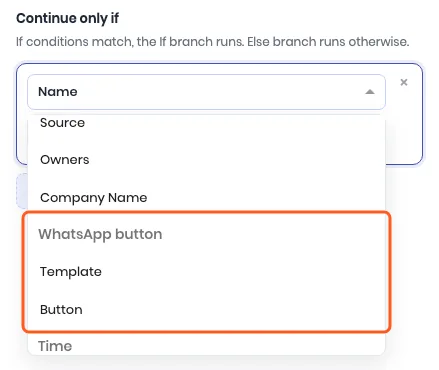
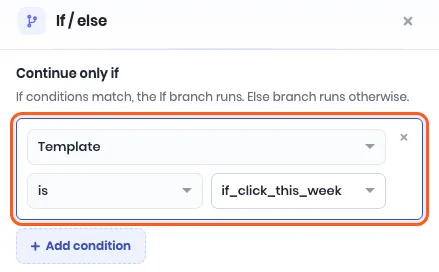
Pick Template, then is, then your template. Both lists come from your approved templates, so the names match exactly. To act on one button only, click Add condition again and pick Button the same way.
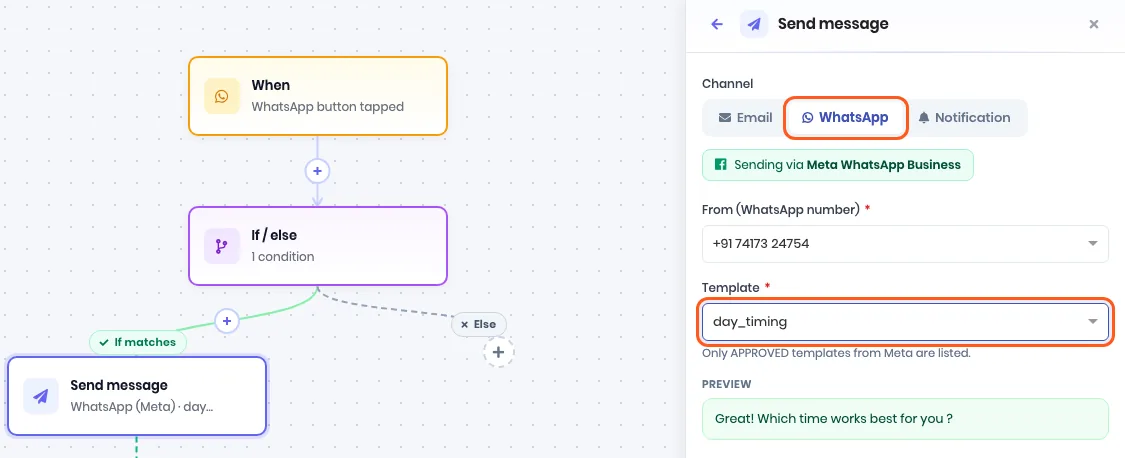
Under If matches, click the + and choose Send message. Pick the WhatsApp tab, choose your number under From (WhatsApp number), and pick the template to send back. Preview shows what the lead will get.
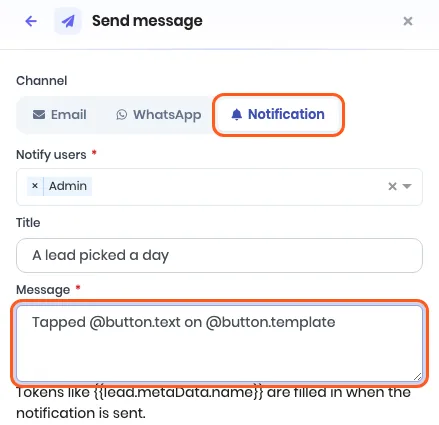
Add a second Send message to tell your team. This one is optional. Pick the Notification tab, choose who to notify under Notify users, and write the Message. @button.text becomes the button the lead tapped and @button.template the template it was on.
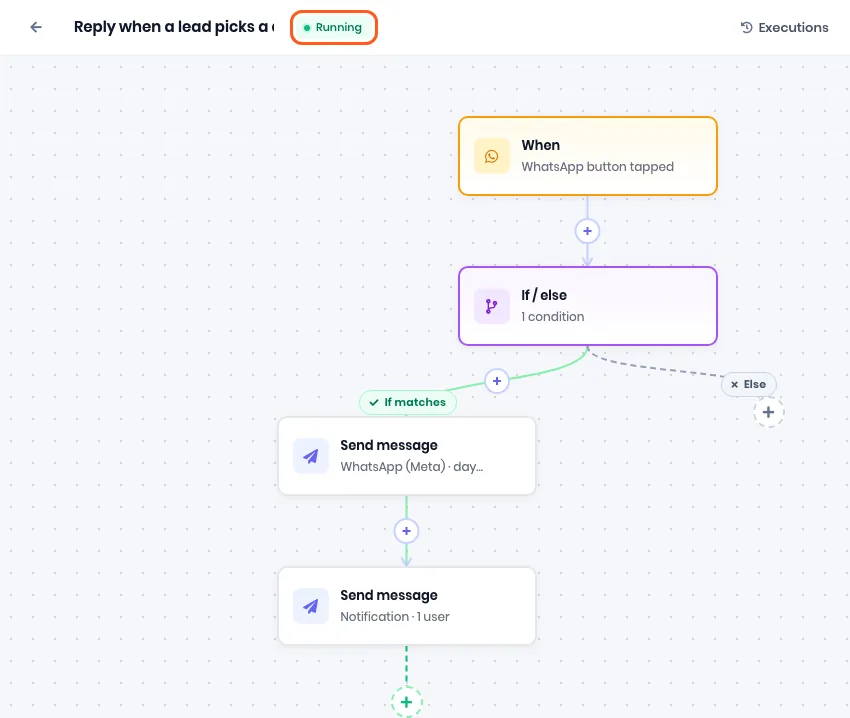
Click Save, then Activate. Activate only works on a saved workflow. The label next to the name changes from Not running to Running.
Check that it works
Send the template to your own WhatsApp number and tap a button. Open Marketing, then Inbox. The thread shows your tap, and the reply a few seconds after it.
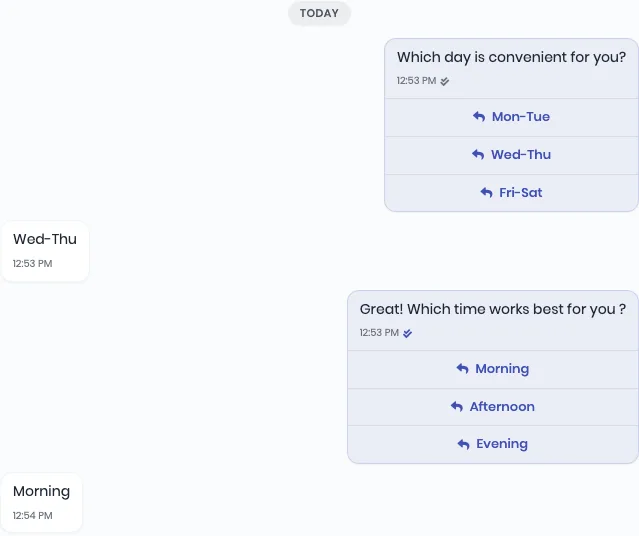
Here the lead tapped Wed-Thu and got the next question back. The second tap, Morning, was on a different template, so the If / else sent it down Else and nothing went out.
Click Executions at the top of the builder to see every run. 3/3 under Steps is a tap that matched and sent both messages. 1/1 is a tap that stopped at the If / else.
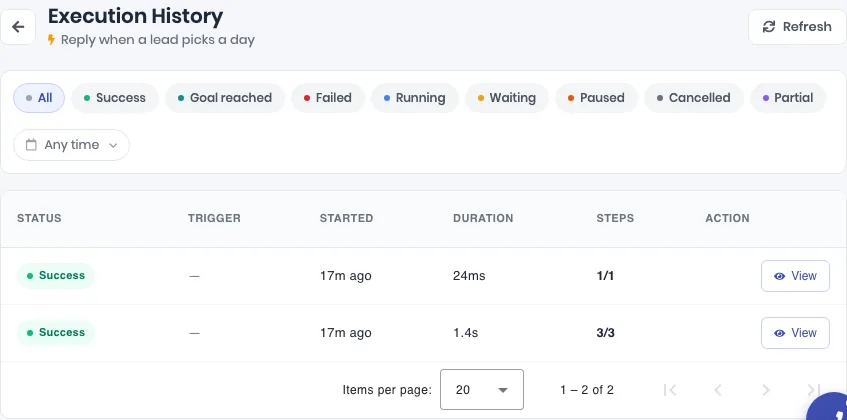
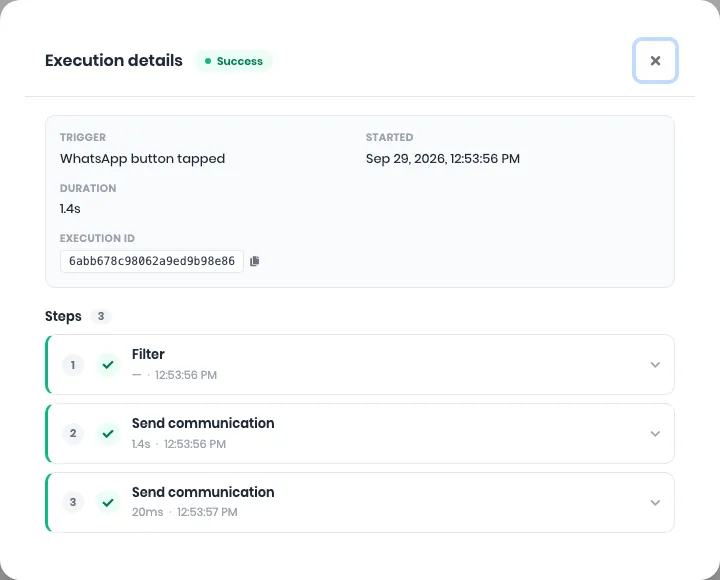
Click View on a run to open Execution details, with the trigger and each step.
Good to know
- Only taps start it. A lead who types the words on a button instead of tapping it does not.
- Leave out the If / else and the automation answers a tap on any button of any template.
- The reply goes out as a template, so pick an approved one.
- A tap also counts as a reply. Another automation running for the same lead with Pause if the lead replies switched on stops, the same as it would for a typed reply.
If it does not work
| What you see | What it means | What to do |
|---|---|---|
| Nothing happens when you tap | The automation is not switched on | Open it and check the label next to the name reads Running |
| The run shows 1/1 and nothing was sent | The tap was on a template or button your If / else does not include | Add it to the condition, or use is any of to pick several |
| The Template list is empty | No approved template with quick-reply buttons is on your connected number | Create one under Marketing, WhatsApp, Templates and wait for Meta to approve it |
| A tap on the right button still goes down Else | The template was sent from outside ViveLead, so its name is not known here | Match on Button instead of Template |
| The reply shows as failed in the inbox | The reply template is not approved on the number it was sent from | Pick a template that is approved on that number |
Related
Still stuck on this step?
Send us what you are seeing and we will sort it out with you.