Score your leads and work the hottest first
Turn on lead scoring, give points for what makes a lead likely to buy, set Hot, Warm and Cold tiers, and see each lead's score and the reasons behind it.
Lead scoring gives each lead points for the things that make it likely to buy, such as where it came from, what stage it is at, or whether it picked up your call. The points add up to a score, and the score puts the lead in a tier like HOT, WARM or COLD. Your team sees the tier next to every lead’s name and calls the hot ones first.
The screenshots follow one example: a sales team that scores referrals and website enquiries higher, adds points when a lead picks up a call or is in active talks, and takes points away when a lead is lost.
Before you start
- Plan: Professional or Business. See pricing.
- Who can do it: an admin. The Lead Routing tab is only shown to admins.
- Decide what a good lead looks like for you. Two or three signals you already trust are enough to start: a source that converts, a stage that means real interest, a call that connected.
Steps
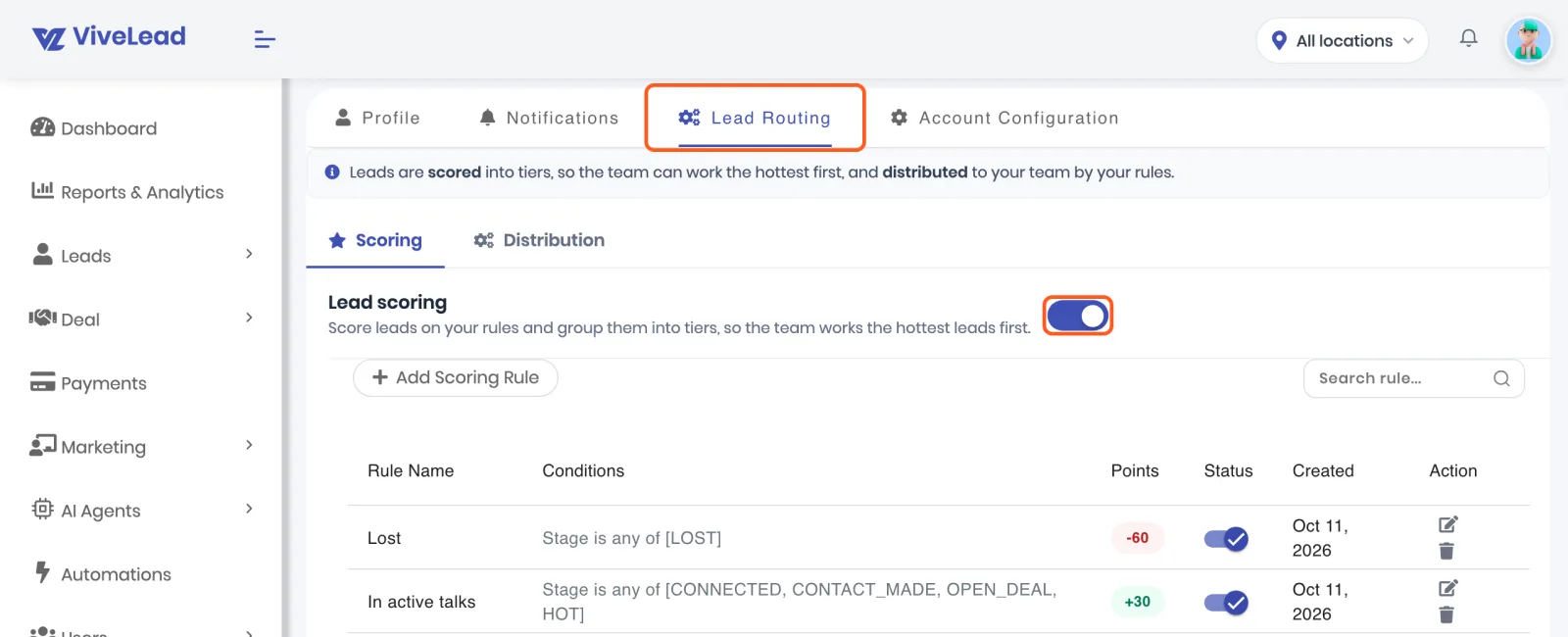
Open Controls, then Account Setting, then Lead Routing, and turn on Lead scoring. In the Scoring tab, switch on Lead scoring. The rules table and the tiers appear below it.
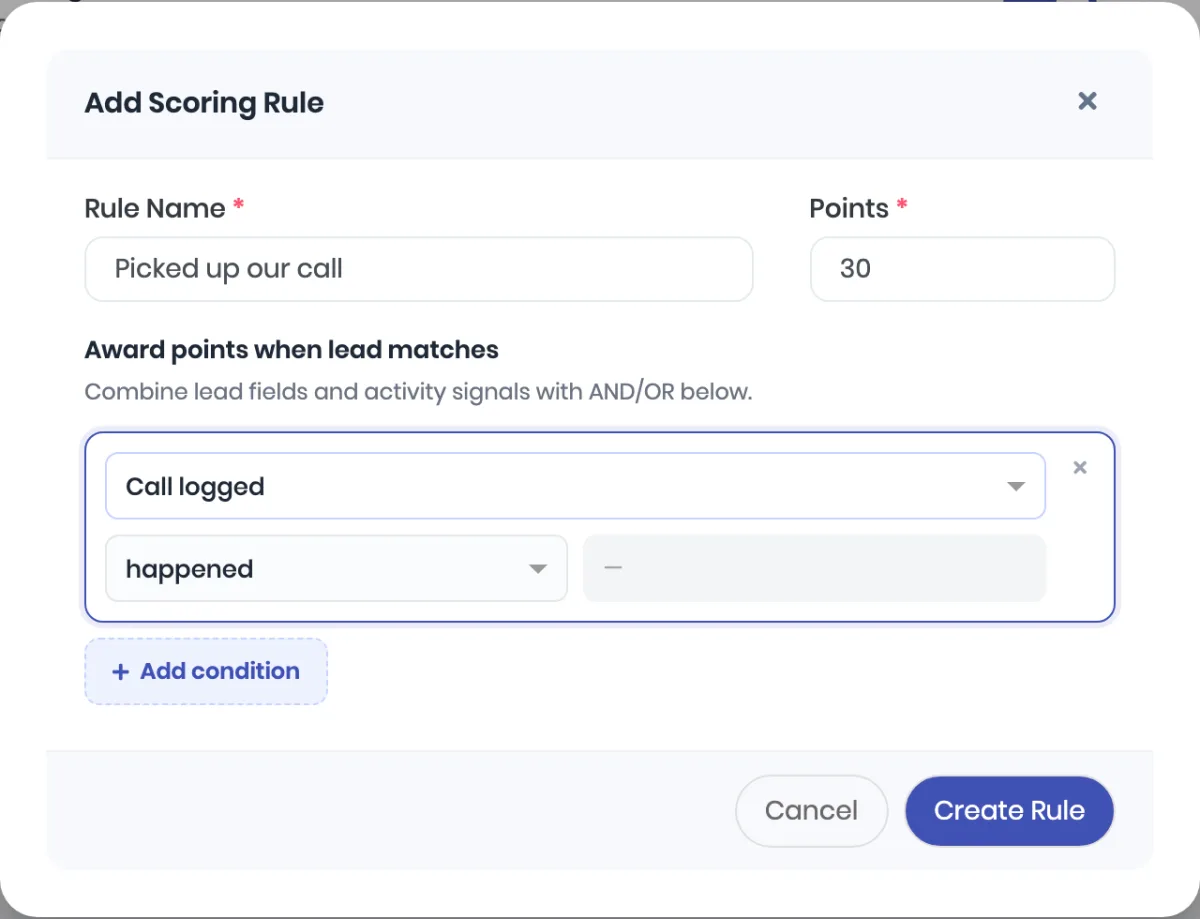
Click Add Scoring Rule and say when to give points. Give the rule a name and the points it adds, from -1000 to 1000. Under Award points when lead matches, click Add condition and pick either a lead field (Source, Stage, City or any field from your lead form) or an activity under Activity:
- Clicked an email link or Replied to an email
- Messaged on WhatsApp
- Call logged
- Appointment booked
- Deal created
An activity condition is a yes or no: it happened or it did not happen. Add more conditions and choose ALL or ANY to combine them. Click Create Rule.
Opened an email is in the list too, marked as a weak signal. Gmail loads email images through its own servers, so a real open usually cannot be seen. Score on a click or a reply instead.
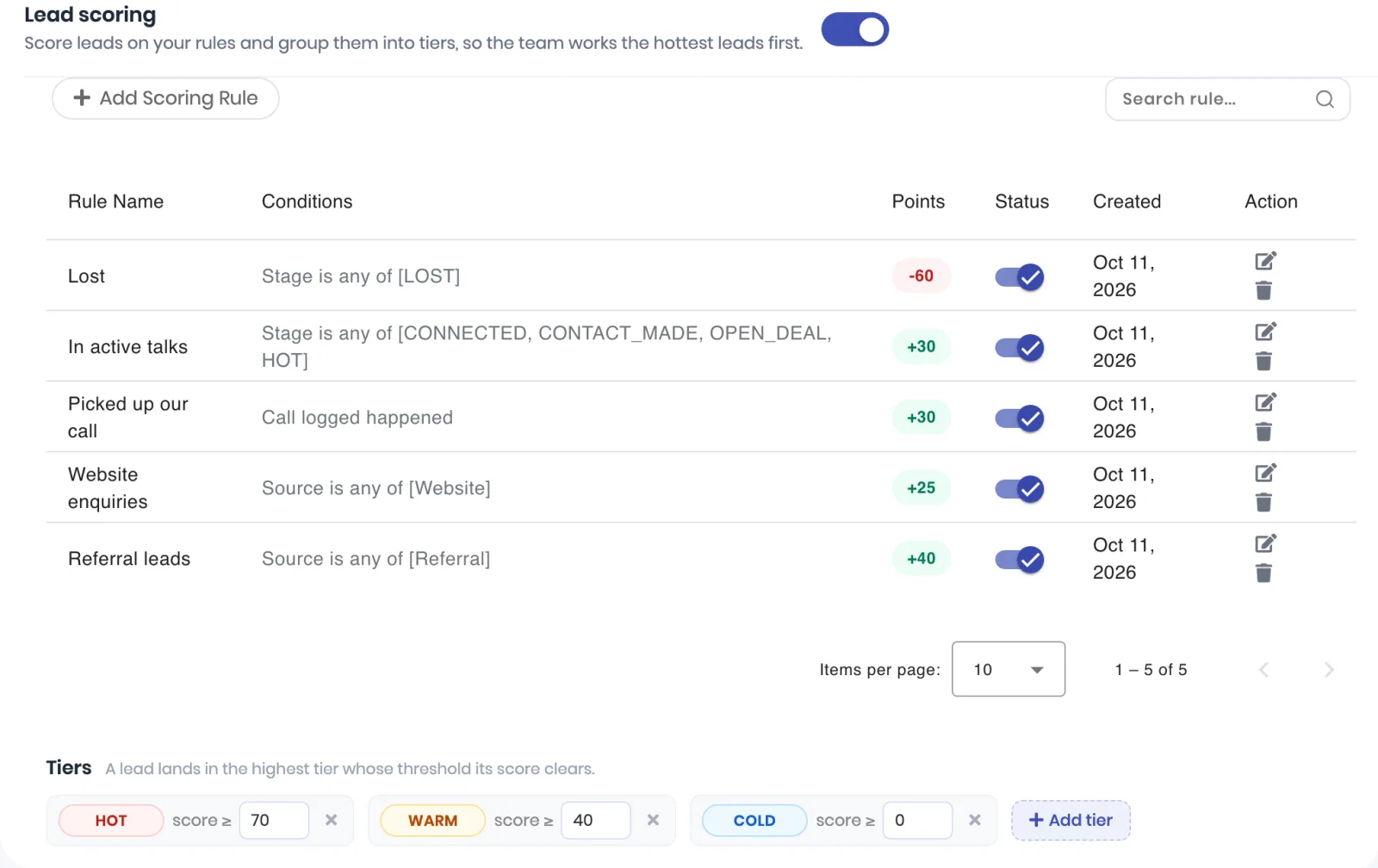
Add the rest of your rules, including negative ones. Each rule adds its points when it matches, and a lead’s score is the total of every active rule it matches. A negative rule, like Lost at -60, pulls a lead down. Use the switch in the Status column to pause a rule without deleting it.
Set your tiers. Under Tiers, each tier has a name and a starting score: a lead lands in the highest tier whose score ≥ value it reaches. The defaults are HOT from 80, WARM from 50 and COLD from 0. Rename them, change the numbers, or keep between 2 and 5 tiers, then click Save tiers.
Every time you create, edit, switch or delete a rule, save tiers, or turn scoring on, ViveLead recalculates the score of every existing lead. You see Scores recalculated for existing leads when it is done.
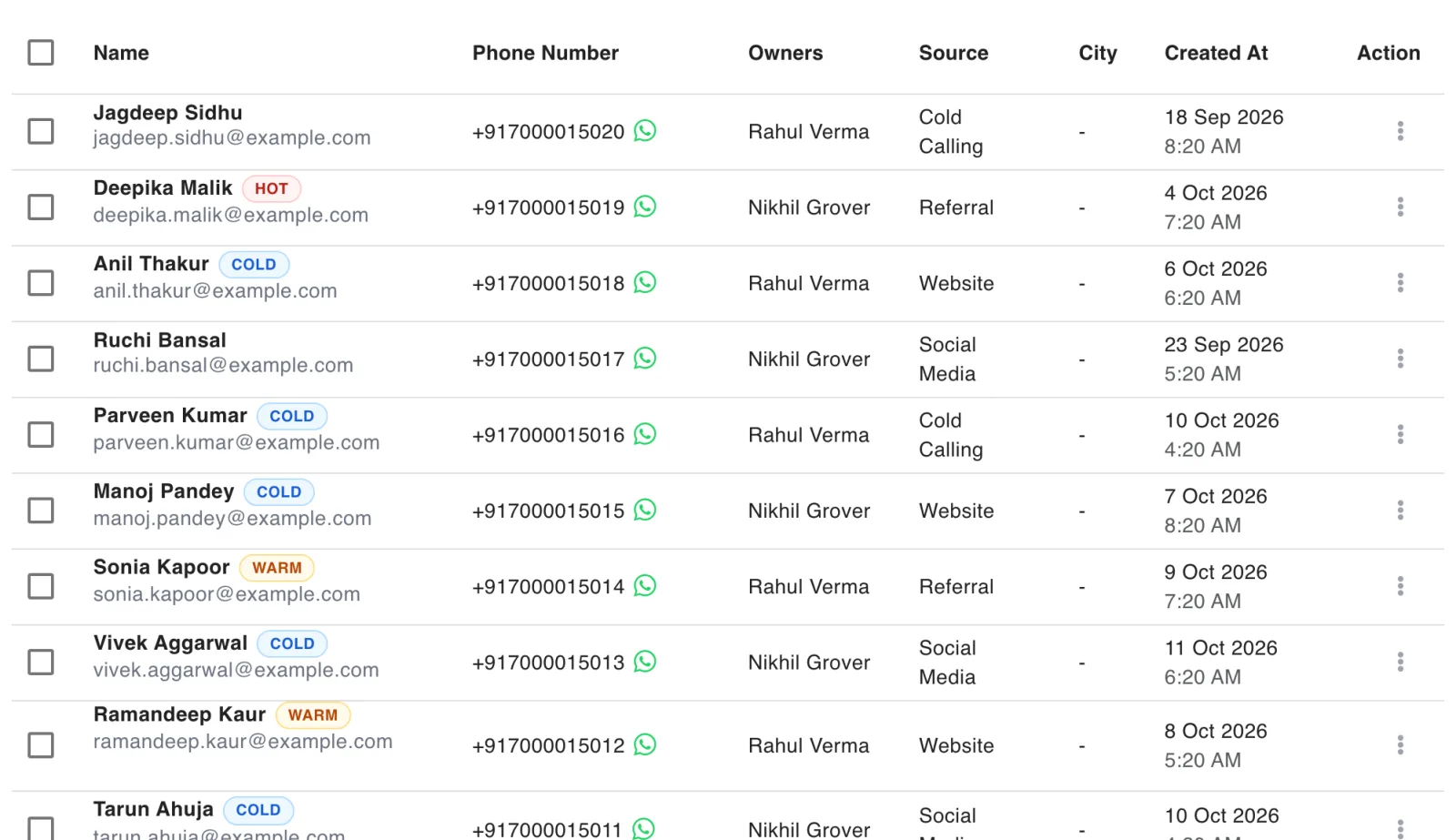
Work the list by tier. Open Leads. Each scored lead carries its tier next to its name, so the team can see at a glance which leads to call first.
See why a lead has its score. Open a lead. Its score and tier sit next to its name. Click Explain to see which rules matched and how many points each gave.

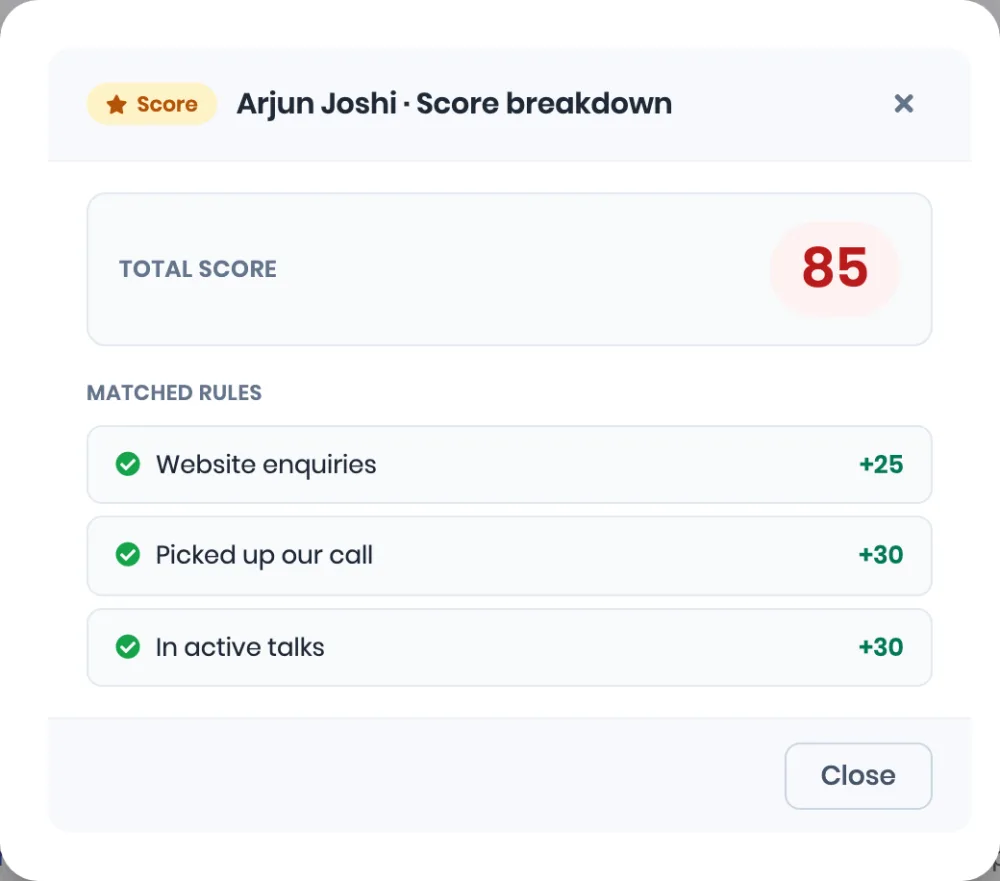
How the score keeps up
- When a lead changes: editing a lead, moving its stage or changing its source rescores that lead.
- When a lead does something: a logged call, a WhatsApp message, an email click or reply, a booked appointment or a new deal rescores that lead within a few seconds, with no one touching it.
- When you change the rules or tiers: every lead in the account is rescored.
Good to know
| What you see | What it means | What to do |
|---|---|---|
| A lead has a score but no tier | Its score is below your lowest tier, usually because a negative rule matched | This is expected for lost or disqualified leads. Tier numbers start at 0, so a negative score stays untiered |
| Every lead is COLD | Your tier thresholds are higher than the scores your rules can add up to | Lower the HOT and WARM numbers, or give your rules more points |
| A rule on Opened an email never seems to match | Gmail hides real opens | Score on Clicked an email link or Replied to an email |
| No Lead Routing tab | You are not an admin | Ask an admin on your account |
The leads list cannot yet be filtered or sorted by score or tier. The tier shows on every row instead.
Related
Still stuck on this step?
Send us what you are seeing and we will sort it out with you.