Send lead stages to Meta for qualified-lead ads
Send every stage of your Facebook form leads back to Meta, so your Leads campaigns find people who turn into qualified leads, not just people who fill the form.
ViveLead sends the stage of every Facebook form lead back to Meta the moment it changes. Meta uses those stages to show your lead ads to people who are more likely to become qualified leads. Setup takes about five minutes: a few clicks in Meta Events Manager, then one switch in ViveLead. You do not need a developer or an access token.
Before you start
- Facebook lead ads must already be connected. See Connect Facebook lead ads. This works only for leads from Facebook and Instagram lead forms (Instant Forms).
- Facebook lead ads are on the Professional plan and above. See pricing.
- You need access to Controls, then Account Setting in ViveLead.
- You need admin access to your business in Meta Events Manager.
In Meta Events Manager
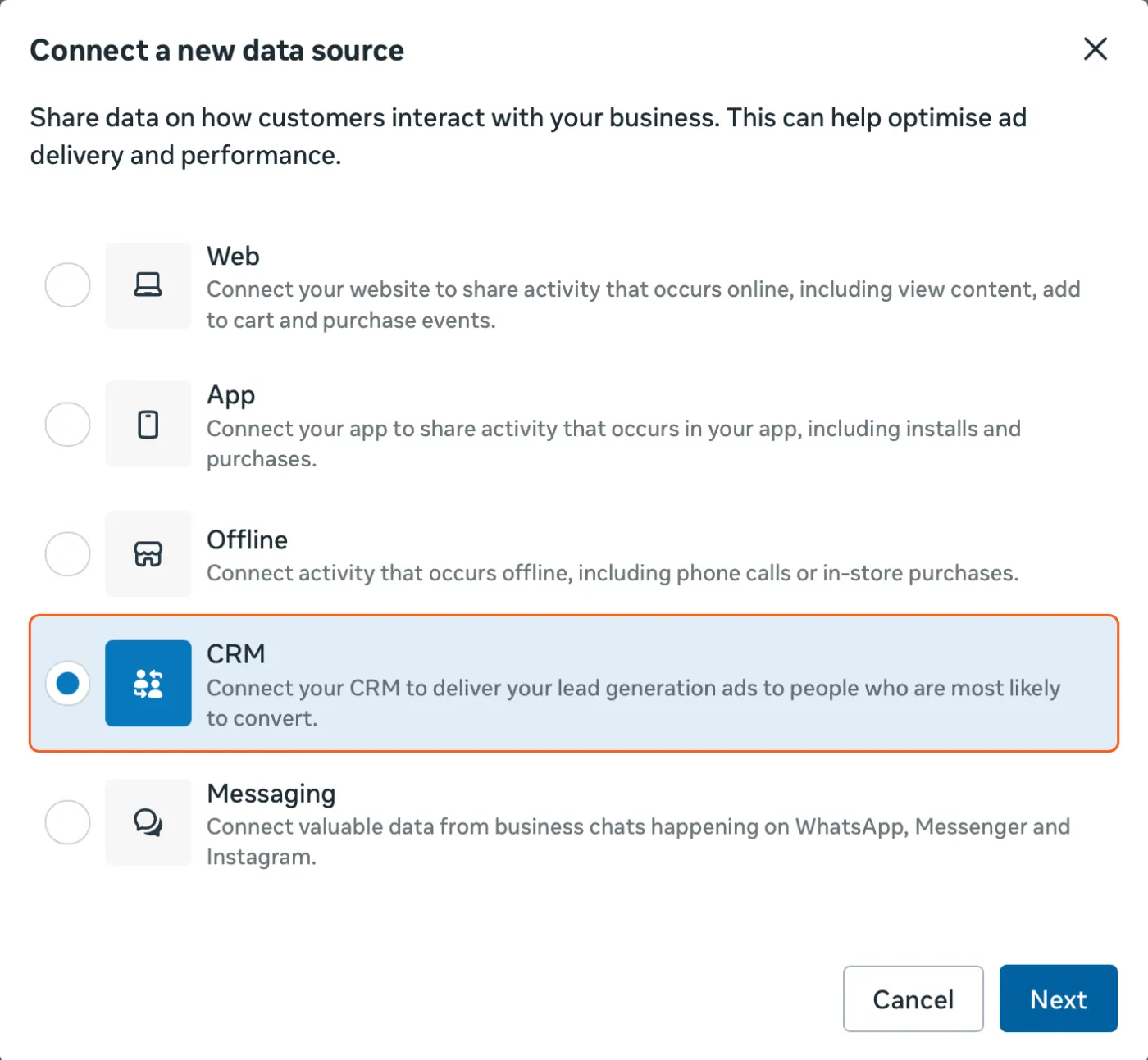
Open Events Manager and click Connect data. In the switcher at the top right, pick your business portfolio, not an ad account. Choose CRM and click Next.
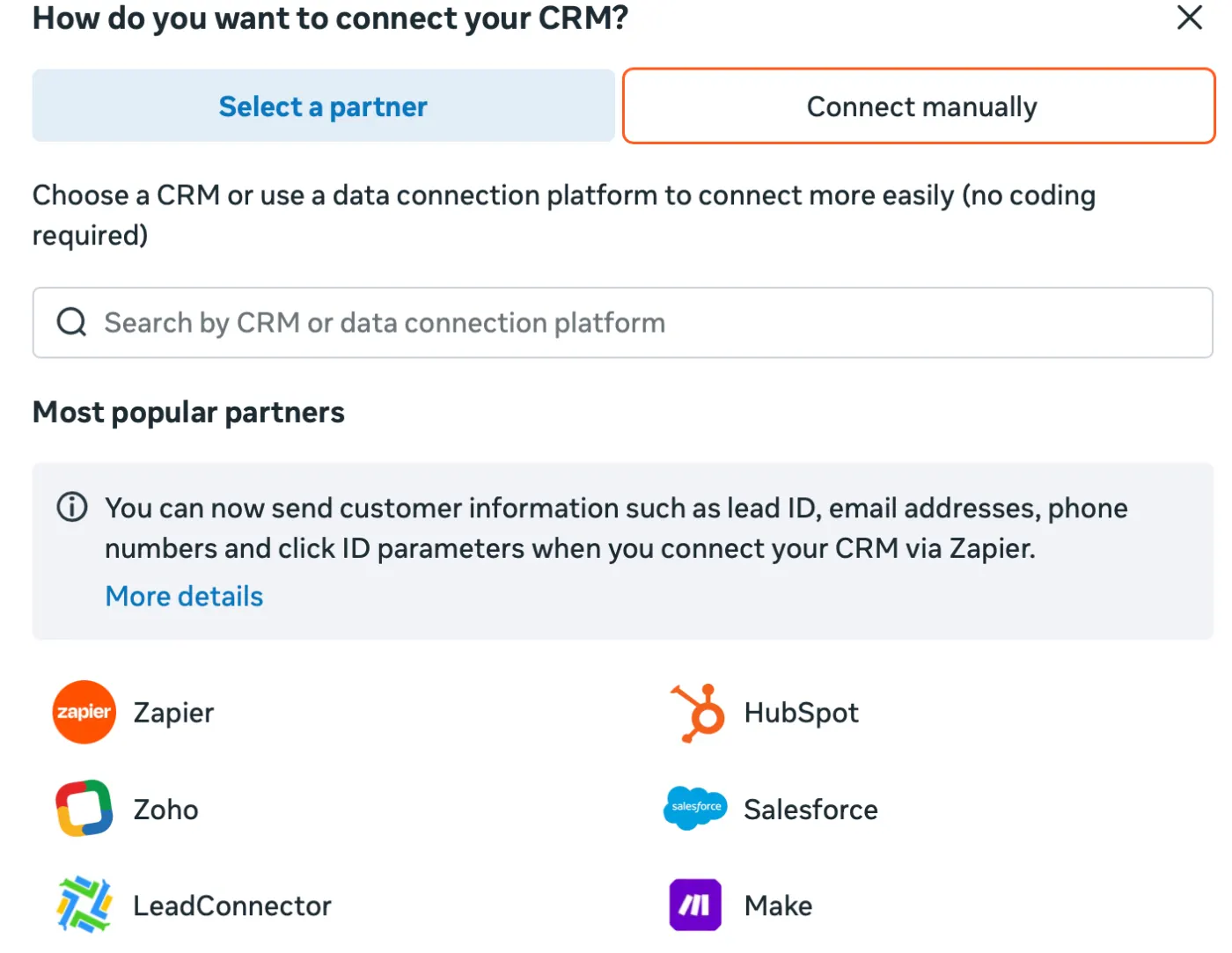
Switch to Connect manually. ViveLead is not in Meta’s partner list, so do not search for it there. Open the Connect manually tab.
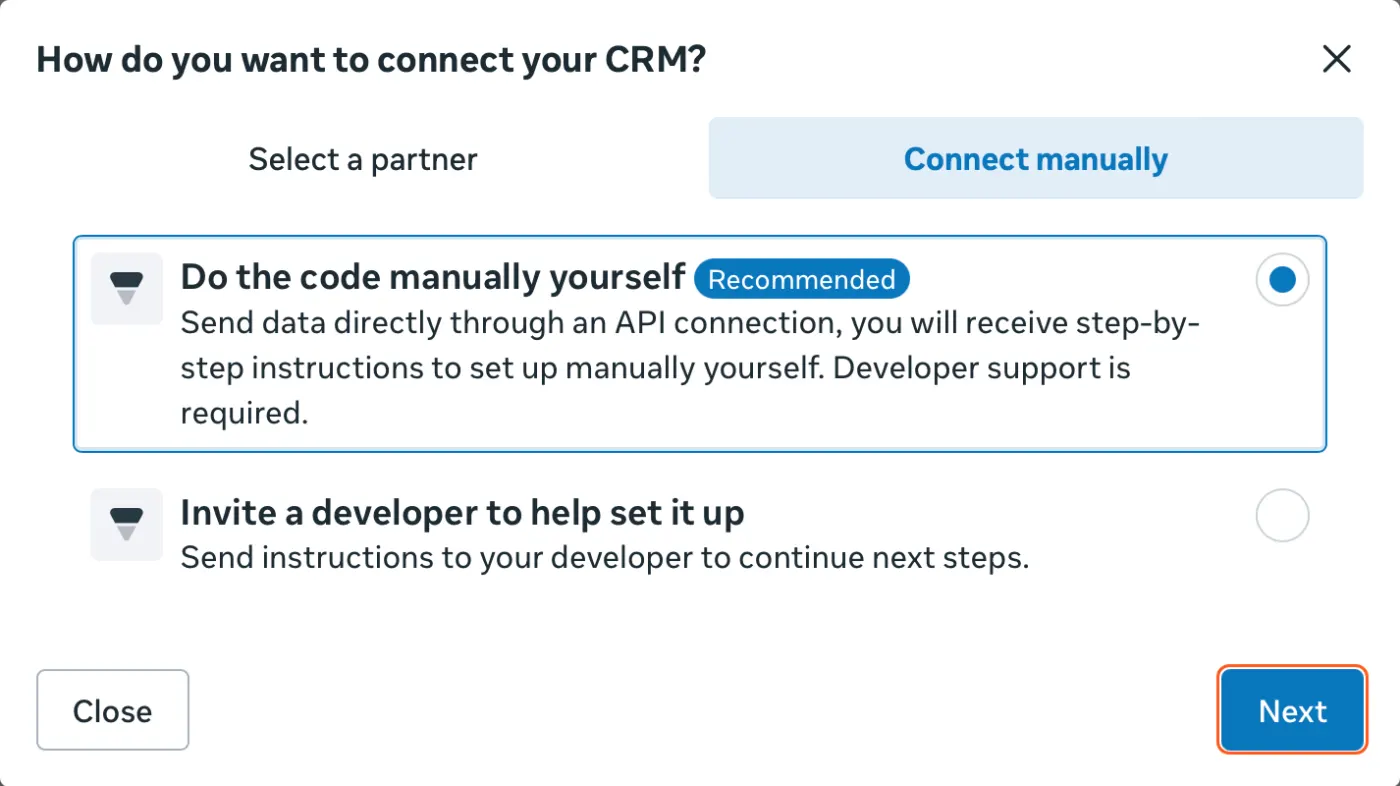
Keep Do the code manually yourself and click Next. The code is already written on our side, so nobody has to write any.
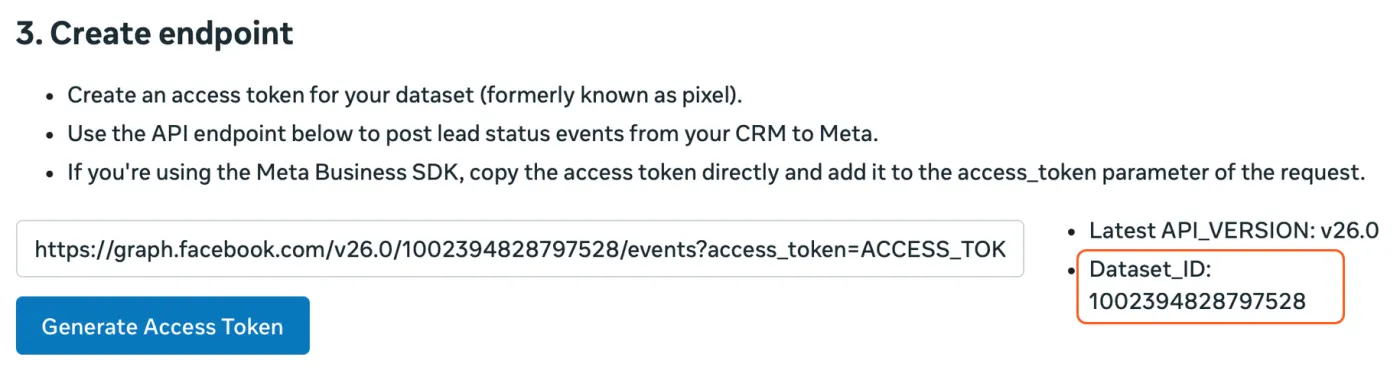
Note the Dataset ID, skip the token, and go back. Meta now shows an instruction guide with sample code and a Generate Access Token button. You need neither, because ViveLead sends the events through your Facebook connection. Note the Dataset_ID under Create endpoint: that is the dataset you will pick in ViveLead. It can be the same dataset your website pixel uses, because Meta keeps CRM events apart from website events. Scroll to the bottom and click Back to settings.
In ViveLead
Open Controls, then Account Setting, then the Account Configuration tab. Find Conversion Tracking and click Manage.

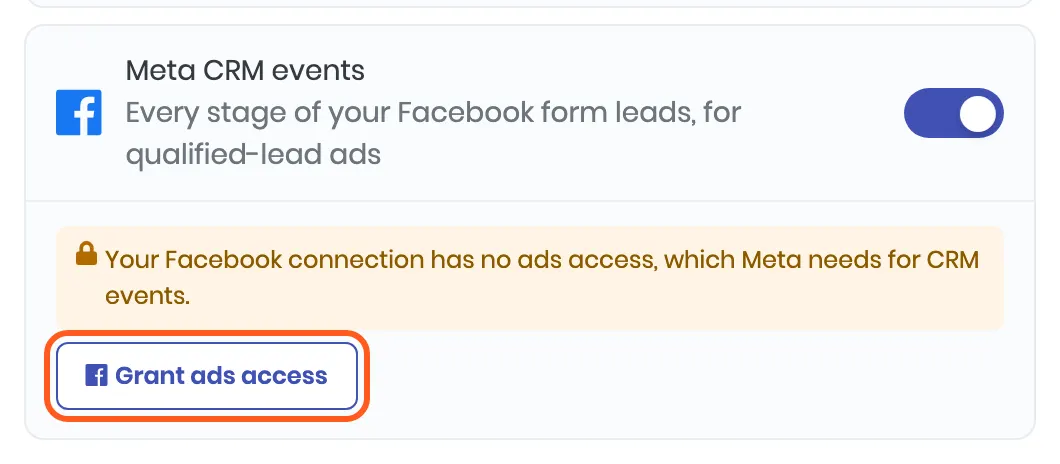
Turn on Meta CRM events. If the card says your Facebook connection has no ads access, click Grant ads access and allow it on Facebook’s screen. Facebook asks only for ads access and keeps everything you allowed before, so lead capture carries on as it was.
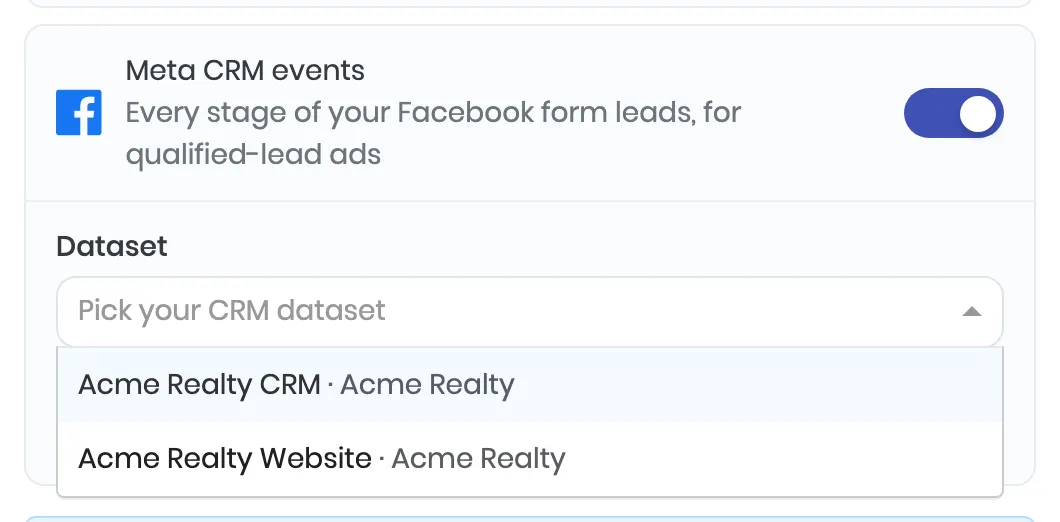
Pick your dataset. Choose the one whose ID Meta showed you in step 4. The list holds every dataset your Facebook login can reach, each with the business or ad account it belongs to.
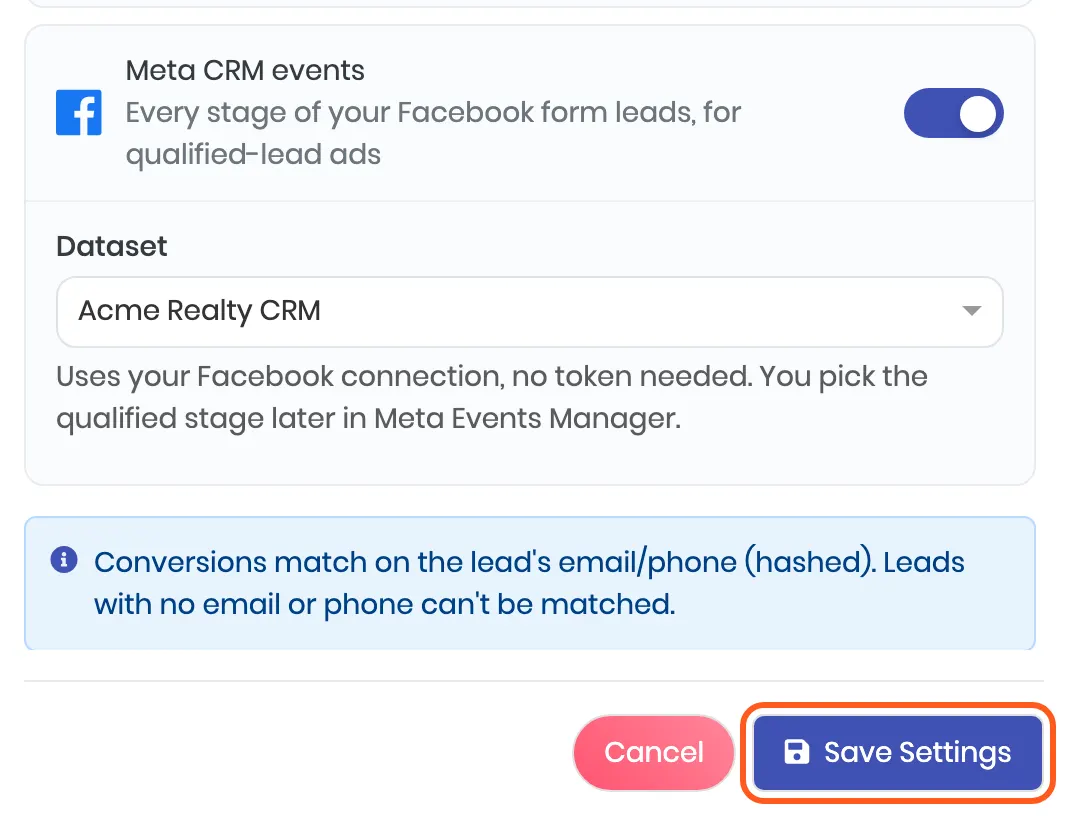
Click Save Settings. From now on, every stage change of a Facebook form lead reaches Meta within seconds. The Conversion Tracking row shows a Meta CRM events chip.
Back in Meta
- Pick your qualified stage. Events usually show in Events Manager within an hour. Once Meta has checked the data, it lets you set up your sales funnel there: remove any stage that means a bad lead, then under Optimization Target pick the earliest stage you would call qualified.
- Use it in your ads. On a Leads campaign with Instant Forms, set the performance goal to Maximise number of qualified leads, the signal source to CRM, and pick the same dataset. Meta says its model then takes 2 to 4 weeks to learn from your data.
What ViveLead sends
| When | When a Facebook form lead arrives (its first stage), and every time its stage changes after that: from the web dashboard, the mobile app, a bulk move or a sheet sync |
| Which leads | Only leads that came from Facebook or Instagram lead forms. Website, WhatsApp, imported and hand-typed leads are not sent |
| Event name | The stage name, exactly as it reads in your pipeline |
| How Meta knows the lead | The lead’s Meta lead ID first, plus its email and phone, hashed |
| Marked as | CRM events from ViveLead, so Meta does not mix them with website events |
If it does not work
| What you see | What it means | What to do |
|---|---|---|
| “Facebook is not connected. Connect it under Marketing first.” | No Facebook account is connected | Connect it, see Connect Facebook lead ads |
| “Your Facebook connection has no ads access, which Meta needs for CRM events.” | Facebook was connected without ads access | Click Grant ads access and allow it on Facebook’s screen |
| “No datasets yet.” in the dropdown | Your Facebook login reaches no dataset | Do steps 1 to 4 in Events Manager, then open the card again |
| “Pick the dataset for Meta CRM events.” when you save | The switch is on but no dataset is picked | Pick one, then save |
| “Last send failed: The Facebook login has expired.” | A Facebook login lasts about 60 days | Reconnect Facebook under Marketing. Sending carries on from the next stage change |
| Nothing in Events Manager after an hour | No Facebook form lead has changed stage since you turned it on | Move one such lead to another stage, then check again |
How this differs from Meta (Conversions API)
The Meta (Conversions API) card in the same window sends one event, Purchase by default, when a lead or deal is won. It works for leads from any source and needs a token you paste. Meta CRM events sends every stage of your Facebook form leads, for qualified-lead ads, and needs no token. You can run both.
Related
- Connect Facebook lead ads, which this guide builds on.
- Set up your first automation to follow up with these leads the moment they arrive.
Still stuck on this step?
Send us what you are seeing and we will sort it out with you.