Set up call recording on your team's phones
Turn on auto-record in each phone's Phone app, link its recordings folder in the ViveLead app, and play every lead call back from the lead, in the app and on the dashboard.
ViveLead does not record calls. The phone does. The ViveLead app picks up the file the phone saved, matches it to the call, and puts it on the lead. Set it up once on each phone and every lead call after that lands with its recording, in the app and on the dashboard.
Your setup
0 of 5 done
Before you start
- Plan: Professional or Business. On Starter, calls still log with their time, length and direction, but recordings are not uploaded. See pricing.
- Android only. iPhone does not let any app read call recordings or the call log.
- Each rep sets up their own phone, signed in as themselves. A recording uploads only from the phone of the rep who made the call.
- The phone has to record calls on its own. See step 1. If it cannot, calls still log on the lead, without a recording.
1. Turn on auto-record in the Phone app
Do this in the phone’s own Phone app, not in ViveLead. Set it to record all calls automatically, then note the folder. You need it in step 3.
| Phone | Turn it on | Folder to link |
|---|---|---|
| Samsung | Phone app, then ⋮, Settings, Record calls, Auto record calls, All calls | Internal storage › Recordings › Call |
| Xiaomi, Redmi, POCO (Mi Dialer) | Phone app, then Settings, Call recording, Record calls automatically | Internal storage › MIUI › sound_recorder › call_rec |
| realme, OPPO, OnePlus (own Phone app) | Phone app, then ⋮, Settings, Call Recording, Record All Calls | Internal storage › Music › Recordings › Call Recordings |
| vivo, iQOO (own Phone app) | Phone app, then ⋮, Call Settings, Call Recording, Record all calls automatically | Internal storage › Record › Call |
| Pixel, Motorola, Nokia, Nothing, and other phones with Google’s Phone app | Not possible. Recordings stay inside the Phone app, where no other app can read them | None |
Many newer Xiaomi, vivo, OPPO, realme and OnePlus phones come with Google’s Phone app instead of their own. You can tell from its recording settings: Google’s offers Numbers not in your contacts and Selected numbers, with no option for all calls. Its recordings stay inside it and cannot sync. Menus move between phone updates, so if yours looks different, search the Phone app’s settings for record.
✅ Done when the Phone app is set to record every call on its own.
💡 Not sure which folder? Make a short call, then open the phone’s Files app and find the newest audio file. The folder it sits in is the one to link in step 3.
2. Allow call access in ViveLead
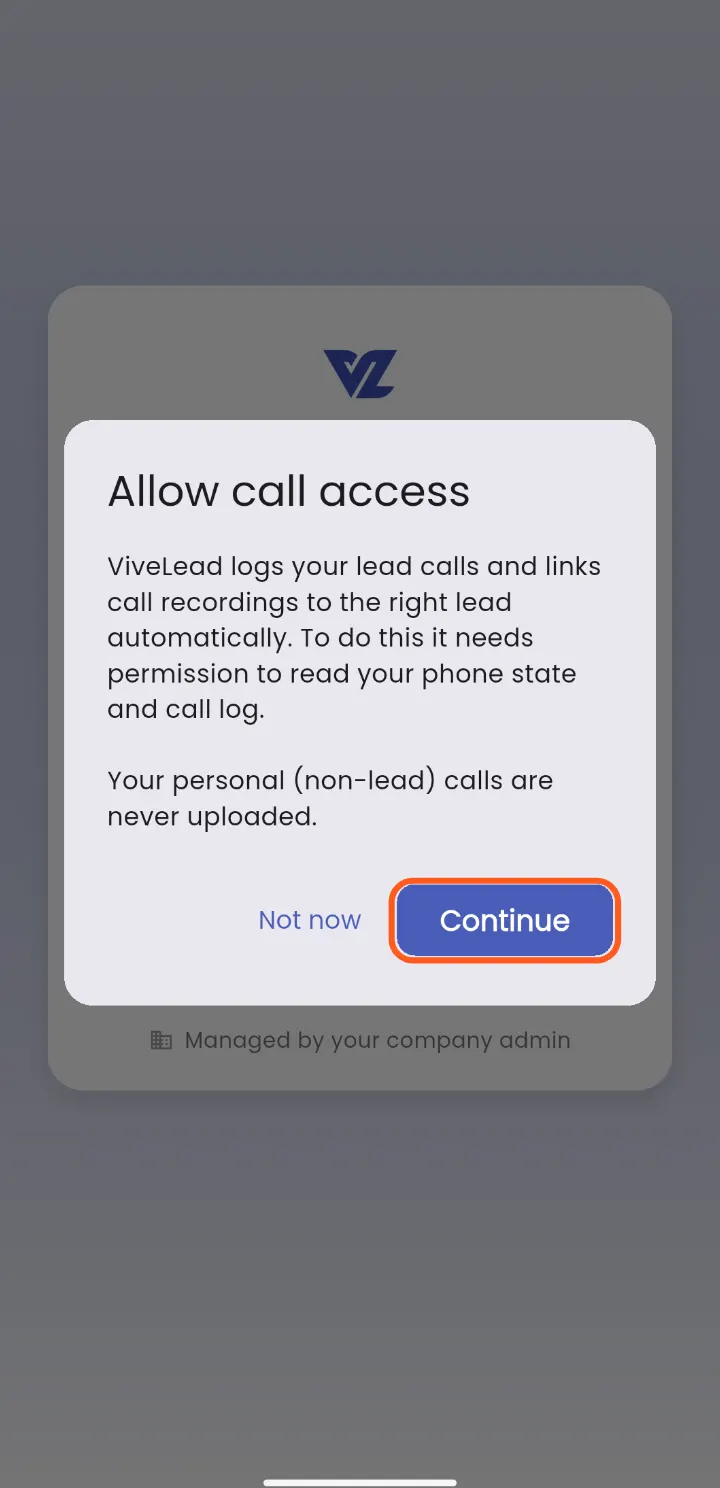
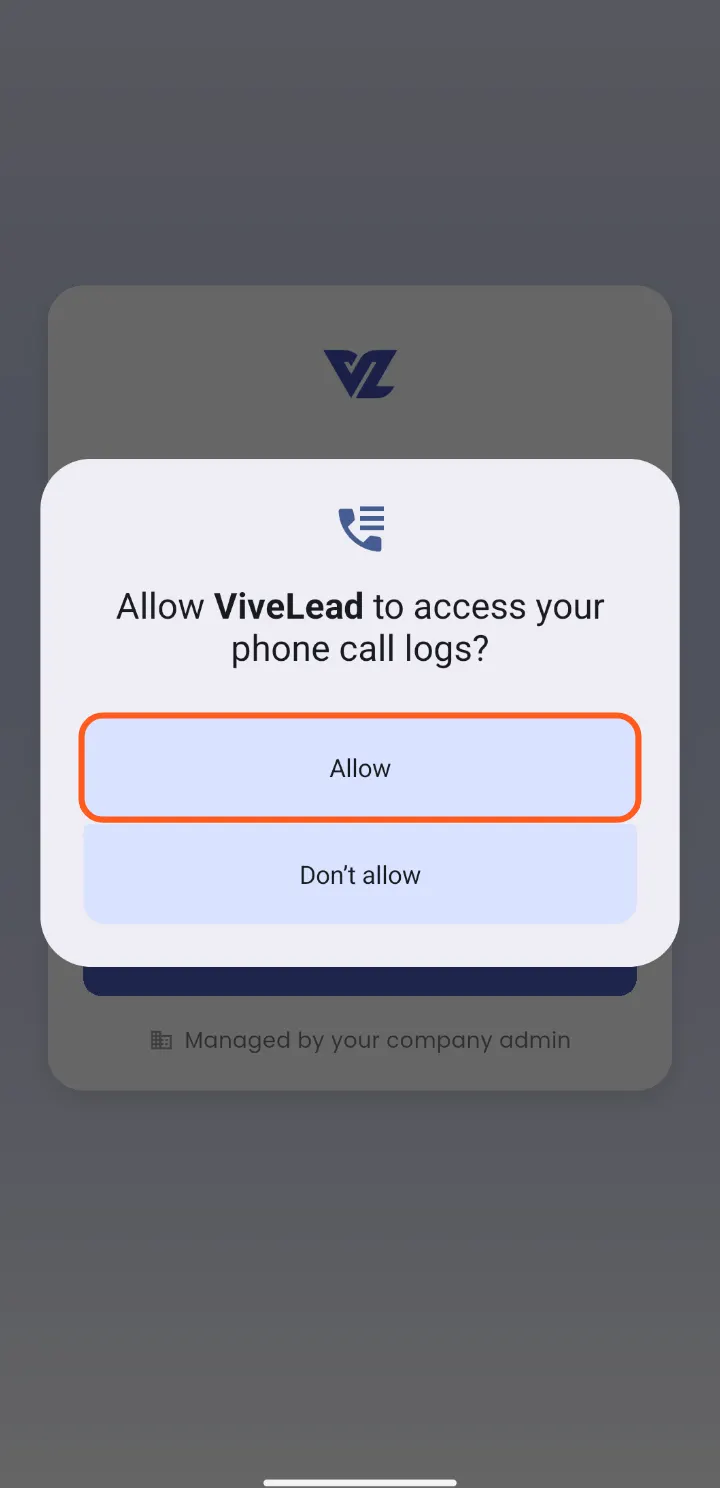
The first time ViveLead opens on a phone, it asks for call access. Tap Continue, then Allow on each Android prompt. That is how the app knows which call a recording belongs to.
Two SIMs in the phone? Pick your work SIM when the app asks Which SIM do you use for work? Calls on the other SIM, and their recordings, stay on the phone.
⚠️ Tapped Not now? The app does not ask again by itself. Open any lead’s Calls tab, tap Sync recent calls, then Grant.
3. Link the recordings folder
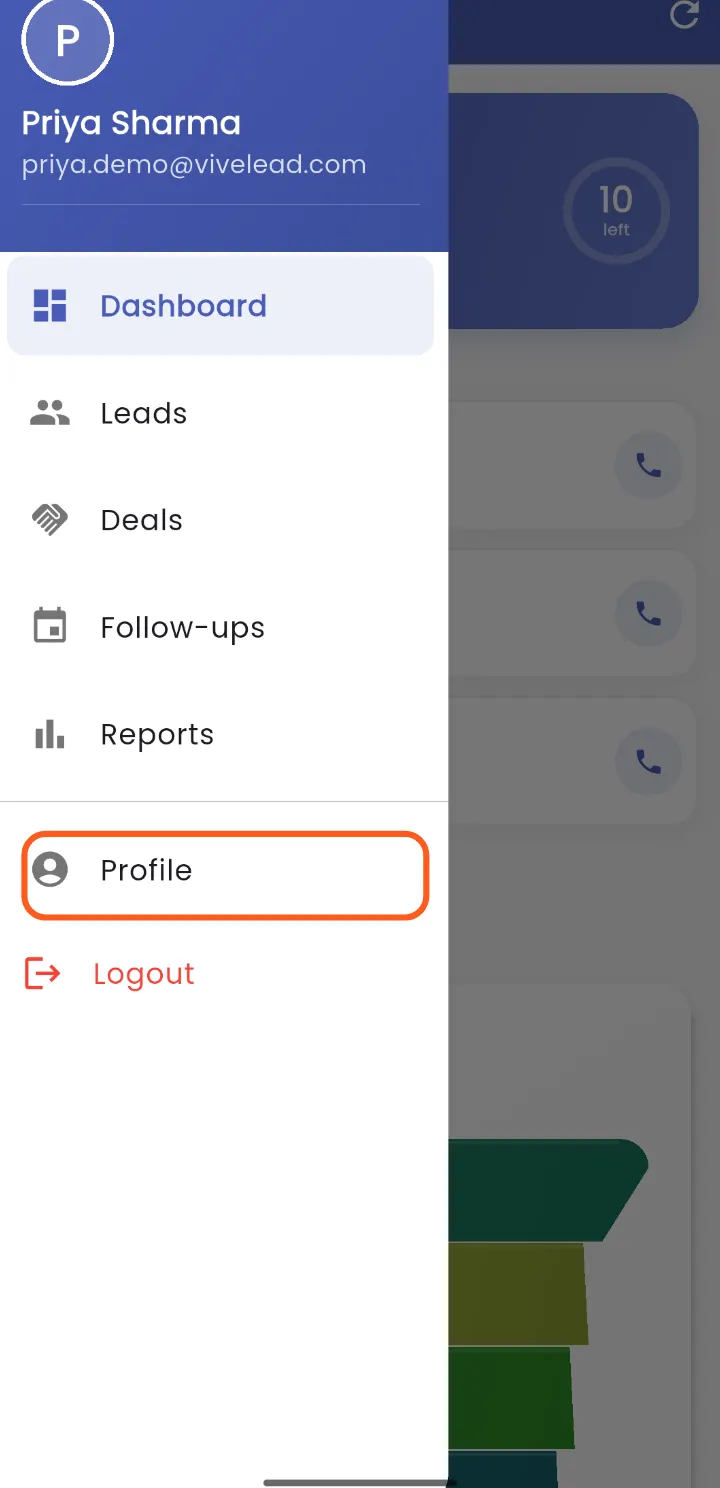
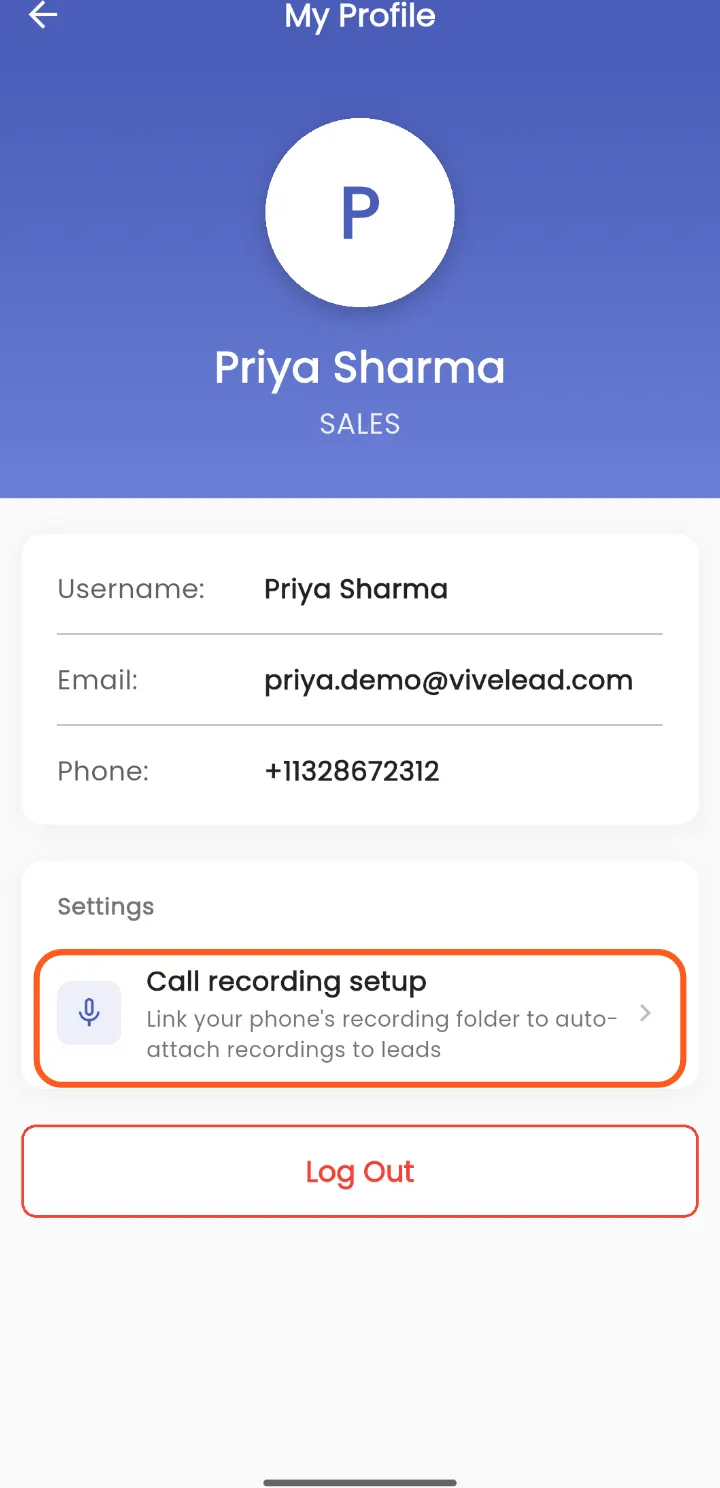
In the ViveLead app, open the menu, tap Profile, then Call recording setup under Settings. The screen says Action needed: pick your recordings folder. Tap Pick folder.
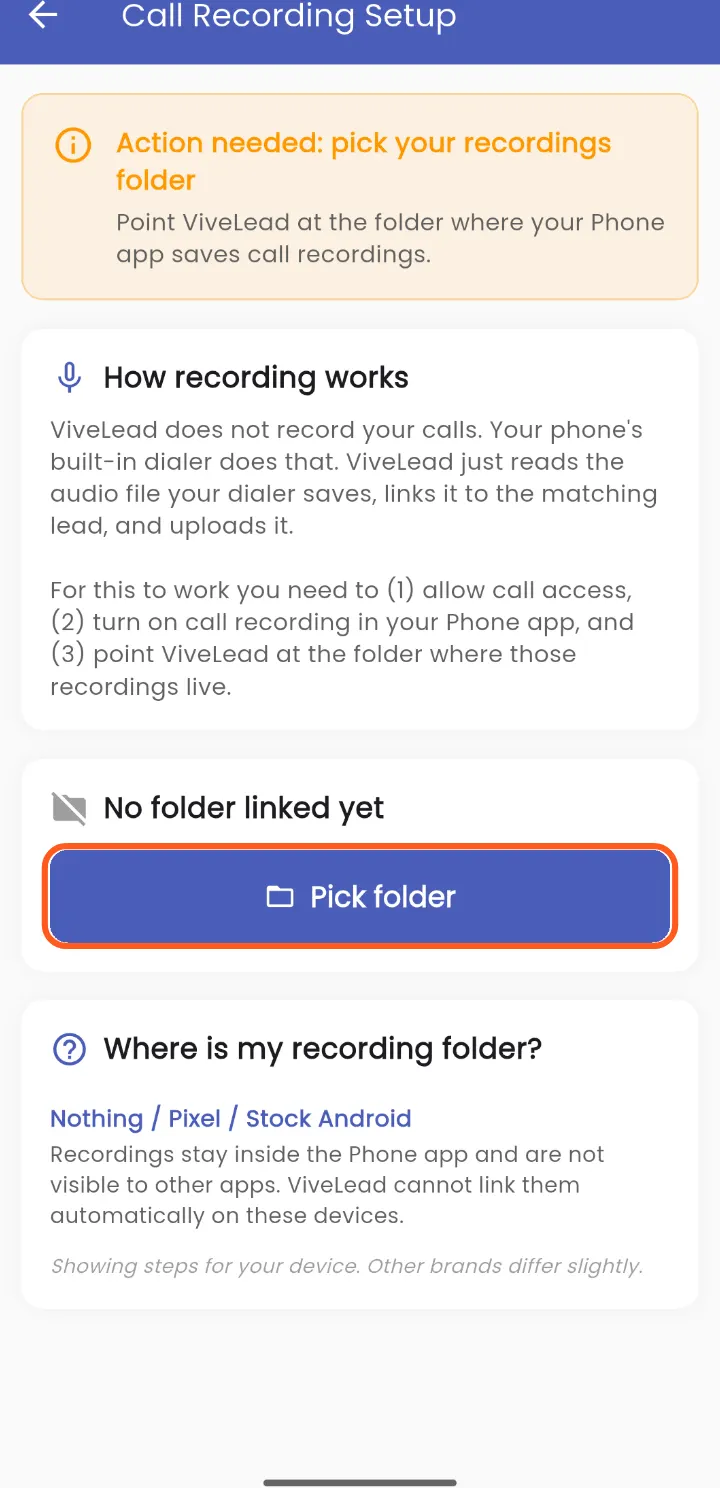
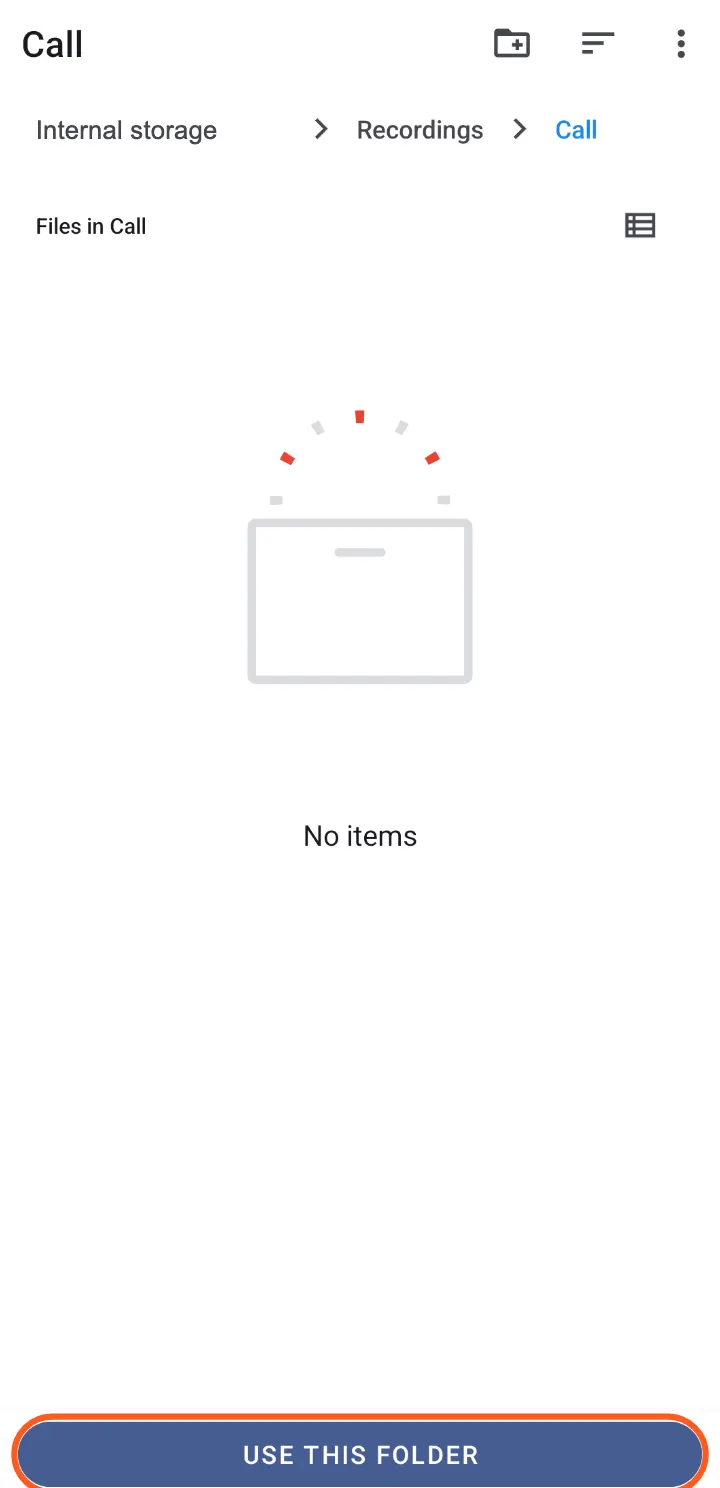
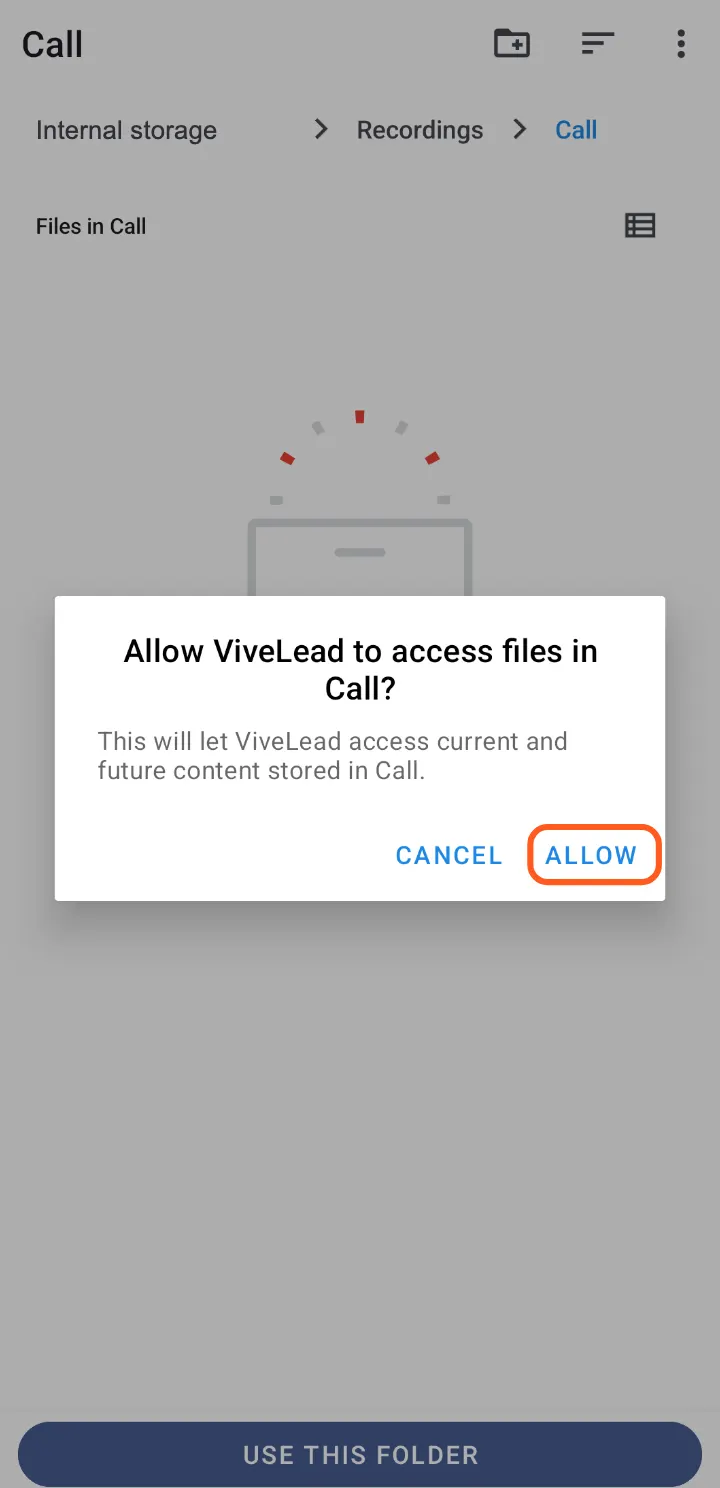
Android’s folder picker opens. Go into the folder from step 1, the one the recording files are in, tap Use this folder, then Allow.
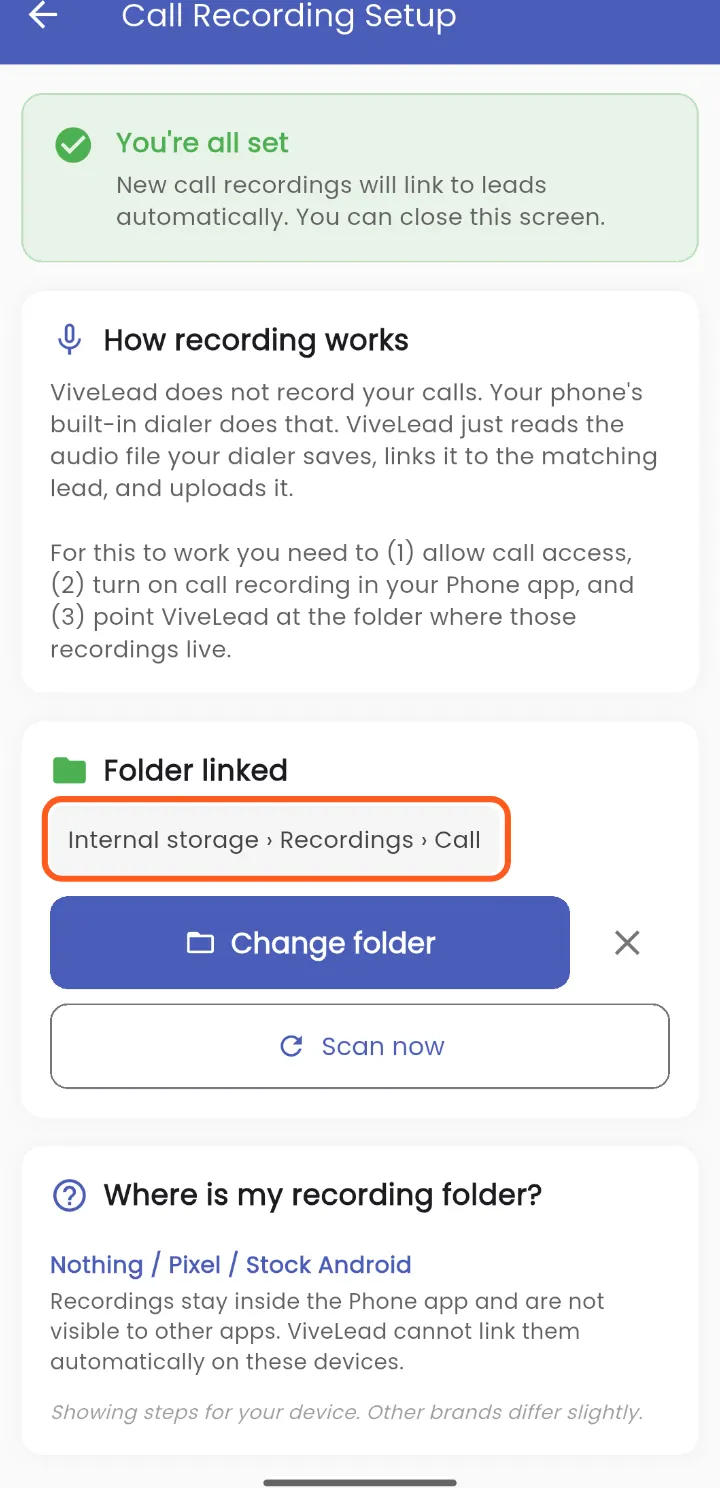
✅ Done when the screen says You’re all set and Folder linked names your recordings folder.
⚠️ Pick the folder the files are in, not the one above it. ViveLead reads the files directly inside the folder you pick, not the folders inside it. On a Samsung that is Call inside Recordings, not Recordings.
At the bottom, Where is my recording folder? shows where your phone’s brand saves recordings.
4. Make a test call
Open a lead in the app, tap Call, talk for a bit, and hang up. Then open ViveLead again. The app finds the recording, matches it to the call and uploads it, usually within a minute, on Wi-Fi or mobile data.
Open the lead’s Calls tab. The call now has a ▶ button. Tap it to listen.
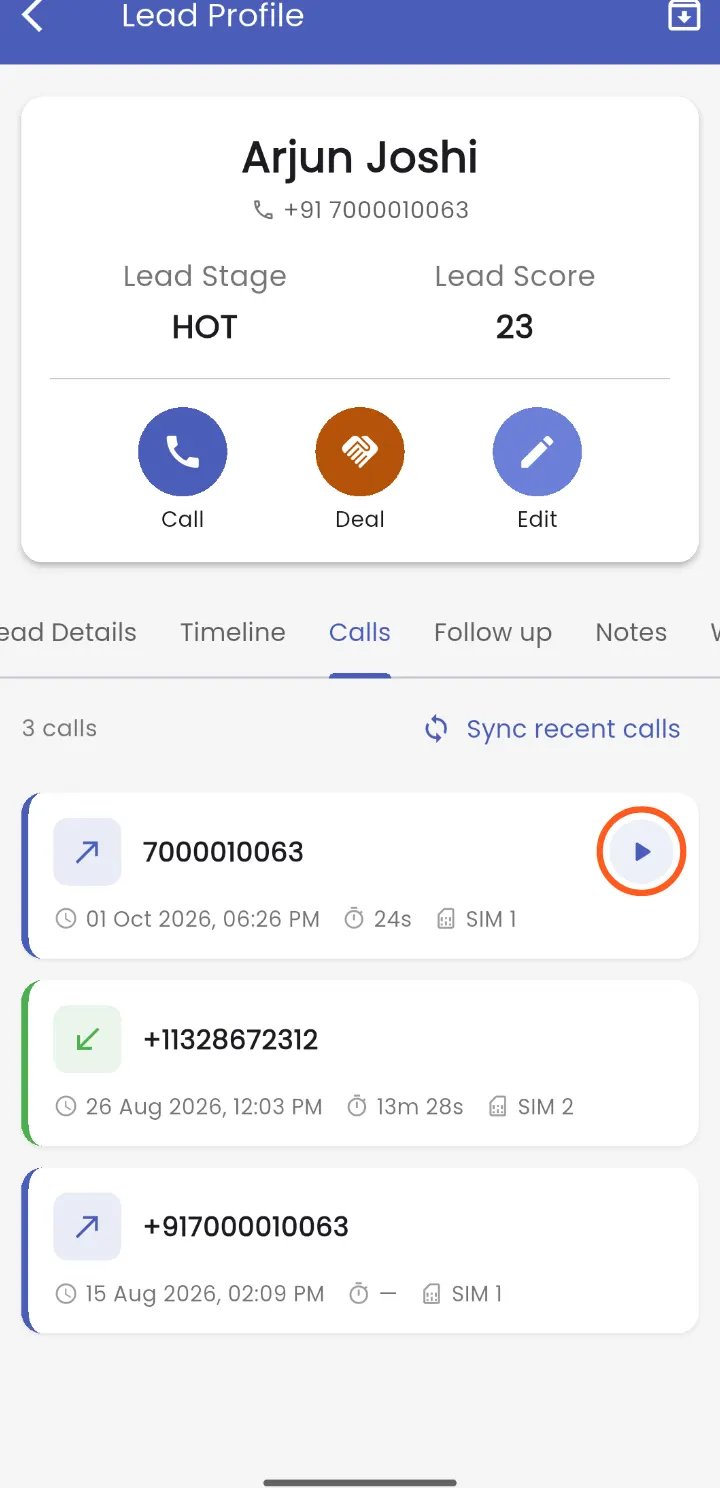
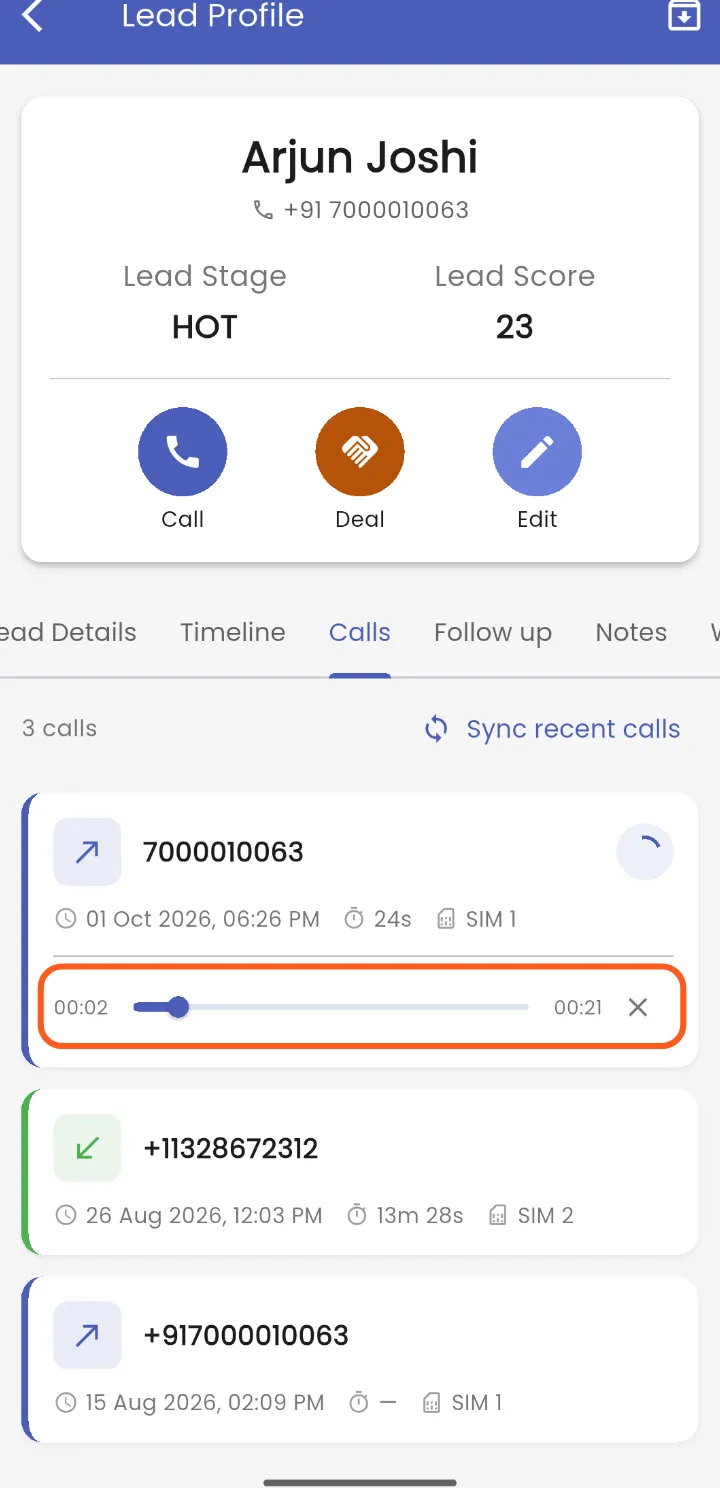
✅ Done when the test call has a ▶ on the lead’s Calls tab and it plays.
Calls from before you set this up: linking the folder also picks up the last 30 days of recordings, for calls already on the lead. Scan now on Call recording setup does the same again. A call that never reached the lead: open the lead’s Calls tab and tap Sync recent calls. It brings in the last 7 days of calls with that lead, and their recordings.
5. Play it on the dashboard
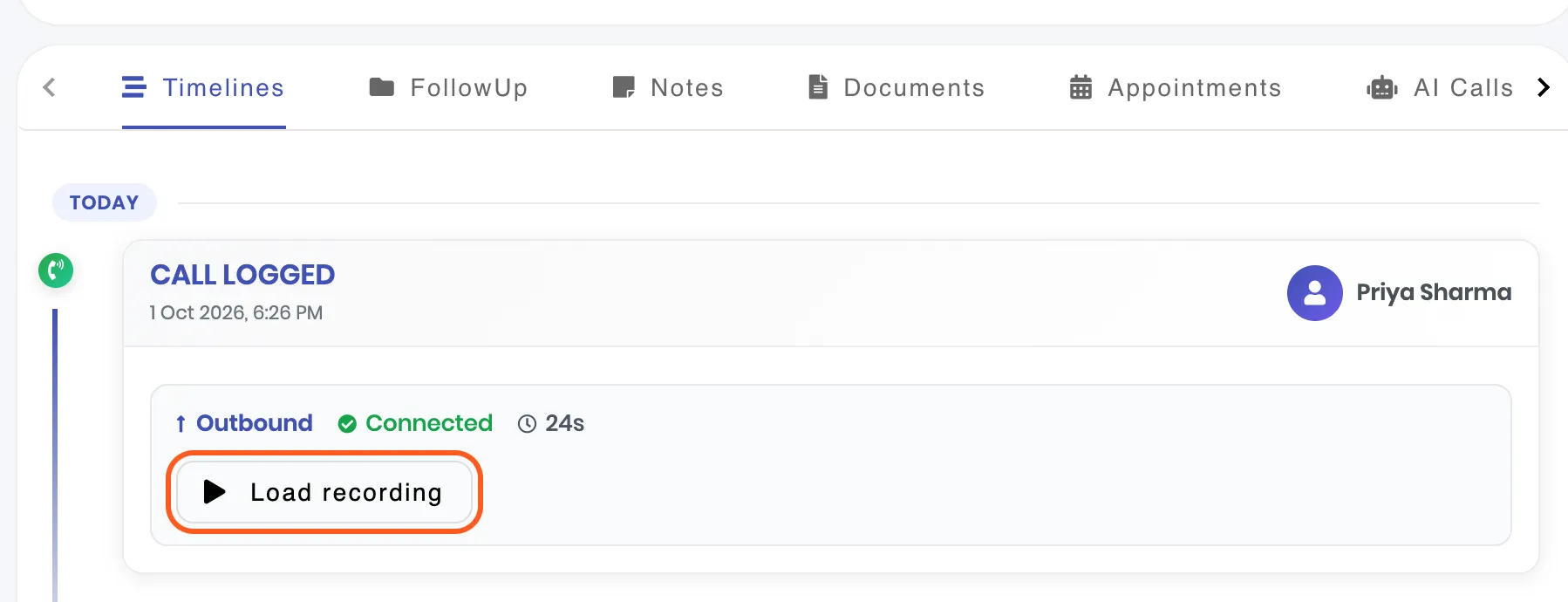
On dashboard.vivelead.com, open the lead. The call sits on the Timelines tab as CALL LOGGED, with who made it, Outbound or Inbound, Connected, and how long it lasted. Click Load recording, then press play.
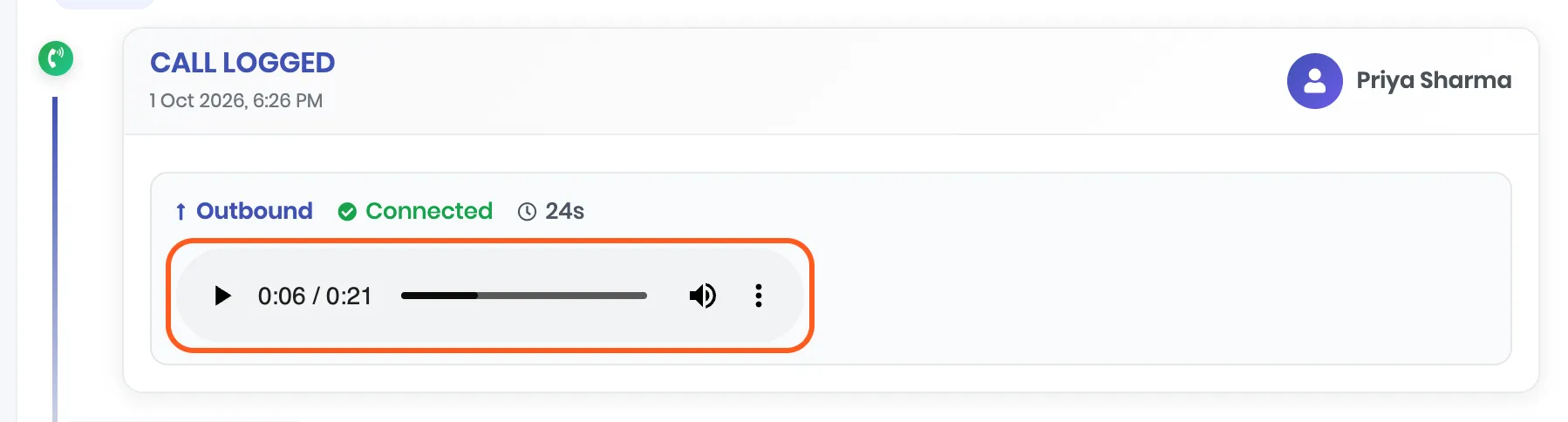
To keep a copy, click the three dots on the player, then Download.
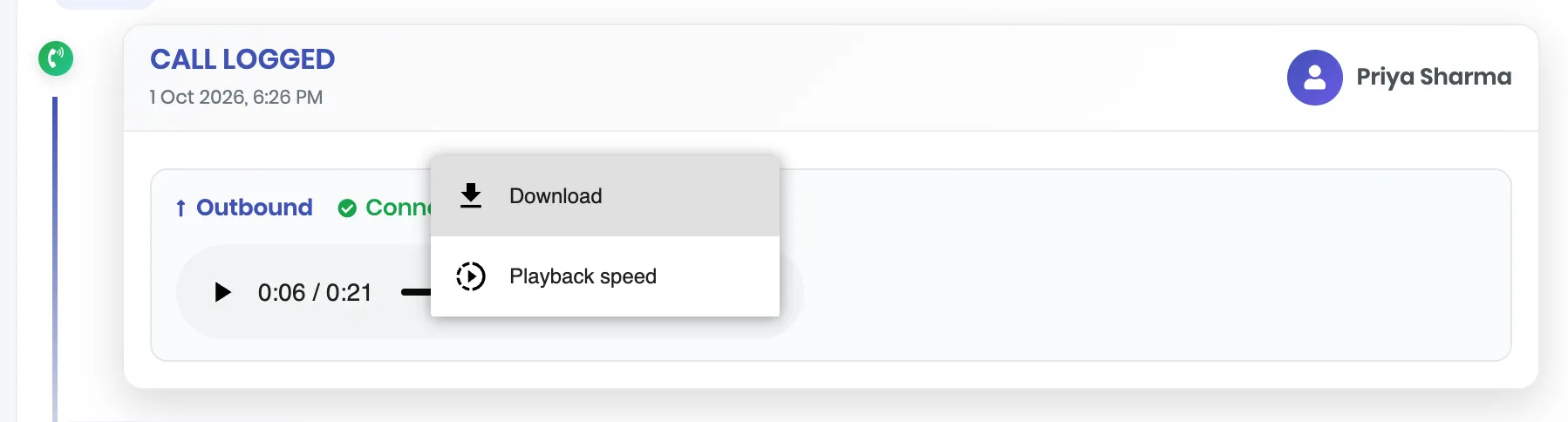
Who can listen: anyone in your company who can open that lead. Reps open the leads they own or created; admins open all of them. See Assign leads and control who sees them.
✅ Done when the recording plays from the lead on the dashboard.
A recording is often a few seconds shorter than the call. Phones start recording a moment after the call connects.
See every rep’s calls
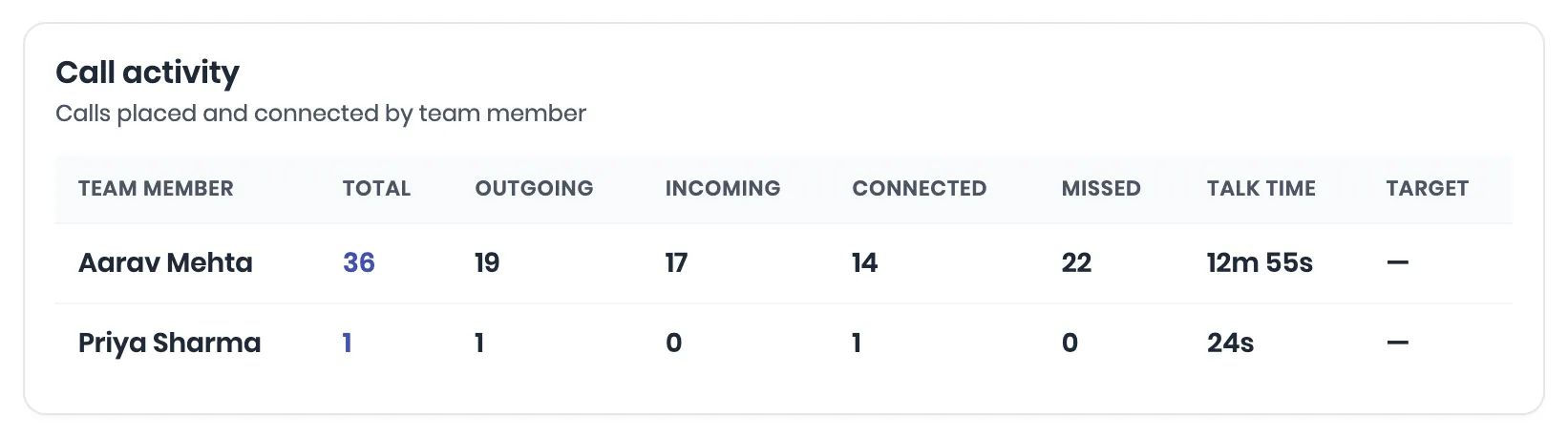
Open Reports & Analytics, then the Team tab. Call activity shows each person’s total, outgoing, incoming, connected and missed calls, and their talk time.
What gets a recording, and what does not
| Call | Recording? |
|---|---|
| A lead call that connected, on the work SIM | Yes |
| A missed call, or one that never connected | No. There is nothing to record |
| A call to a number that is not a lead | No. Calls to unknown numbers stay on the phone |
| A call on your personal SIM | No, unless you started it from a lead in ViveLead |
| A WhatsApp call | No. Only phone calls on the SIM |
| A call on an iPhone | No |
| A very long call | Files over 50 MB are not uploaded. On some phones that is a call of about 50 minutes |
If it does not work
| What you see | What it means | What to do |
|---|---|---|
| The call is on the lead, but no ▶ in the app and no Load recording on the dashboard | The phone did not record it, or ViveLead is linked to the wrong folder | Check step 1 with a test call. Then open Call recording setup and tap Scan now |
| No recordings found in this folder after Scan now | The folder is wrong, or the Phone app is not recording. It also says this when everything in the folder is already uploaded | Find the newest recording in the Files app and link that folder with Change folder |
| Action needed: re-pick your folder | Android no longer lets ViveLead read that folder | Tap Change folder and pick it again |
| N recordings could not be uploaded | The phone was offline when it tried | Tap Retry once the phone is online |
| Recordings stay inside the Phone app under Where is my recording folder? | The phone records with Google’s Phone app, which keeps recordings to itself | Calls still log on the lead. Recordings cannot sync from this phone |
| No Call recording setup under Profile | The phone is an iPhone, or the plan does not include recording | It is on Android, on Professional and Business |
| The call is not on the lead at all | The number is not a lead, or it went out on the other SIM | Check the number on the lead, and Profile, then Work SIM |
Quick answers
- Does ViveLead record my calls? No. Your phone records them. ViveLead uploads the file and links it to the lead.
- Is the recording deleted from my phone? No. ViveLead uploads a copy. The file stays where the Phone app saved it.
- Does it eat my data? A minute of recording is about 0.25 to 1 MB, depending on the phone.
- Calling from the dashboard instead? That is cloud calling on the Business plan, and it records differently. See Call a lead from ViveLead.
Related
Still stuck on this step?
Send us what you are seeing and we will sort it out with you.