Set up your first automation
Build a workflow that runs on its own, when a lead comes in or on a schedule over the leads a filter picks. Turn it on and check its run history.
An automation watches for something to happen, or runs at a time you set, and then acts on its own. This guide builds two. The first is the one most teams build first: a new lead comes in, it goes to a rep, and the lead gets a WhatsApp message without anyone touching it. The second runs every weekday morning and hands the leads nobody has worked for a week to someone else in the team. Each takes about ten minutes.
Before you start
- Automation is on the Professional plan and above. See pricing.
- Automations has to be in your left sidebar. If it is not there, your role does not have the workflow permission yet, and an admin can add it.
- For the WhatsApp step, a number must already be connected and you need an approved template. See Connect your WhatsApp number.
- To hand leads to a team, make the team first under Users > Teams.
- Nothing you build runs until you switch it on, so it is safe to experiment.
Steps
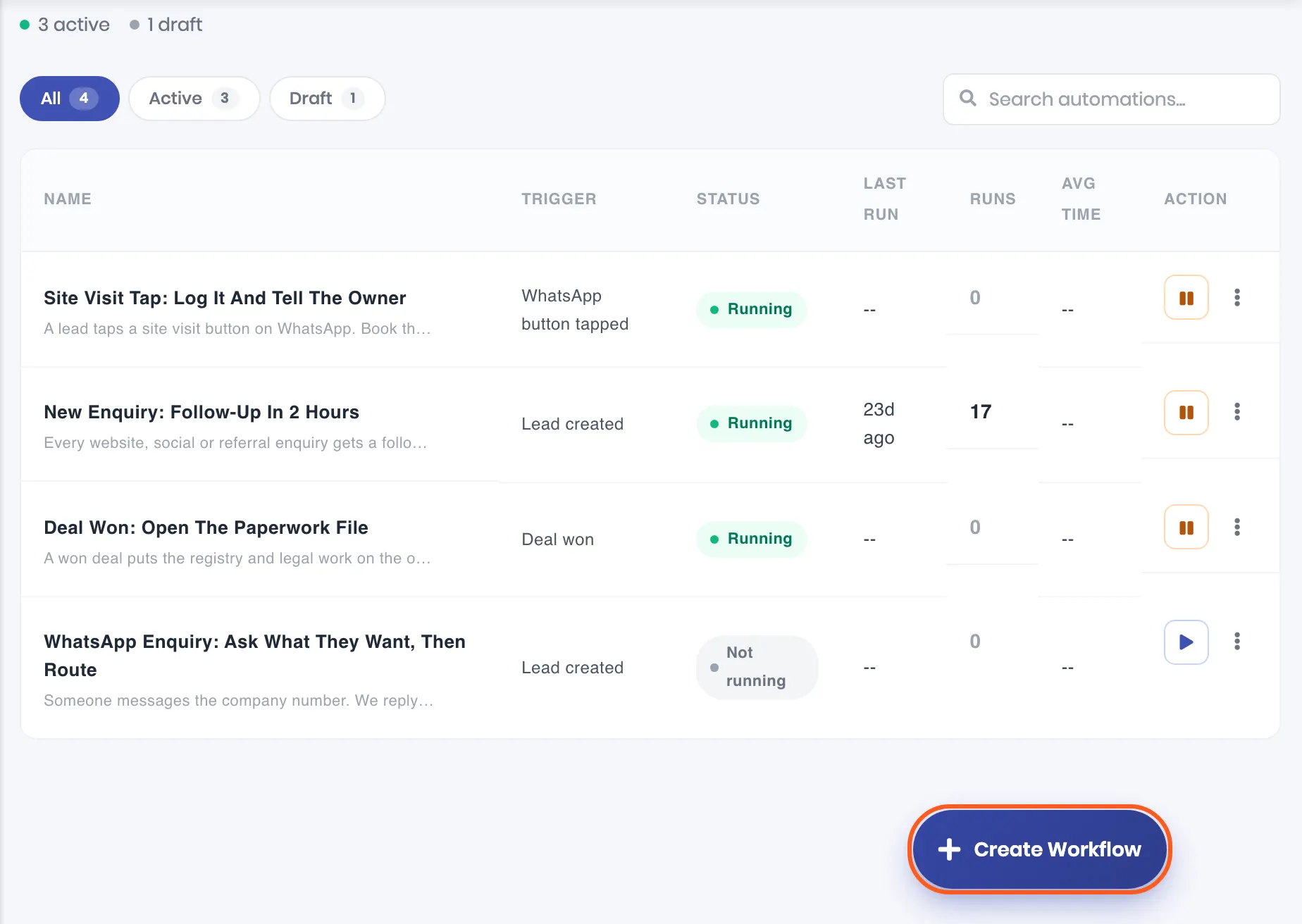
Open Automations in the left sidebar and click Create Workflow at the bottom right. Type a name over Untitled workflow at the top, one you will recognise in a list six months from now, such as “New lead: assign, greet”.
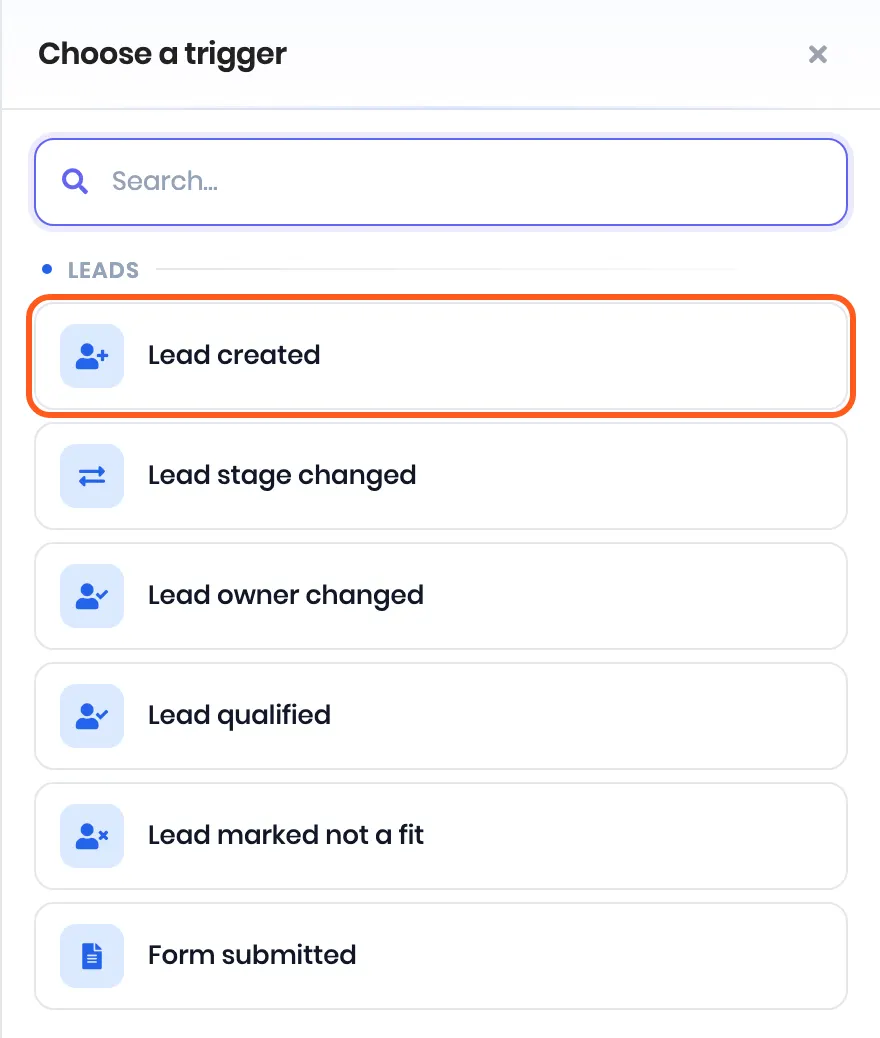
Click Choose a trigger on the canvas. The trigger is what starts the workflow. There are thirteen, in five groups:
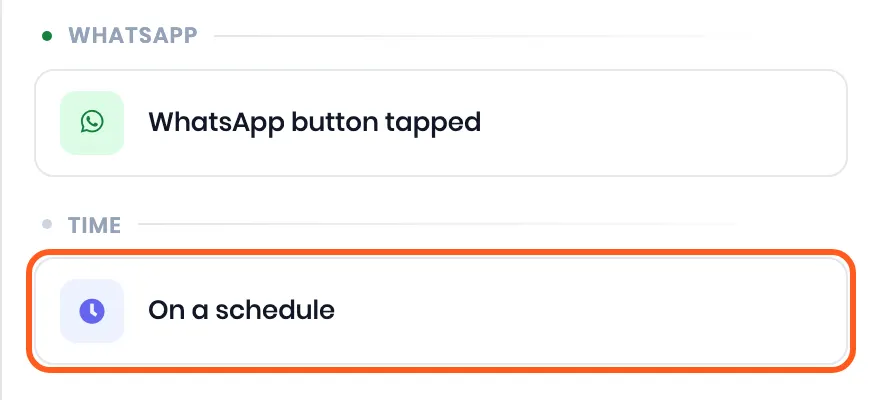
Group Triggers Leads Lead created, Lead stage changed, Lead owner changed, Lead qualified, Lead marked not a fit, Form submitted Deals Deal created, Deal stage changed, Deal won, Deal lost Tasks Task overdue WhatsApp WhatsApp button tapped, see Reply when a lead taps a WhatsApp button Time On a schedule, see Run it on a schedule below For this example pick Lead created.
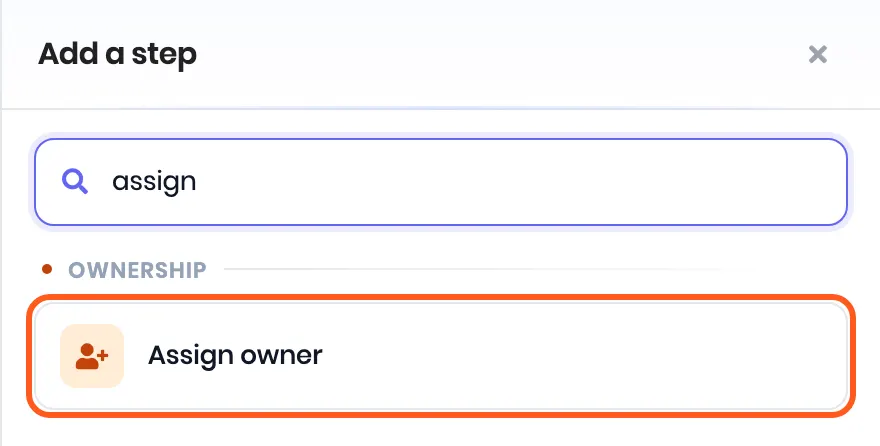
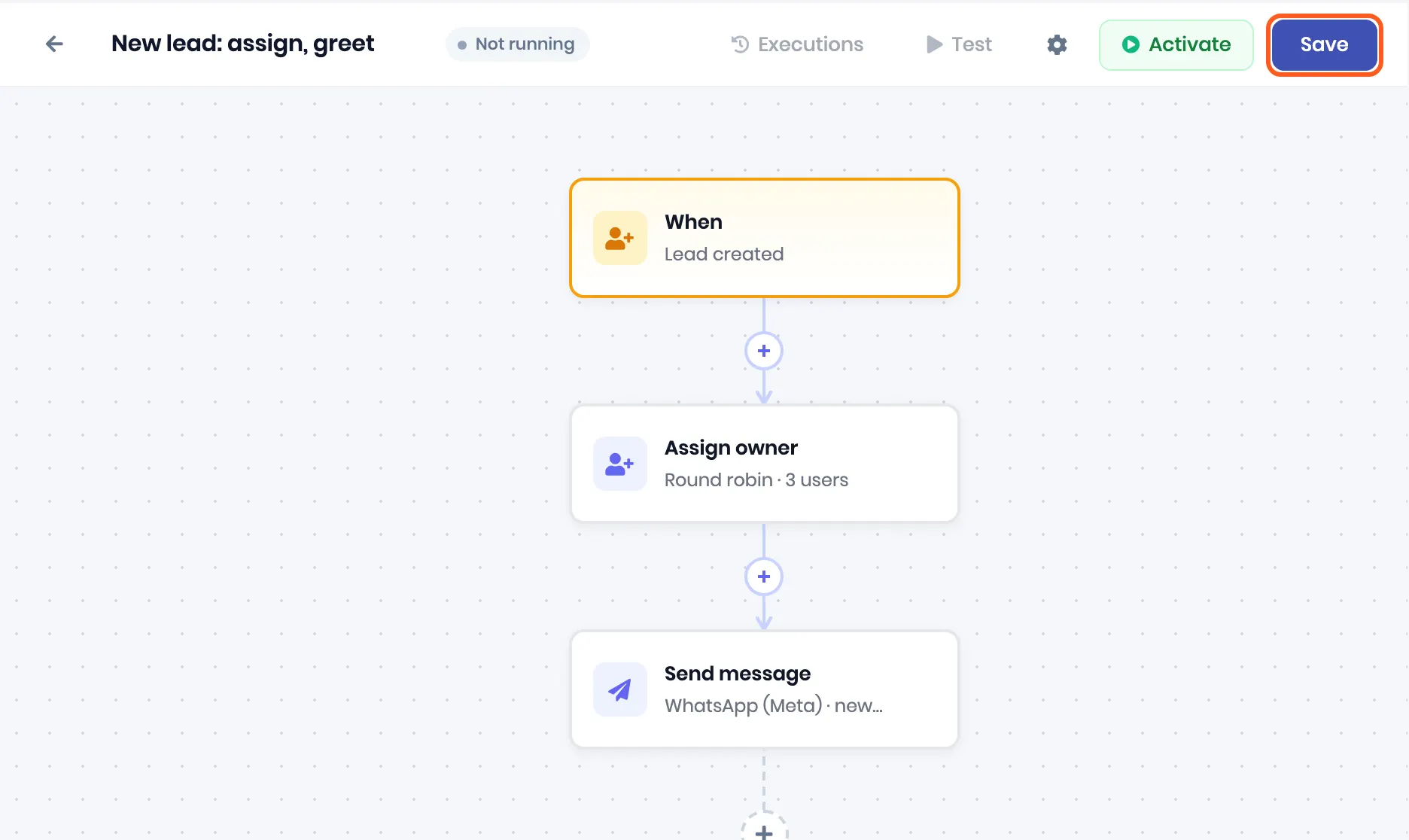
Click the + under the trigger. Add a step opens. Pick Assign owner, or type its name in the search box.
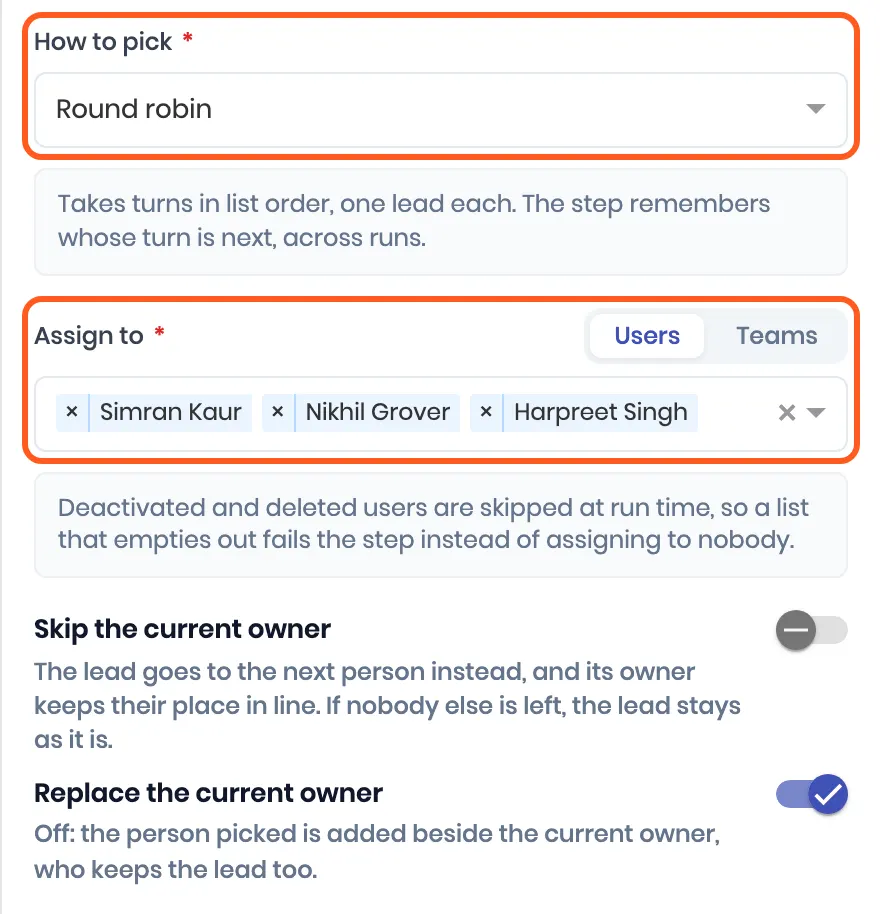
Then set it up:
- How to pick. Round robin takes turns in the list’s order, one lead each. Everyone picked gives every lead to all of them as co-owners, so pick one person to send everything to them.
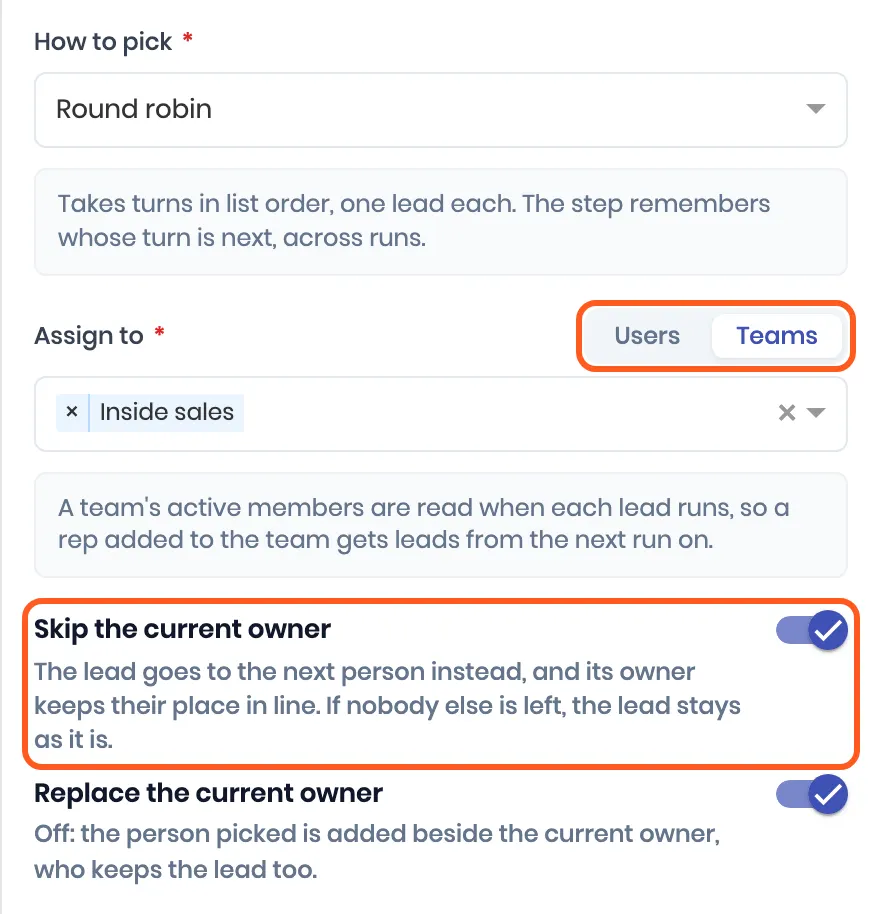
- Assign to. Switch between Users and Teams, then pick from the list. A team hands leads to its active members, read on every run, so someone added to the team joins in from the next lead.
- Skip the current owner is for reassigning rather than assigning fresh. It shows with round robin only.
- Replace the current owner is on by default. Turn it off and the person picked is added beside the current owner, who keeps the lead too.
Add a second step: Send message. Pick the WhatsApp tab, choose the number to send From, and pick an approved Template. If the template has a variable, type a value or click @ to insert one from the lead, such as their name. The preview shows the message as it will go out.
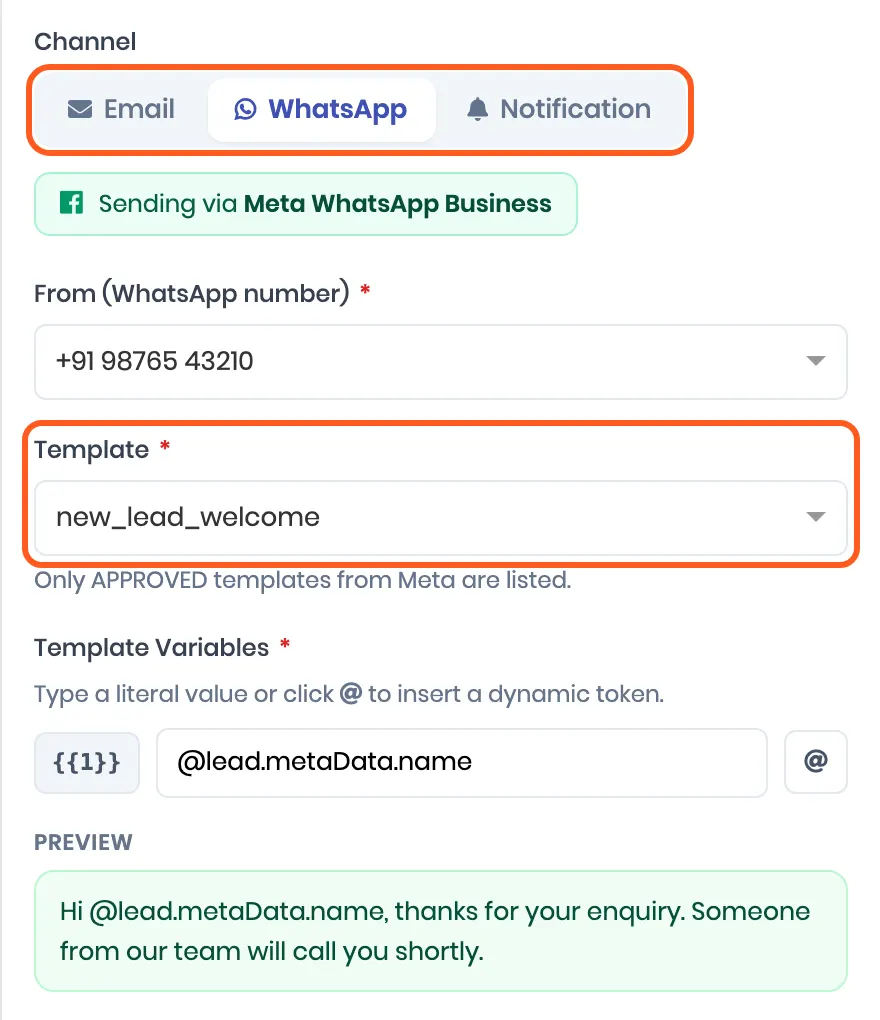
If the tab says Connect WhatsApp first, finish that setup and come back. The other two tabs are Email, which goes out through ViveLead’s own mail service so there is nothing to connect, and Notification, which is an in-app alert to your own team rather than to the lead.
Add a Wait or an If / else if you need one. Wait pauses the run for minutes, hours or days before the next step. If / else splits the path on a condition, so you can treat a lead from one city or one source differently.
Click Save at the top right. The toast reads Workflow created, and the workflow is stored as Not running.
Turn it on, or nothing happens
A saved workflow does nothing. This is the single most common reason an automation “is not working”.
Click Activate at the top of the builder, and the status next to the name changes from Not running to Running. In the Automations list, the play button on its row does the same (Turn on automation), and the toast reads Automation turned on.
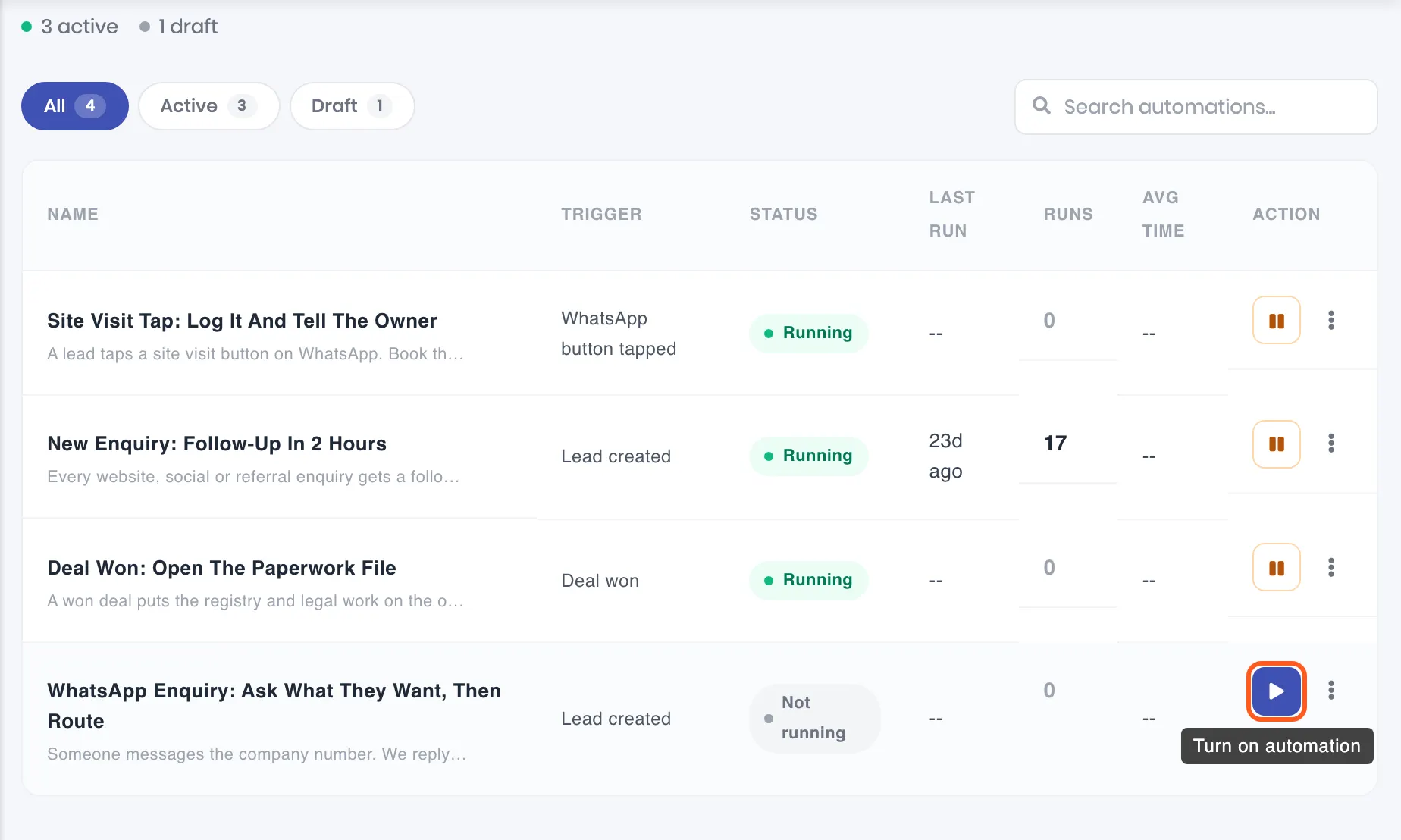
The same button pauses it later. Pausing also stops any run that is waiting in it, so turning it back on only acts on what happens next.
Check that it actually ran
Do not judge it from the list. Create one real test lead the way a lead normally arrives, then open the workflow’s row menu and choose Execution history.
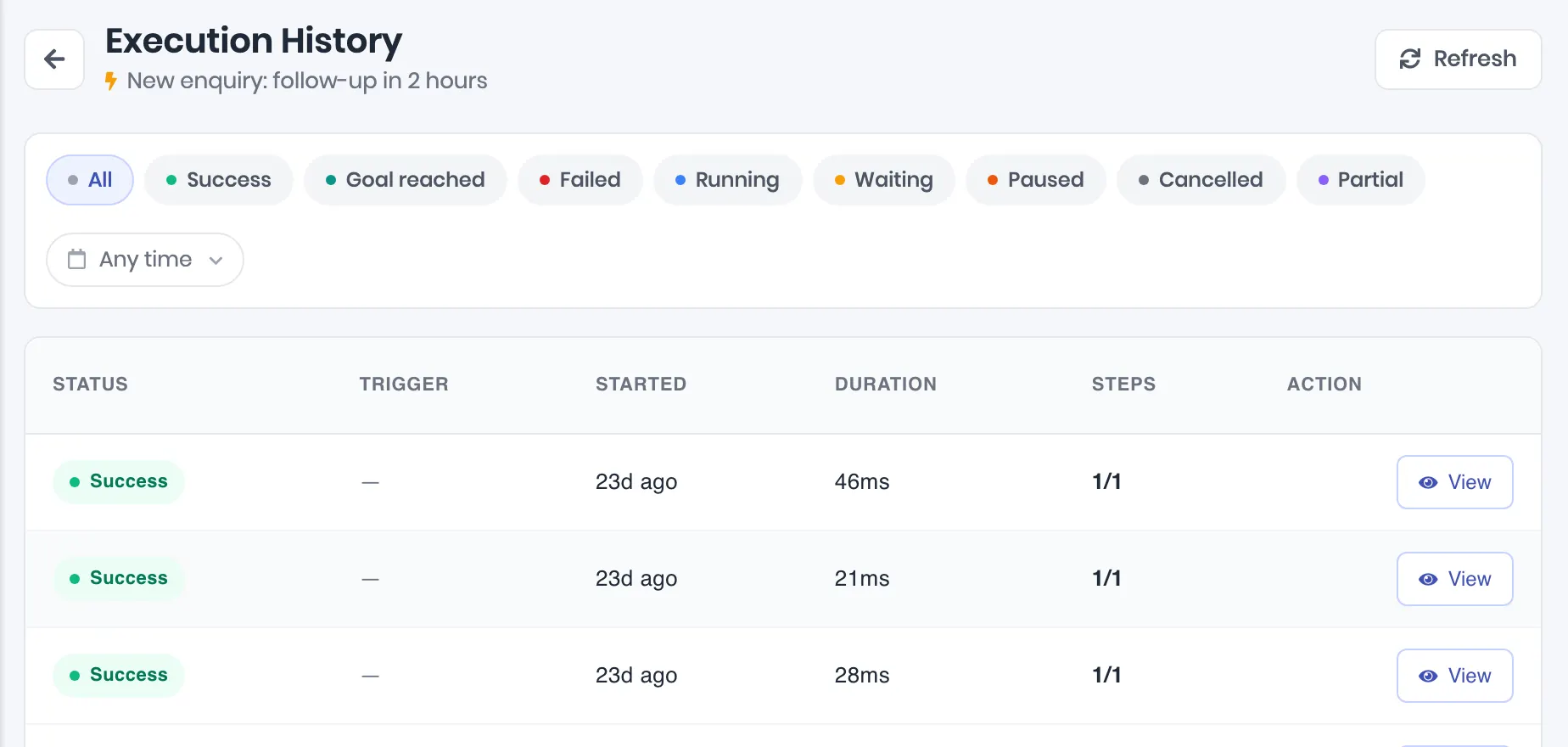
Every run appears there with when it started, how long it took, how many steps ran, and its status. Click View on a run to see each step one by one, including what the step sent and any error it hit.
What each run status means
| Status | What it means | What to do |
|---|---|---|
| Success | Every step ran | Nothing |
| Goal reached | Your exit condition matched, so the rest was skipped on purpose | Nothing |
| Running | Still going | Reload in a moment |
| Waiting | Sitting on a Wait step | Nothing. It resumes by itself at the time shown |
| Paused | The lead replied, and the workflow is set to stop when they do | Nothing resumes it. Take the conversation over by hand |
| Failed | A step could not complete | Open the run, read the step error, fix the step, save |
| Cancelled | The run was stopped before finishing | Open the run to see why |
A run that stopped early also shows the reason in plain words, such as Lead replied on WhatsApp, Goal condition matched or Lead was deleted.
Run it on a schedule
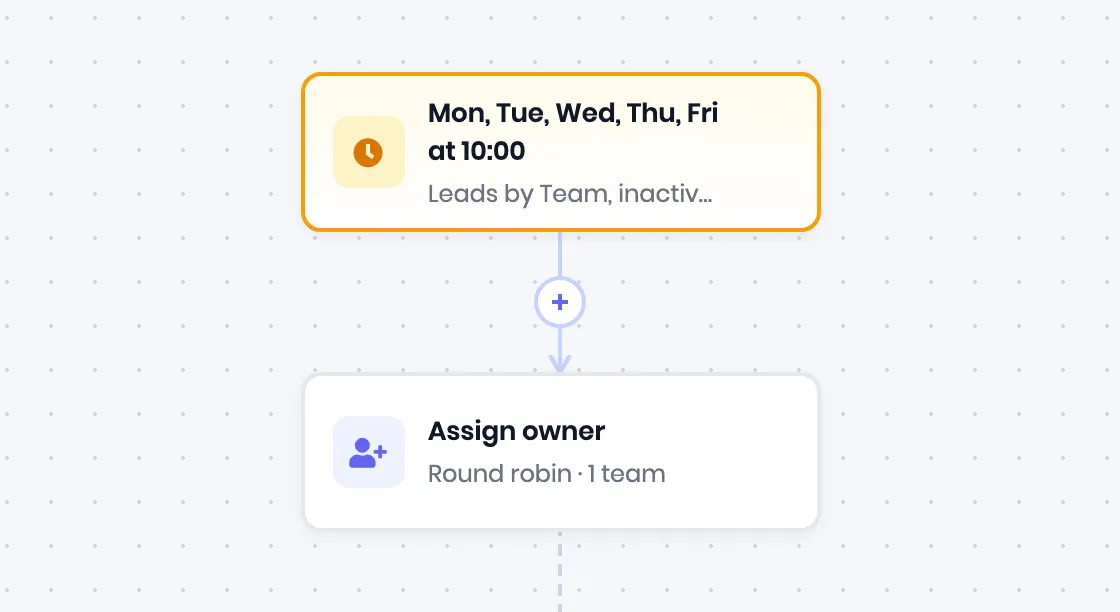
A schedule runs the workflow on the days and at the time you set, over the leads a filter picks. Every lead that matches at that moment goes through the steps on its own, one run per lead. The example below runs every weekday at 10:00, takes the leads of one team that nobody has worked for seven days, and hands each to someone else in that team.
Pick On a schedule, under Time in Choose a trigger.
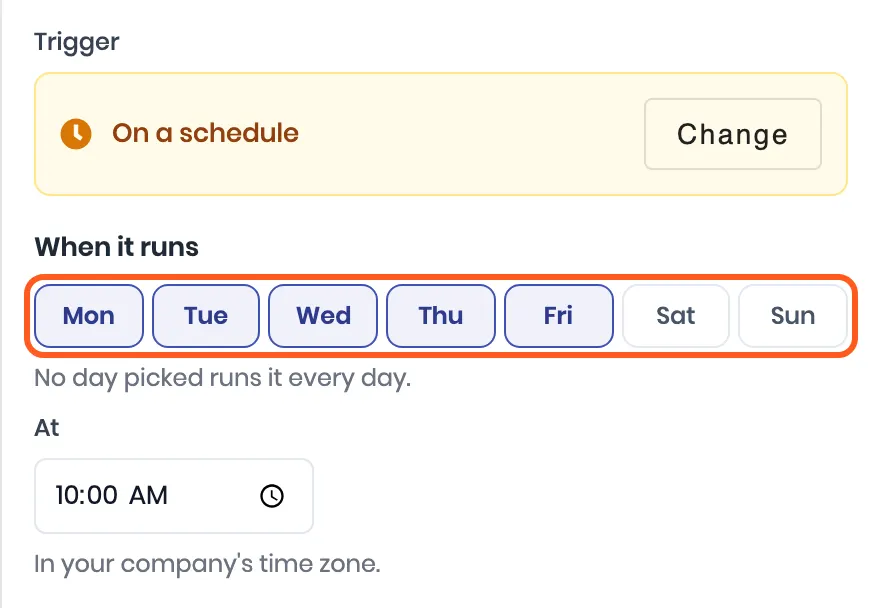
Pick the days and the time. With no day picked it runs every day. The time is in your company’s time zone.
Pick the leads it runs on. These are the Leads page’s filters: stage, sub-stage, source, status, owner, inactive days, never contacted, call status and your own fields. Owner is either some users or some teams. Switch it to Teams and pick the team. A team covers its leader and every member, deactivated members too, so leads still sitting with someone who has left are picked up. Set Inactive for at least to 7 days. The box at the bottom counts the leads that match right now.
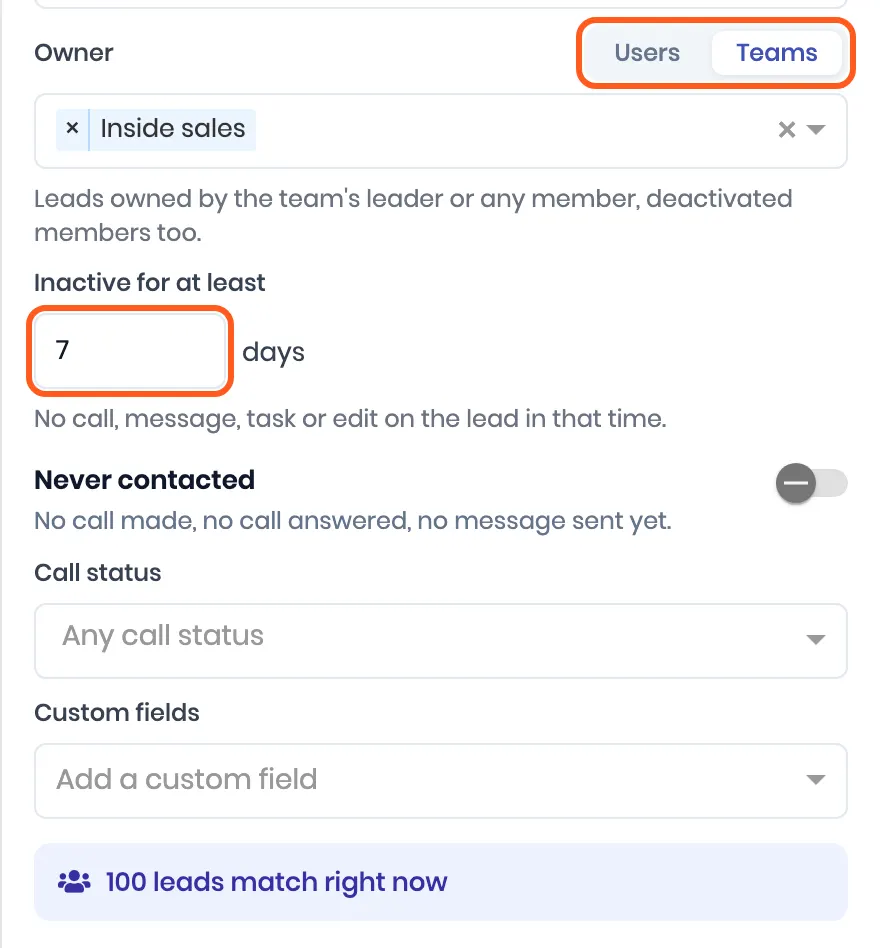
Pick at least one filter. Without one it would take every lead in your account, so Save refuses it.
Add Assign owner. Choose Round robin, switch Assign to to Teams and pick the same team. Turn on Skip the current owner, so a lead never lands back with the person it is moving away from. That person keeps their place in line for the next lead.
Save, then Activate. The card at the top of the canvas shows the days, the time and the filters.
What to expect once it runs:
- Every lead that matches runs, with no cap. Read the count before you turn it on, and narrow the filter if it is more than you meant.
- Each lead is its own run in Execution history, so one lead’s failed step does not stop the others.
- Moving a lead counts as activity. A lead reassigned today is not picked again until it has sat untouched for another seven days.
- A lead that starts to match later waits for the next run. The schedule does not watch the filter in between.
Two settings worth knowing
Both live under Workflow settings in the builder.
- Pause if the lead replies. Any inbound reply stops the whole run. Use it on nurture sequences so a lead who answers stops receiving scheduled messages. It does not restart on its own.
- Auto-exit when goal is met. Set a condition, such as the deal reaching Won, and the run ends the moment it is true instead of finishing the remaining steps.
Things that catch people out
- Task overdue is not instant. Overdue tasks are checked every fifteen minutes, so allow up to that long before the workflow fires.
- Round robin remembers whose turn is next for each step, so the rotation carries on across days and runs rather than restarting.
- A WhatsApp step needs a template, because the message starts the conversation rather than replying to one. A template that is not approved cannot be sent.
- The WhatsApp step needs a lead. A workflow triggered by a deal event still needs the lead behind it for a WhatsApp send to resolve a number.
Related
- Connect your WhatsApp number before building a WhatsApp step.
- Connect Facebook lead ads so ad leads arrive on their own and trip the Lead created trigger.
- Reply when a lead taps a WhatsApp button to act on the quick-reply buttons of your templates.
- Track deals through your pipeline, whose won and lost stages can start a workflow.
Still stuck on this step?
Send us what you are seeing and we will sort it out with you.