Just signed up? Set up ViveLead in 30 minutes
Six steps in the order that works: your team's role, your team, the app on their phones, your leads, one lead worked start to finish, then WhatsApp.
You signed up. Now get your team working leads. Six steps, in this order, about 30 minutes. Do the dashboard steps on a laptop at dashboard.vivelead.com. Your team does step 3 on their own phones.
Your setup
1 of 7 done
1. Check your team’s role
Your team should not be admins. An admin sees and changes everything, billing included.
Open Users, then Roles. New accounts come with a SALES EXECUTIVE role ready for your team. It works its own leads, follow-ups, deals and WhatsApp chats, and it cannot delete, export, reassign leads or change settings. To change what it can do, click the pencil on its card, change the ticks under Access Control, and click Save.
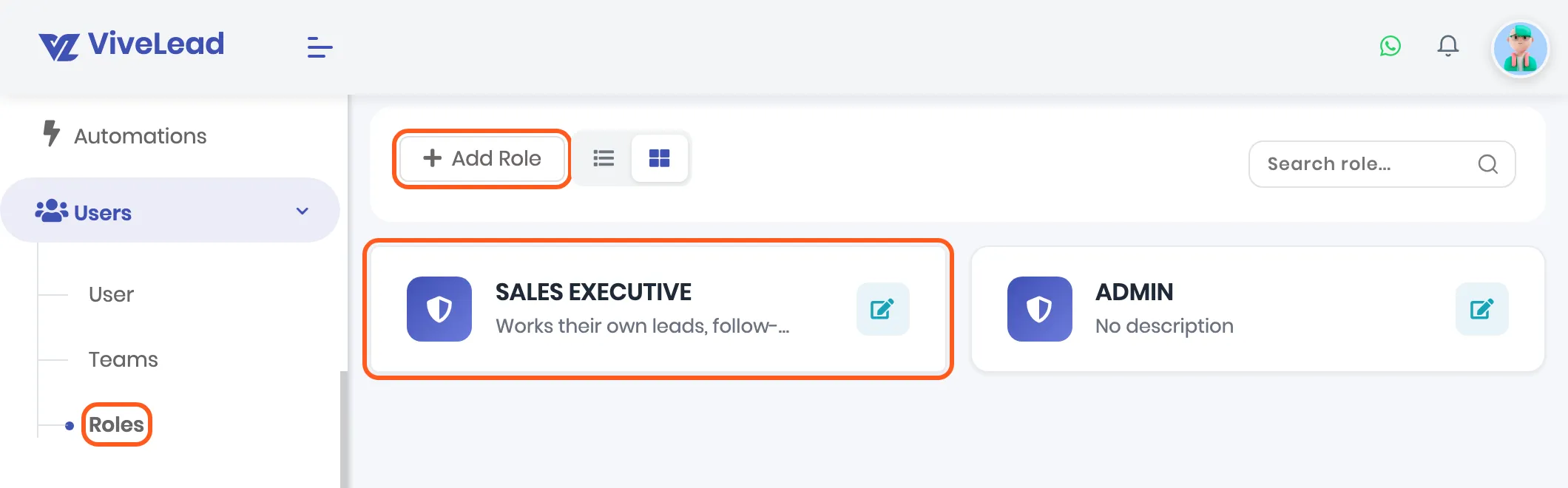
✅ Done when the Roles page shows the role your team will use.
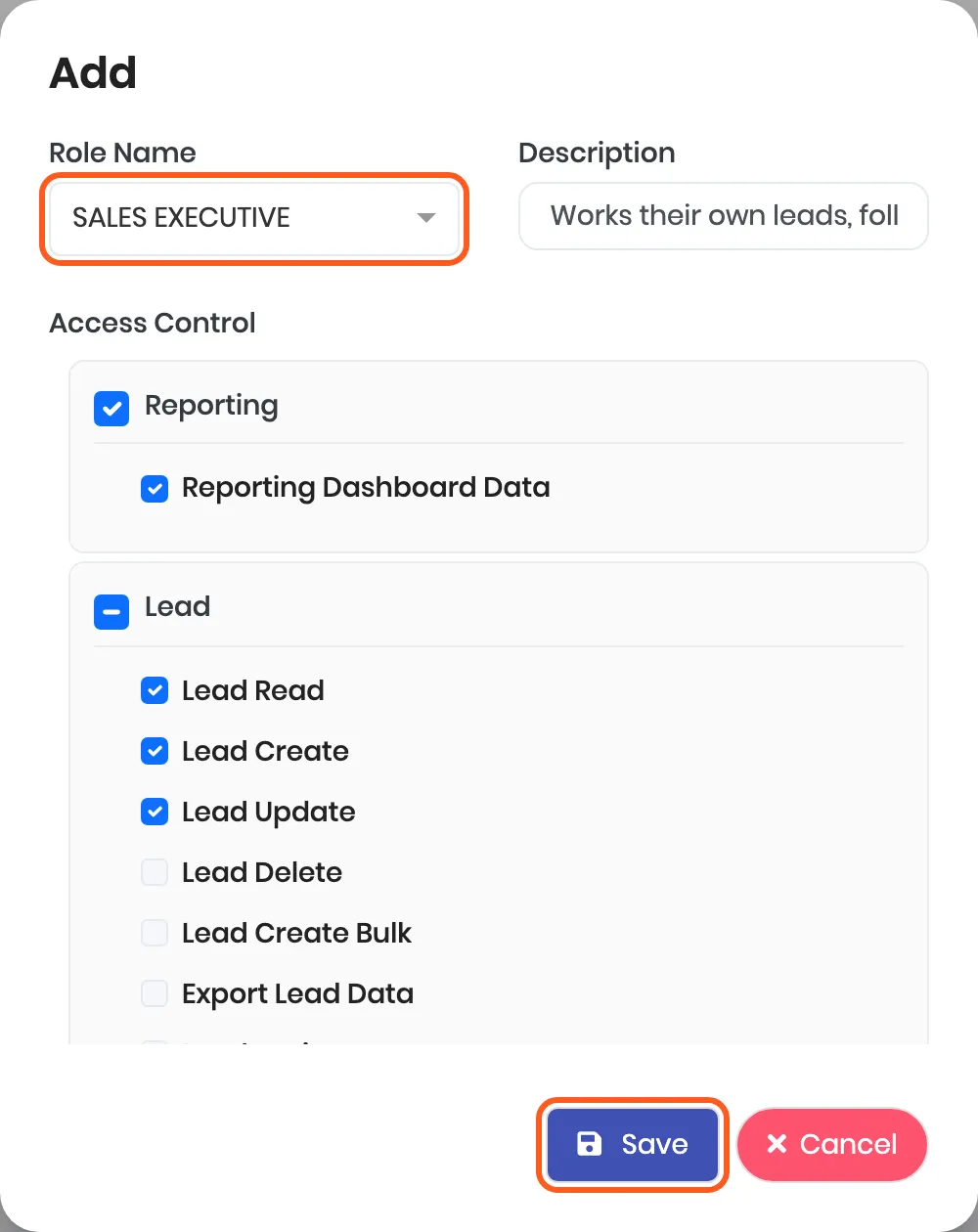
⚠️ Only ADMIN on the Roles page? Your account is from before SALES EXECUTIVE came built in, and the Role list will offer nothing else when you add someone. Click Add Role, pick SALES EXECUTIVE under Role Name, tick what they can do under Access Control, and click Save.
2. Add your team
Open Users, then User, and click Add. Fill in Name, Email, Phone Number, Role and Password, then click Create User.
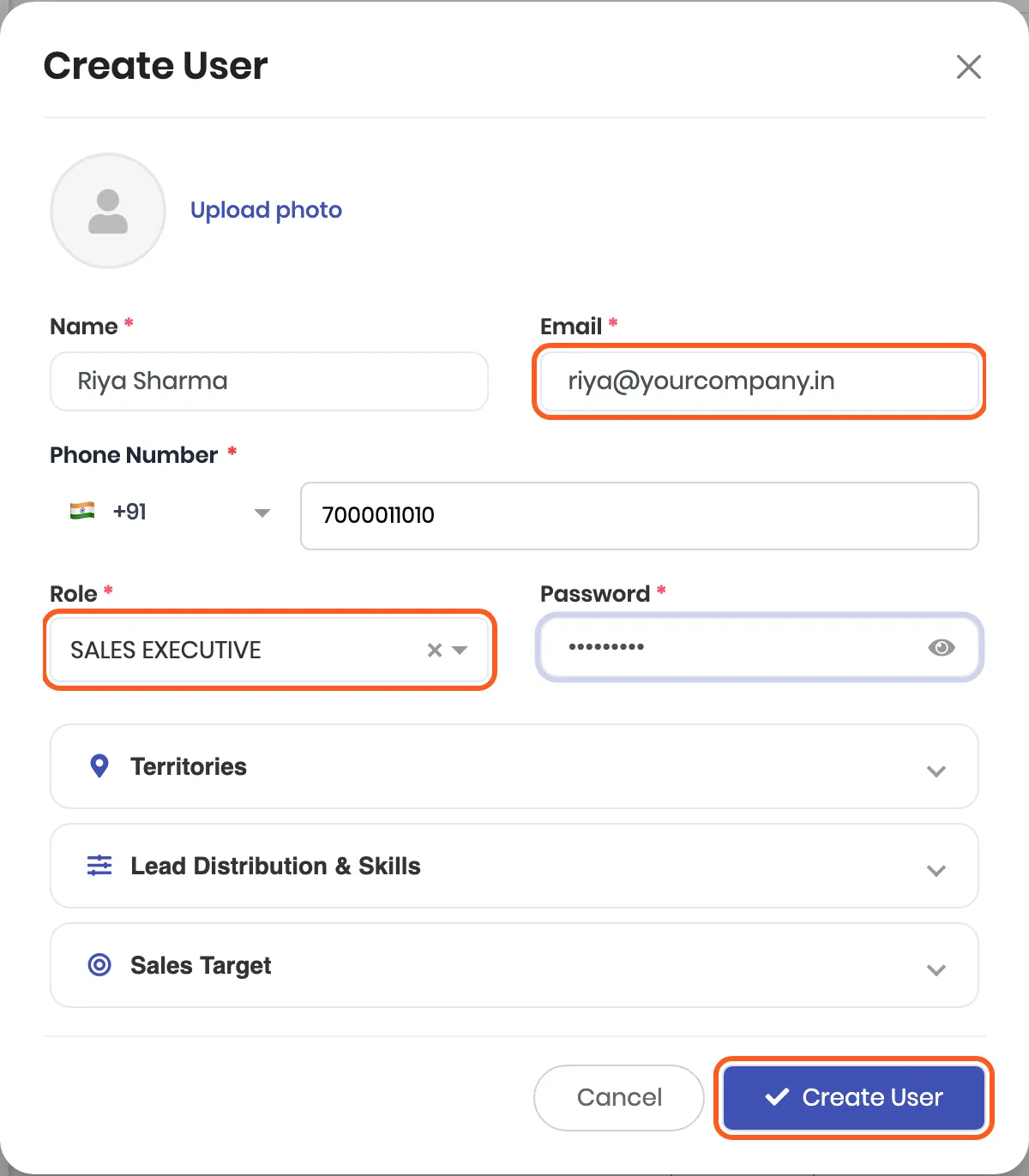
Two things trip people up here:
- The email is their login, so check it letter by letter.
riya@yourcompany.inandriya@yourcompany.comare two different people to us. A typo here means they cannot sign in, and nothing warns you. - We do not send them anything. No invite email goes out. Send each person their email, their password and the app link from step 3 yourself. WhatsApp is fine.
Every plan starts at 3 users, you included. For more, see Manage your plan, seats and invoices.
✅ Done when everyone is on the User list with the right email and the right role.
3. Get everyone on the app
Each person installs the app on their own phone:
- Android: ViveLead on Google Play
- iPhone: ViveLead on the App Store
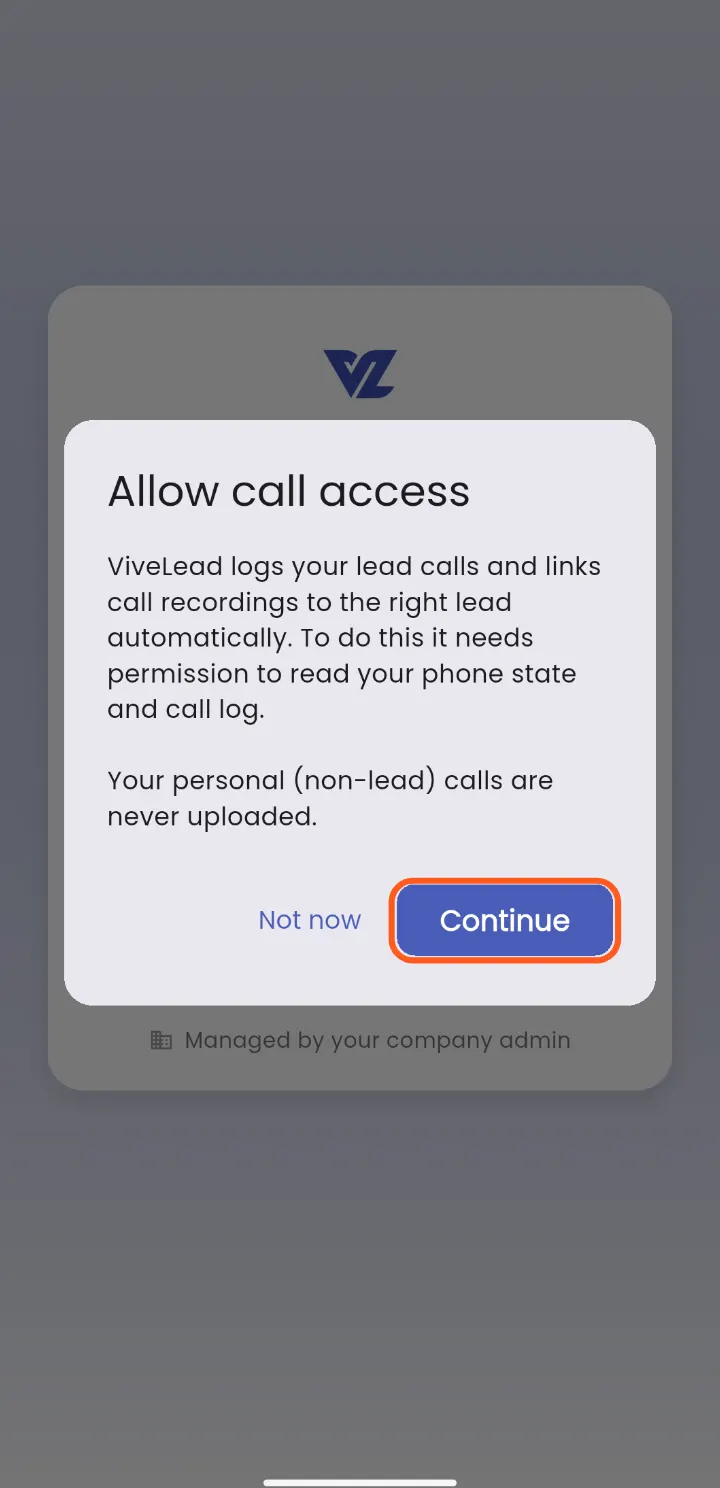
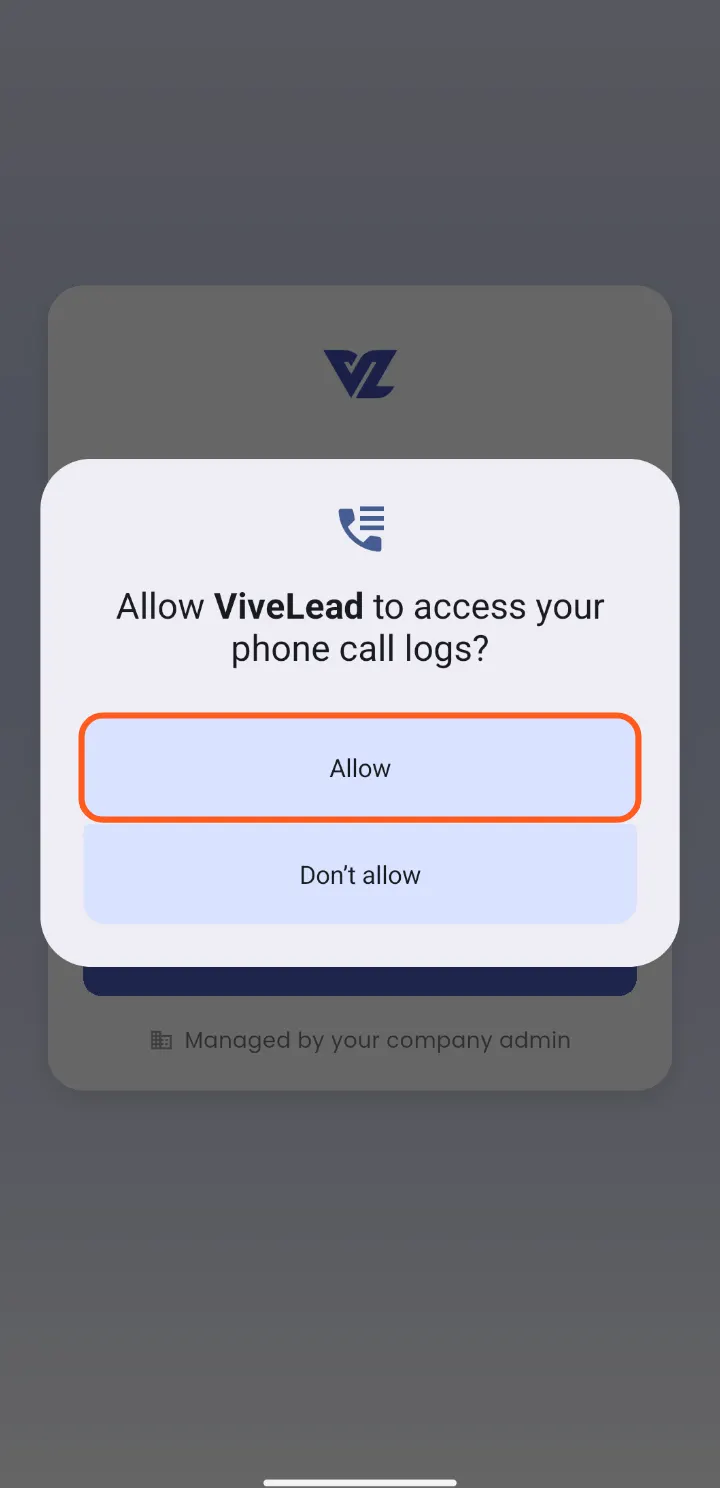
On Android the app asks for call access before anything else. Tap Continue, then Allow on each prompt. That is what lets their lead calls log themselves. Calls to numbers that are not leads are never uploaded.
Two SIMs in the phone? The app asks Which SIM do you use for work? Calls on the other SIM stay on the phone. It can be changed later under Profile, then Work SIM.
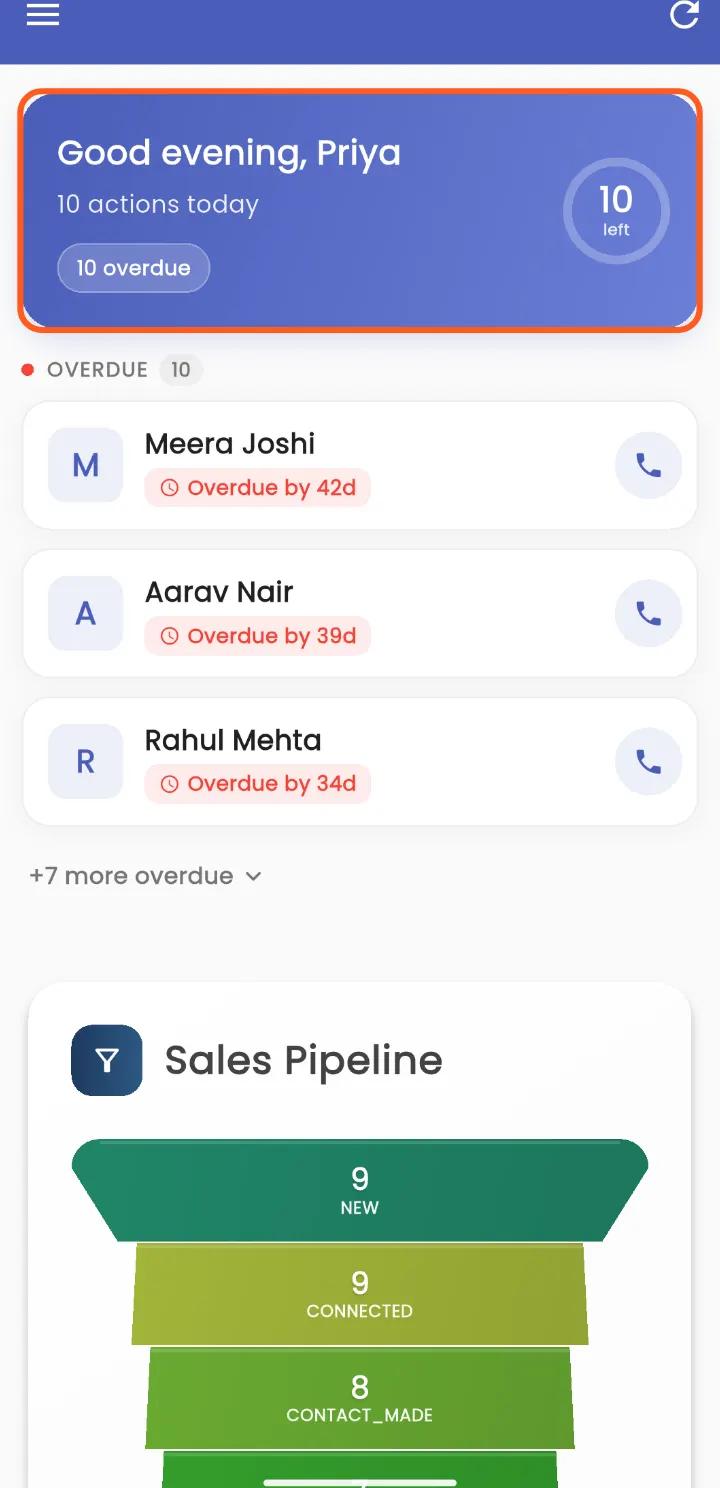
✅ Done when the app opens on Good morning, Good afternoon or Good evening with their own name.
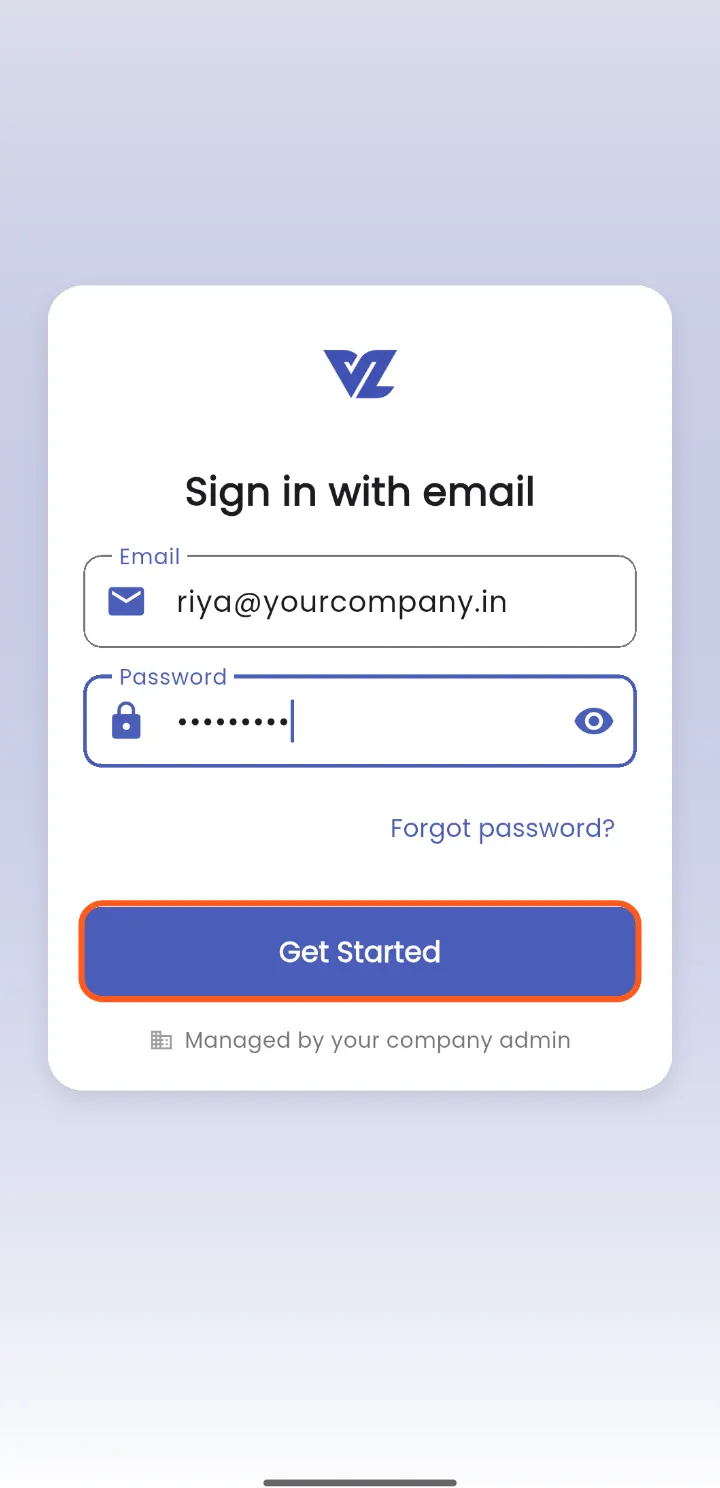
⚠️ The app won’t sign them in? Check the email first. Open Users, then User, and compare it letter by letter with what they typed. To tell a wrong email from a wrong password, try the same details at dashboard.vivelead.com: it says User not found when the email is wrong and Invalid credentials when the password is.
🔑 Forgot the password? At dashboard.vivelead.com, click Forgot password?, enter the email, click Send verification code, then enter the code from the email with a new password and click Reset password. The code works for 5 minutes.
4. Bring in your leads
Pick the one that matches where your leads are today:
| Your leads are | Do this |
|---|---|
| In a spreadsheet | Import your leads from a CSV or Excel file |
| Coming from Facebook or Instagram ads | Connect Facebook lead ads, Professional plan |
| Coming from your website | Put a lead form on your website |
| Not anywhere yet | Open Leads, click Add and type one in |
Then give every lead an owner. Your team only sees the leads they own or created, so a lead with no owner shows up for you and nobody else. See Assign leads and control who sees them.

✅ Done when your leads are on the Leads page and each one has an owner.
5. Work one lead, start to finish
Do this once with one rep, so the whole team sees what done looks like.
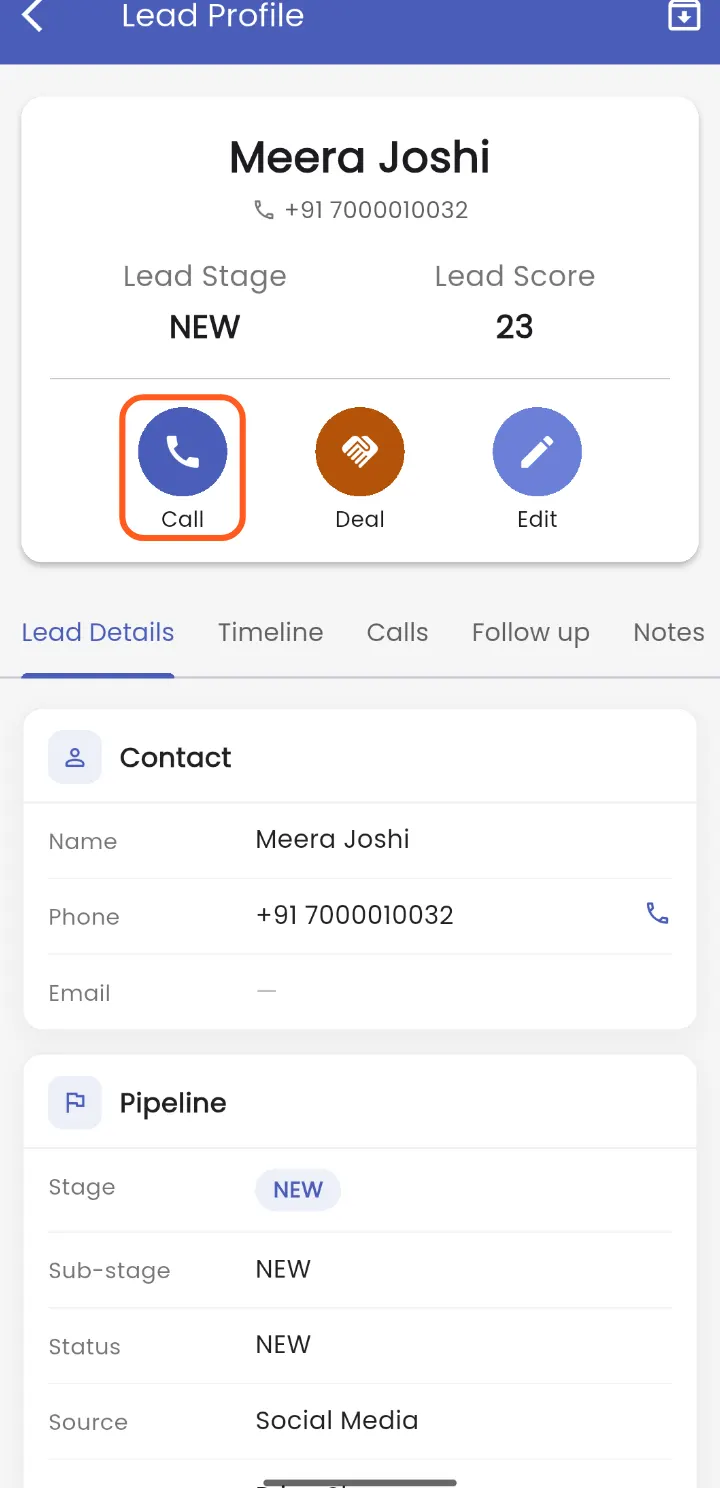
- Open a lead on the app and tap Call. The call goes out from their own SIM, so there is no per-minute bill from us.
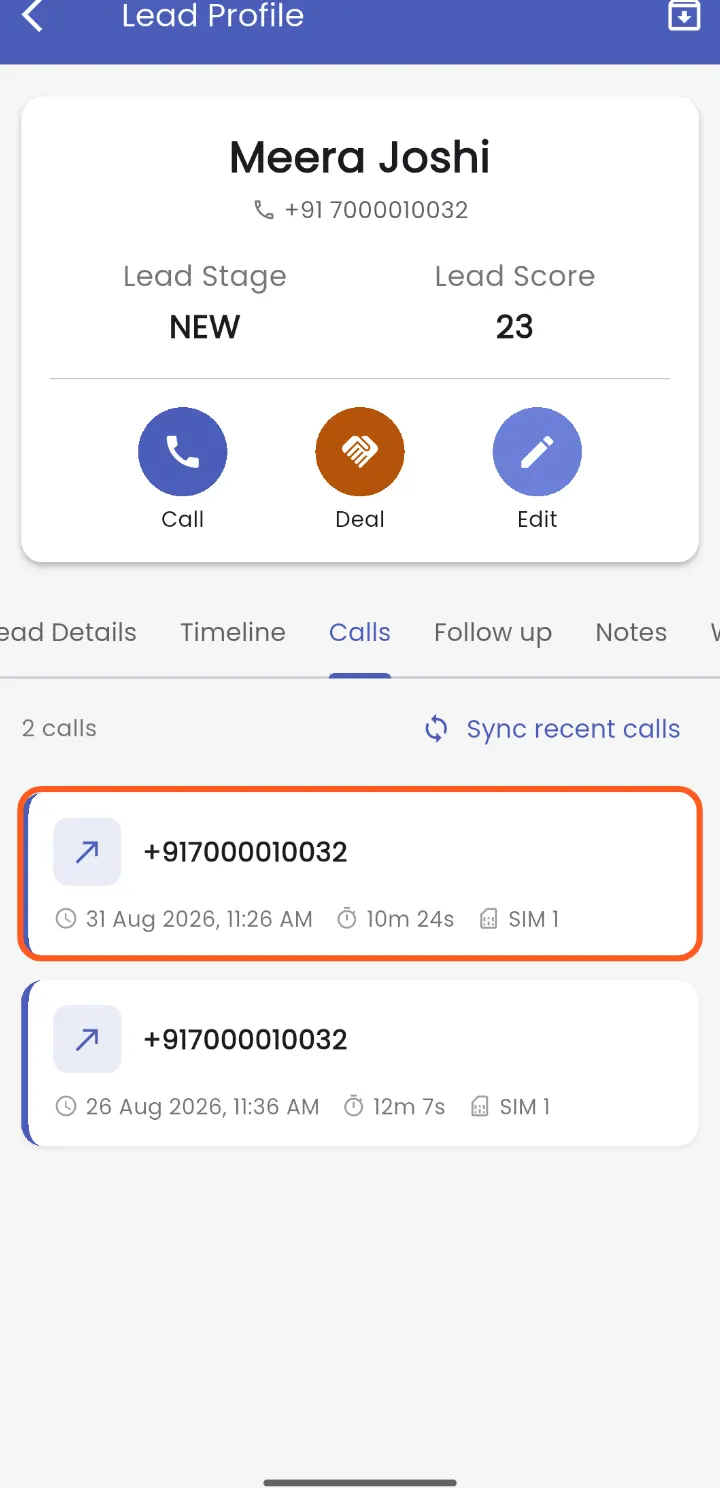
- Hang up. The call logs itself on the lead, with how long it lasted, under Calls. Android only.
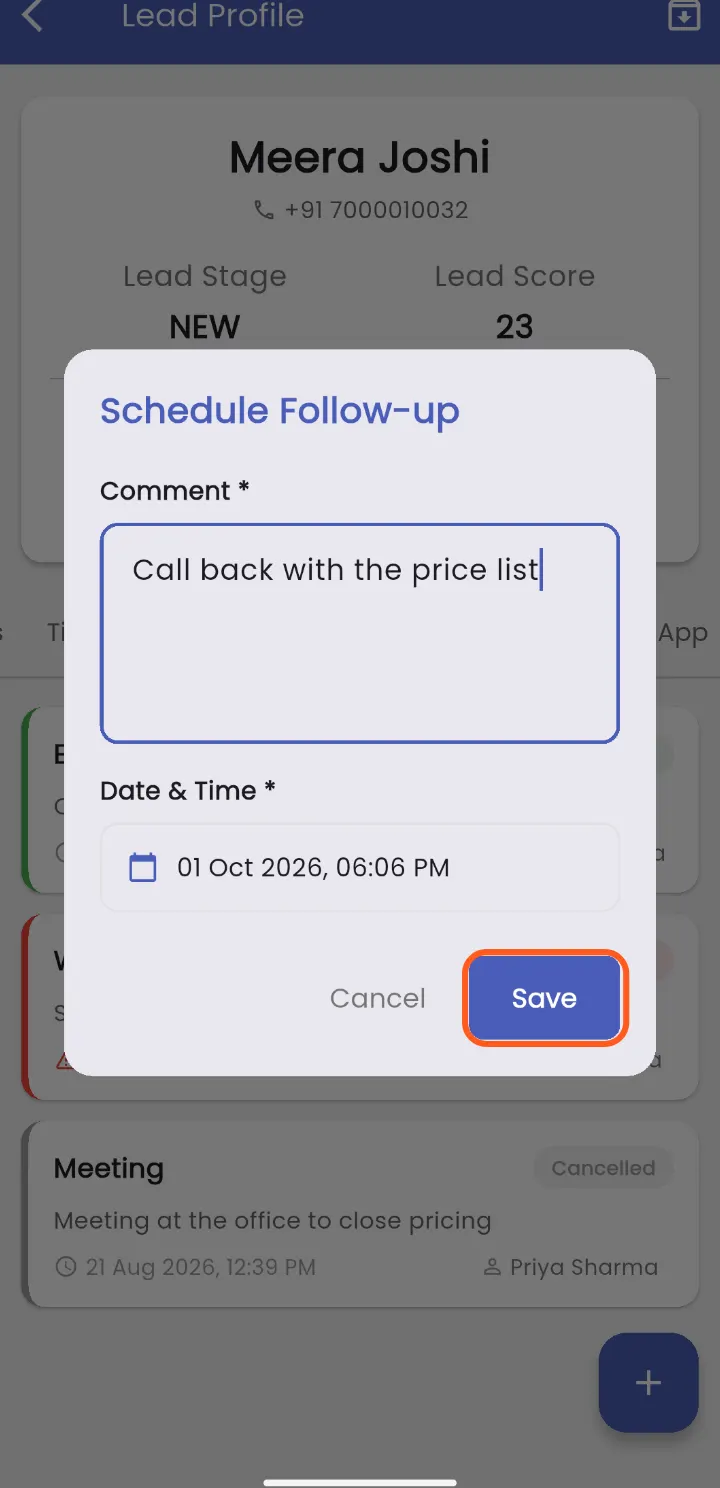
- Set the next step. Tap Follow up, then +, write what happens next, pick the Date & Time and tap Save.
On Professional and above, ViveLead reminds the owner before the follow-up is due, when it is due, and if it goes overdue, by app notification and email.
✅ Done when the lead shows the call under Calls and the follow-up under Follow up.
⚠️ The call didn’t show up? It logs only when the number belongs to a lead. Open the app again after the call, or tap Sync recent calls on the lead’s Calls tab. On a phone with two SIMs, check Profile, then Work SIM.
6. Connect your WhatsApp number
Professional plan and above. Connect the number your business already uses, and your team replies to leads from ViveLead on that number. The SALES EXECUTIVE role can already chat on it. Follow Connect your WhatsApp number.
✅ Done when the WhatsApp card under Marketing, then Integrations, shows your number.
Related
Still stuck on this step?
Send us what you are seeing and we will sort it out with you.